Beginner
Creating your InvolveXR account
Set up your account with the invite email from your administrator. It's the first step before your virtual training.
01Before you start
You only do this once. After that, you sign in with your email and password.
You'll need
- Your invite email from Lumeto (your administrator arranges this)
- The institutional email address the invite was sent to
- A computer with a web browser
02Find your invite email
1
Check your inbox
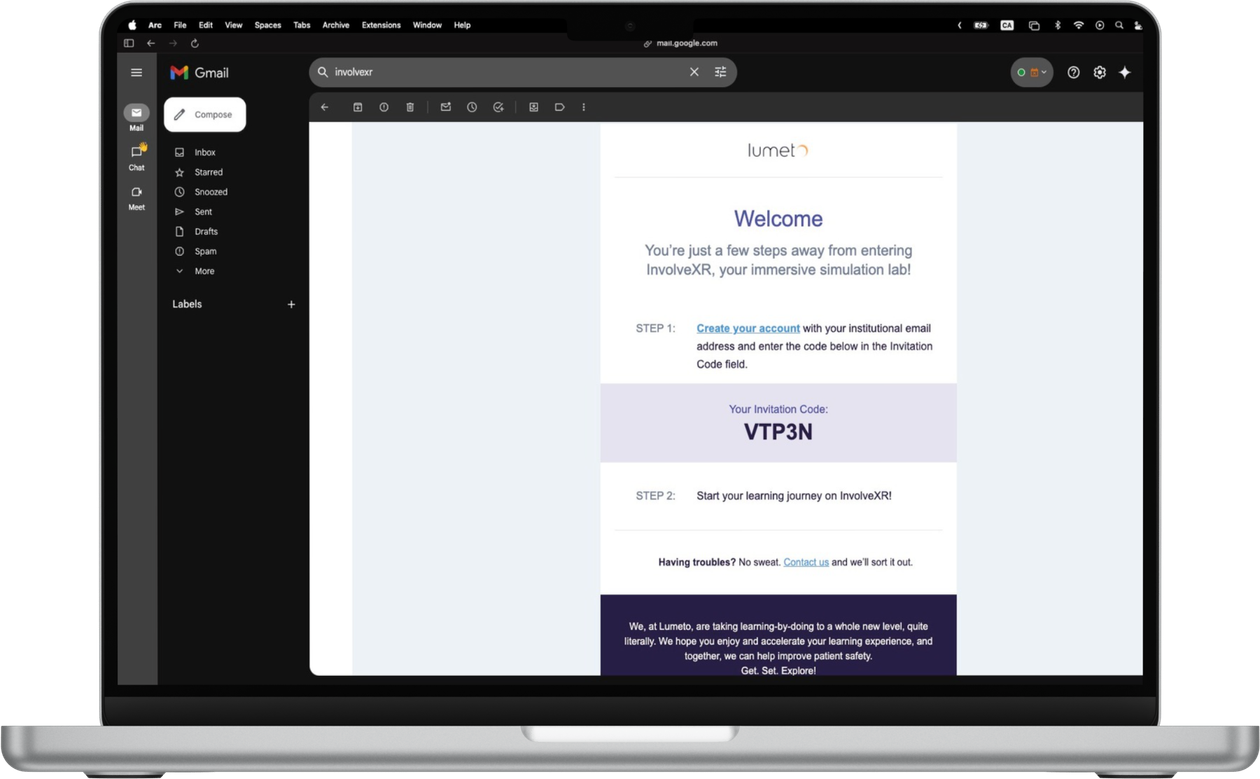
Look for a welcome email from Lumeto. It has two things you need: a Create your account link and your invitation code.
Can't find it? Check your spam or junk folder, or search your inbox for "InvolveXR".
Opened it on your phone?
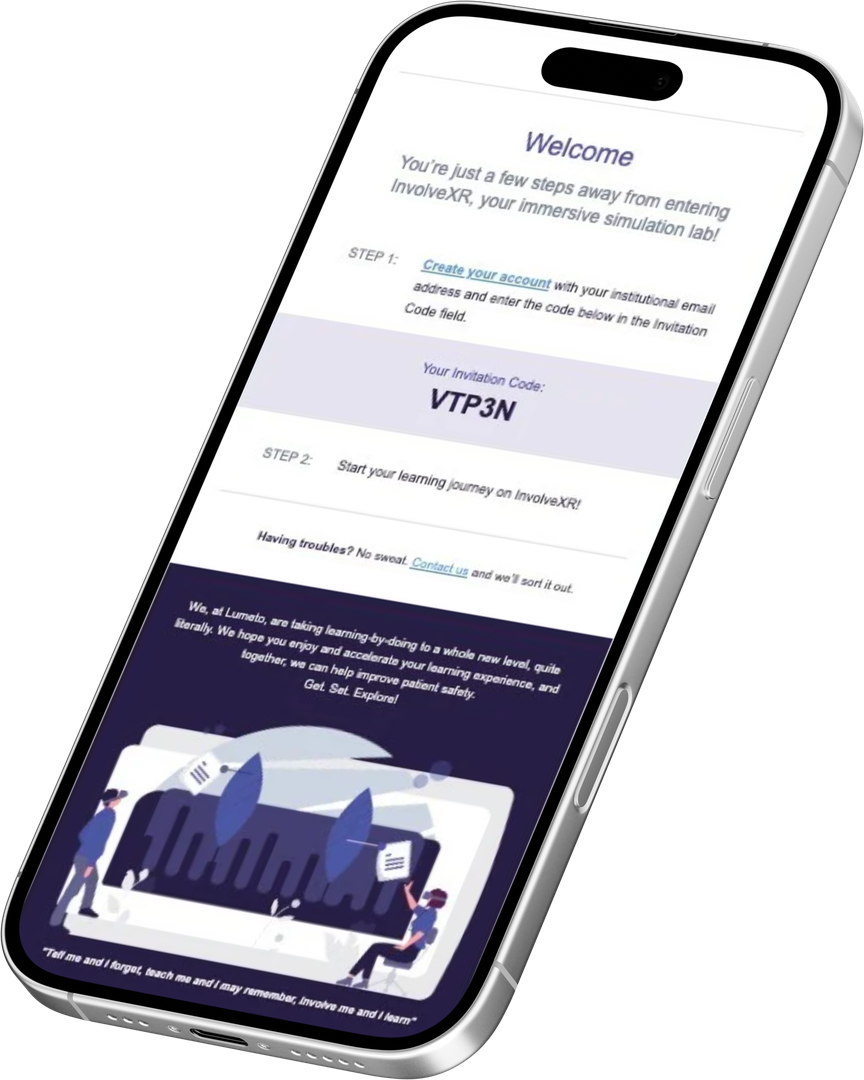
That's fine. The email looks the same on mobile. Note your invitation code, then create your account on a computer.
⚠️
No invite email?
If it isn't in your inbox or spam, contact your administrator. They can resend it or check that it went to the right address.
03Create your account
Watch the walkthrough, or follow the steps below.
2
Open the Web Portal
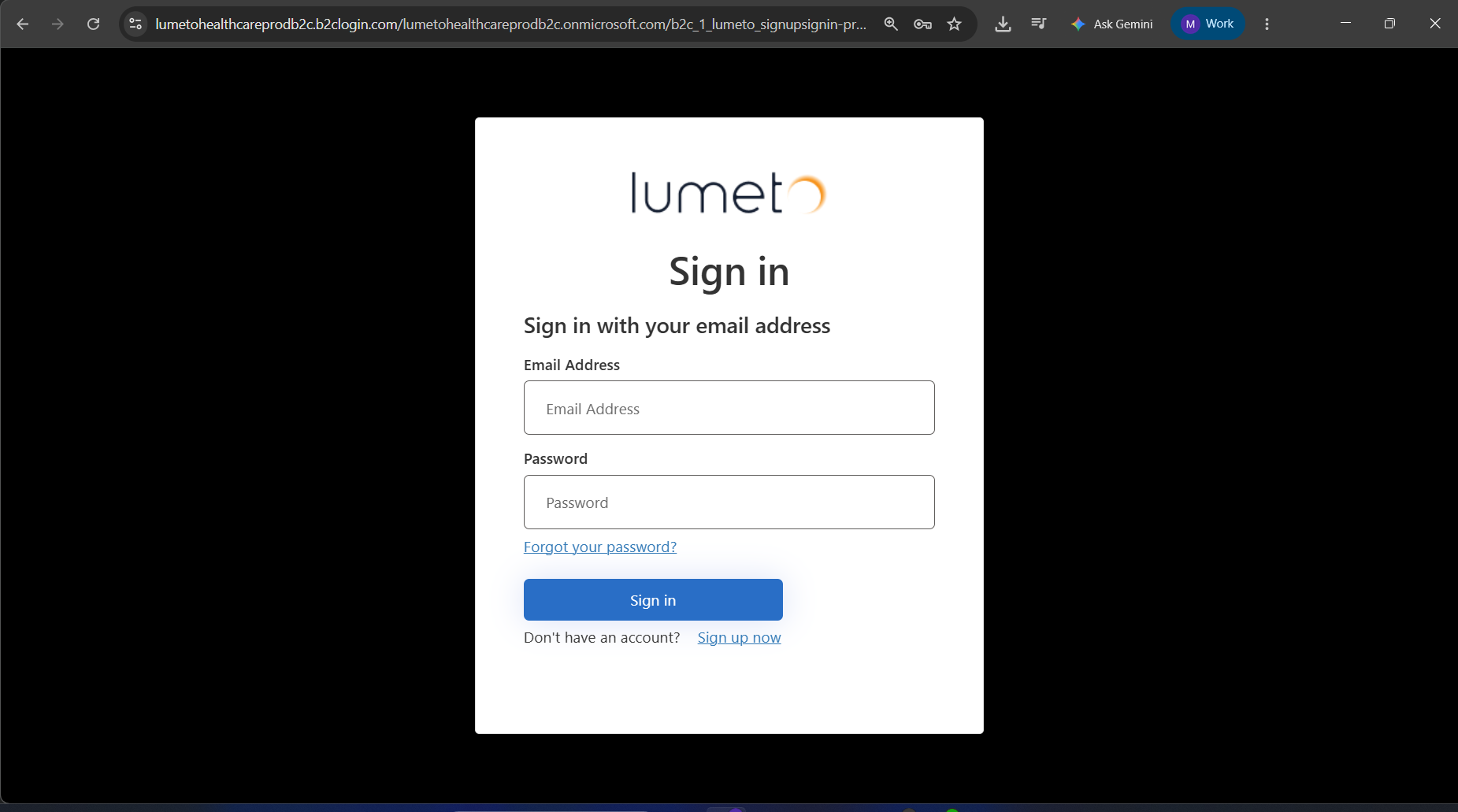
Click Create your account in the email, or go to healthcare.lumeto.com. Then click Sign up now .
3
Enter your details and code
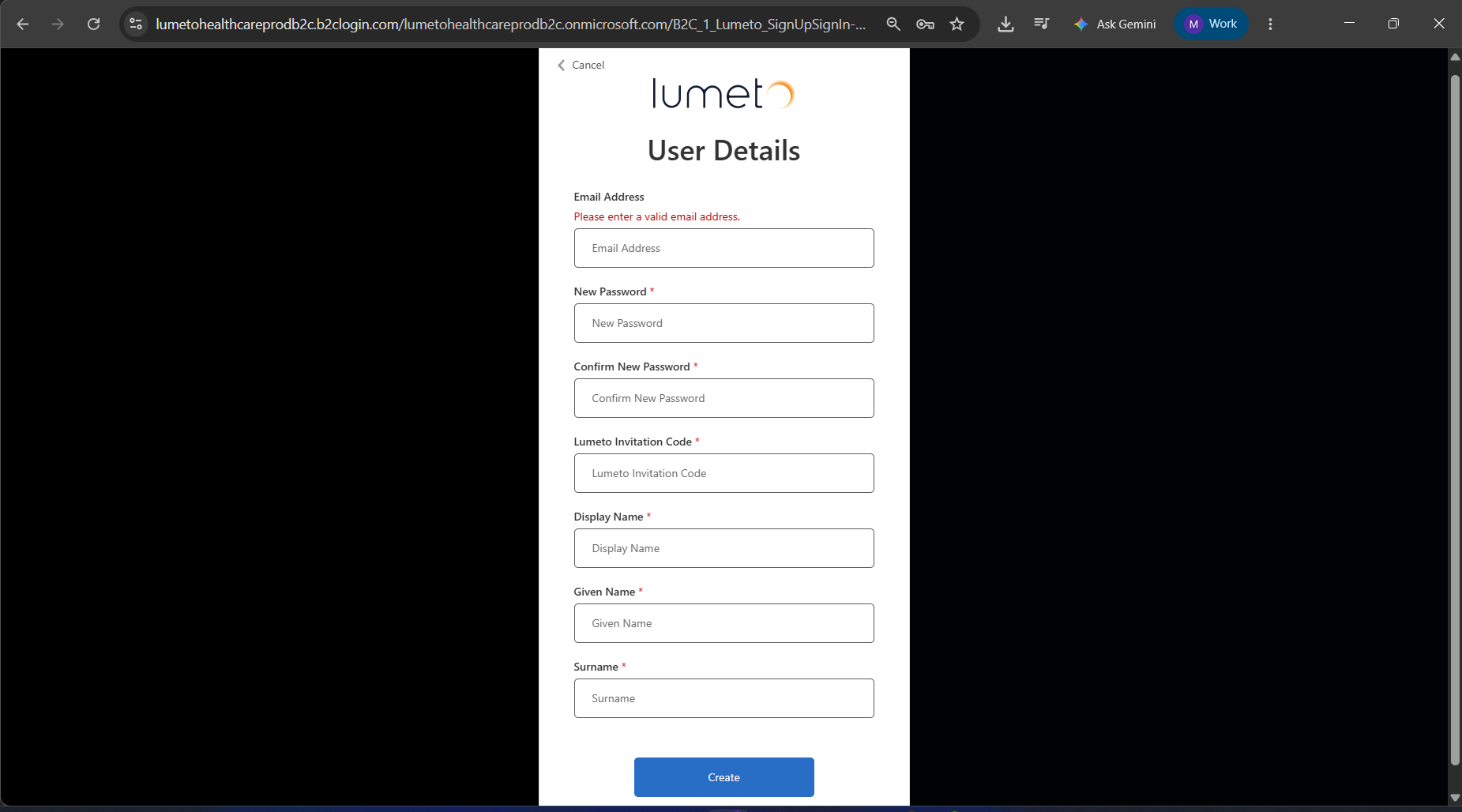
Use the same institutional email address the invite was sent to. Set a password you'll remember.
Type or paste the code from your email into the Invitation Code field.
You're done when
- Your account is created
- You can sign in at healthcare.lumeto.com with your email and password
💡
Tip
Bookmark healthcare.lumeto.com. It's where you'll sign in from now on.
04Having trouble?
I can't find the invite email
Most commonCheck spam or junk, then search for "InvolveXR". Still missing? Ask your administrator to resend it.
My invitation code isn't accepted
Copy and paste the code straight from the email to avoid typos. Make sure you're signing up with the email address the invite was sent to.
I signed up with the wrong email
Contact your administrator. Your account needs to match the address on your invite.
ℹ️
Still stuck?
Use the Contact us link at the bottom of your invite email and our team will sort it out.
🎉
Your account is ready.
Next, get into your first session.
-1.png?width=150&height=66&name=Lumeto%20Logo%20Reverse%20Transparent%20(1)-1.png)