Start here
Introduction to Lumeto and InvolveXR
Learn what InvolveXR is, how the three apps work together, and which one fits your setup.
01The three core apps
InvolveXR is Lumeto's AI-powered clinical simulation platform. Learners practise clinical scenarios, from patient assessment to emergency response. You can use any combination of the three apps below.
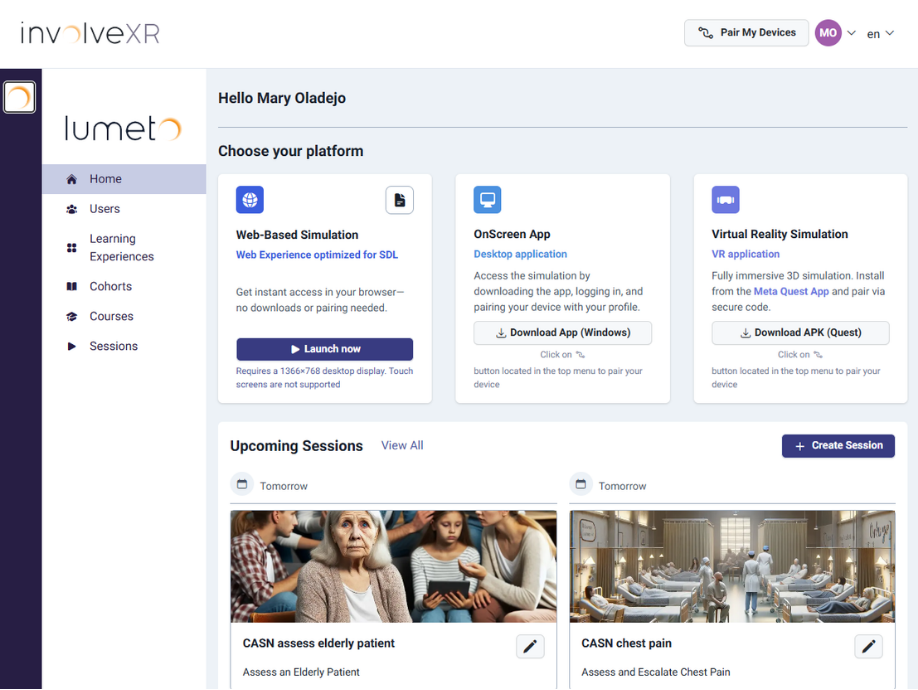
Web Portal
healthcare.lumeto.com
Your command centre. Trainers and administrators use it to create sessions, build rosters, assign cases, and review performance data. It runs in a browser, with nothing to download.
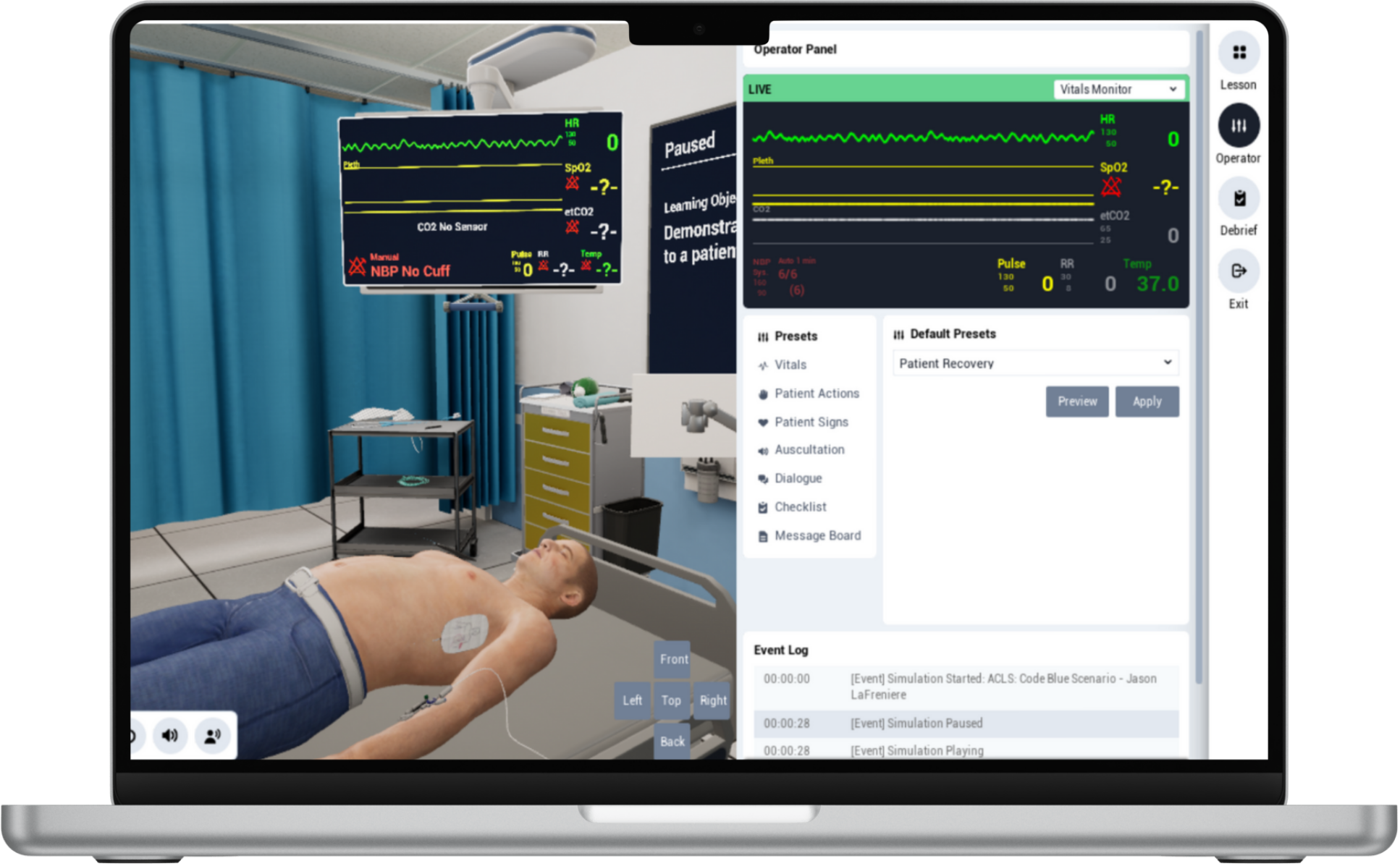
Desktop app (OnScreen)
The full InvolveXR simulation on a laptop or desktop, with no headset needed. Learners move through a 3D patient environment with a mouse and keyboard.
A good fit for remote learners, or facilities without VR hardware yet.
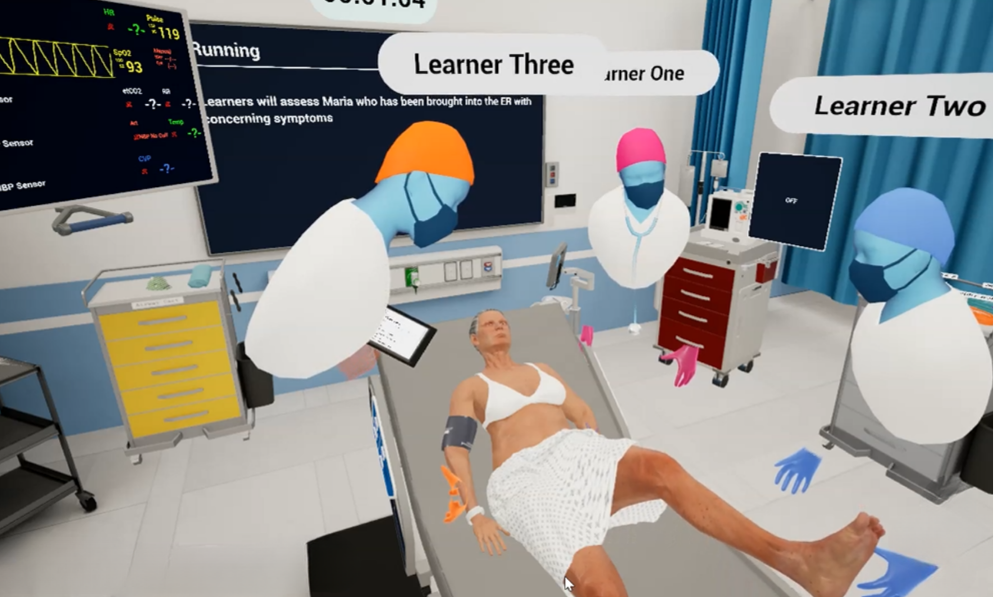
VR app (Meta Quest)
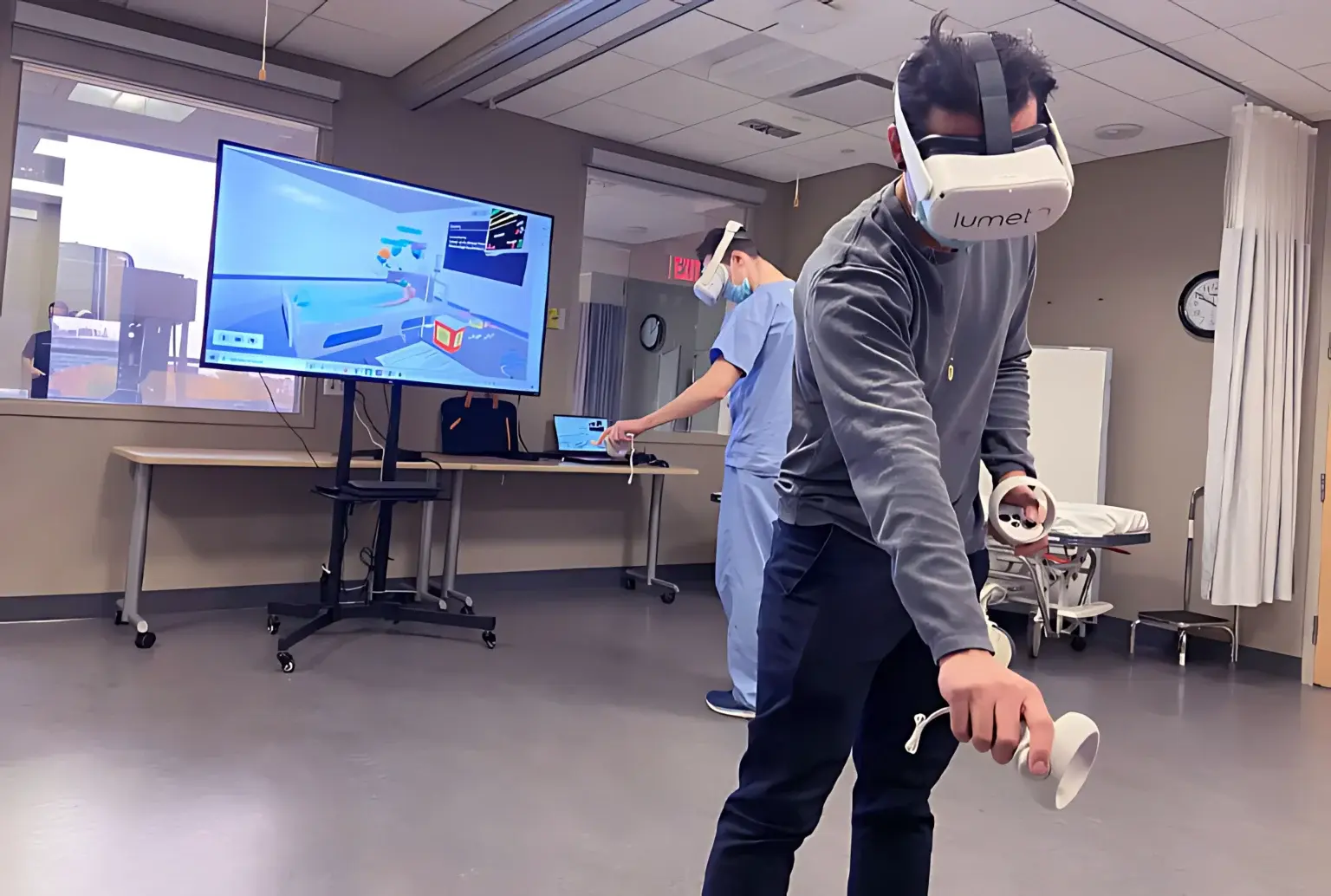
The highest-fidelity option. Learners put on a Meta Quest headset and step inside the simulation, walking, reaching, and interacting with the virtual patient and clinical environment.
This format gives the strongest sense of presence.
ℹ️
Mix and match
A single session can have some learners in VR headsets while others join through OnScreen on a laptop.
02How a typical session works
1
Trainer logs in
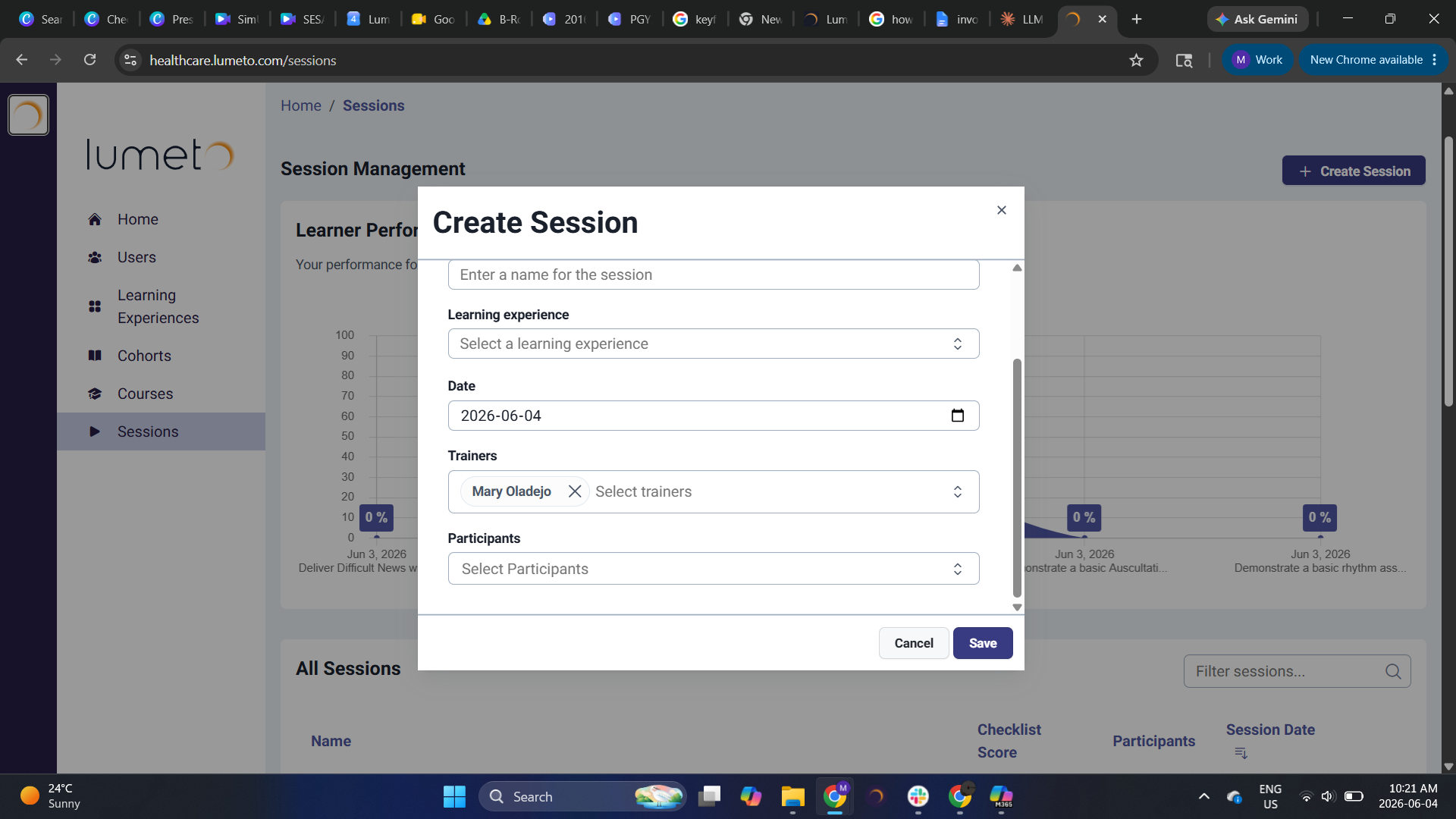
Go to healthcare.lumeto.com and schedule a session or assign a learning experience.
2
Learners are invited or assigned
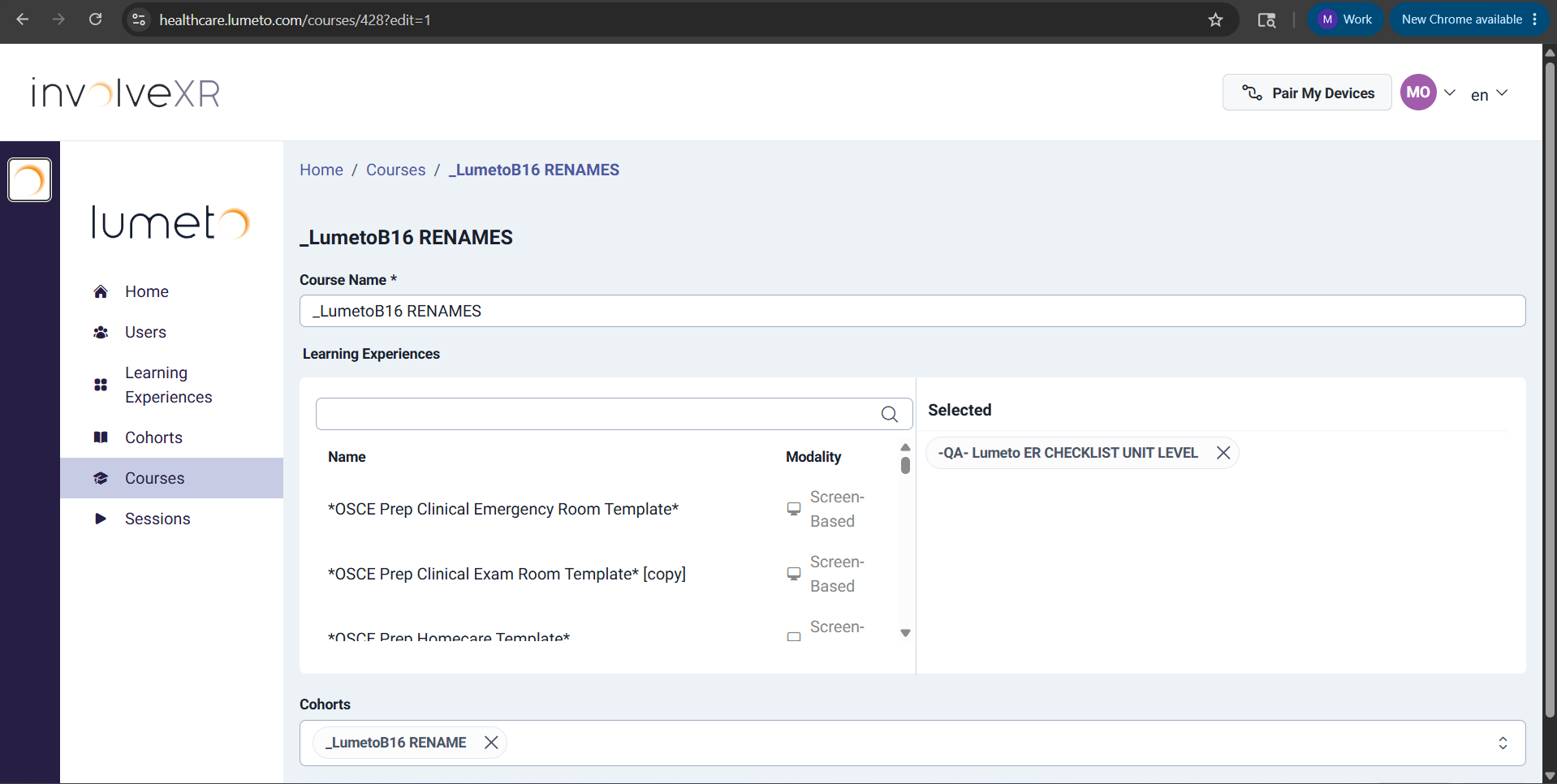
For instructor-led training, learners are invited to a session at a set time. For self-directed learning, they're assigned learning experiences to complete on their own time.
.png)
3
Trainer launches the simulation
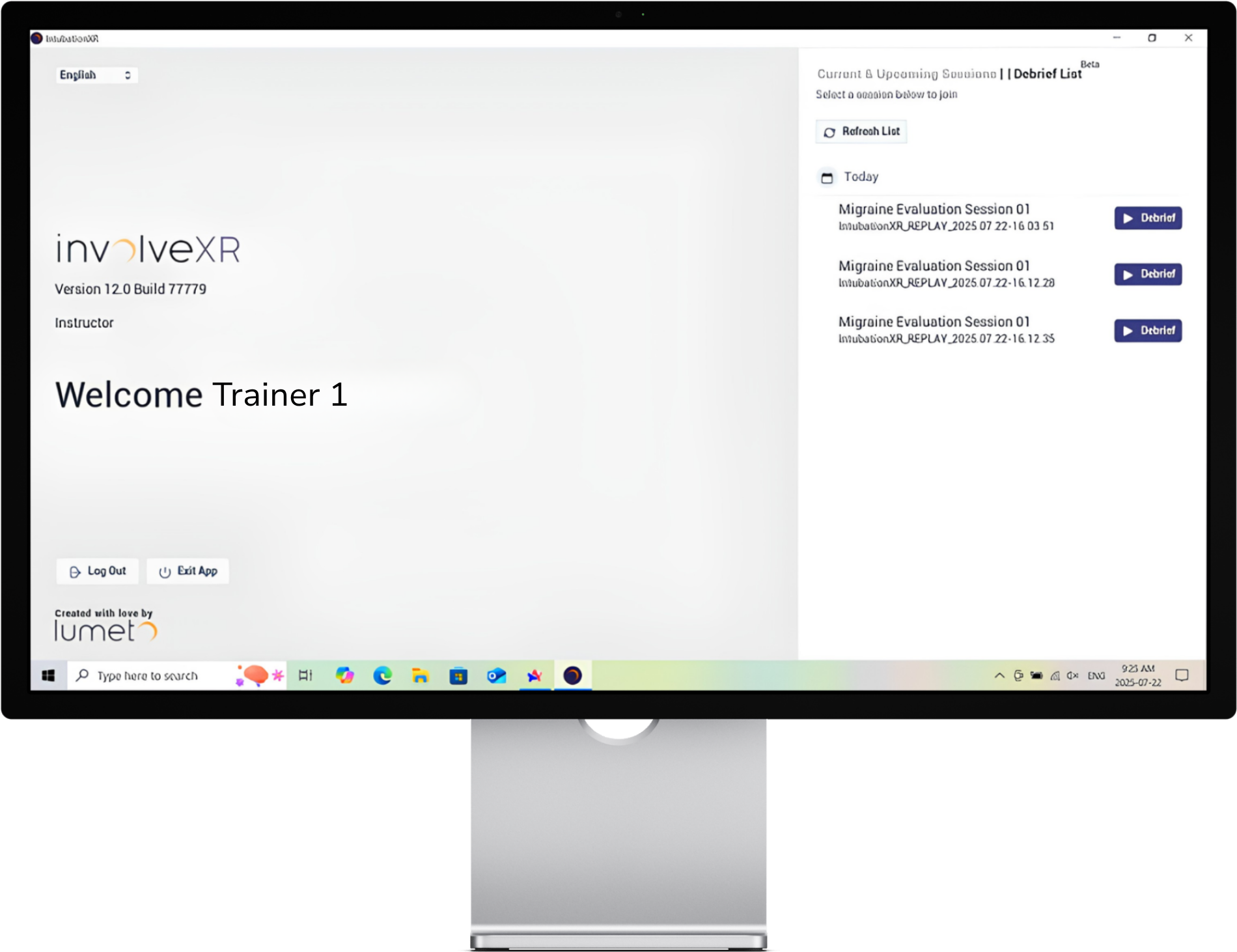
For instructor-led training, the trainer joins the scenario and starts it for the group.
4
Learners complete the scenario
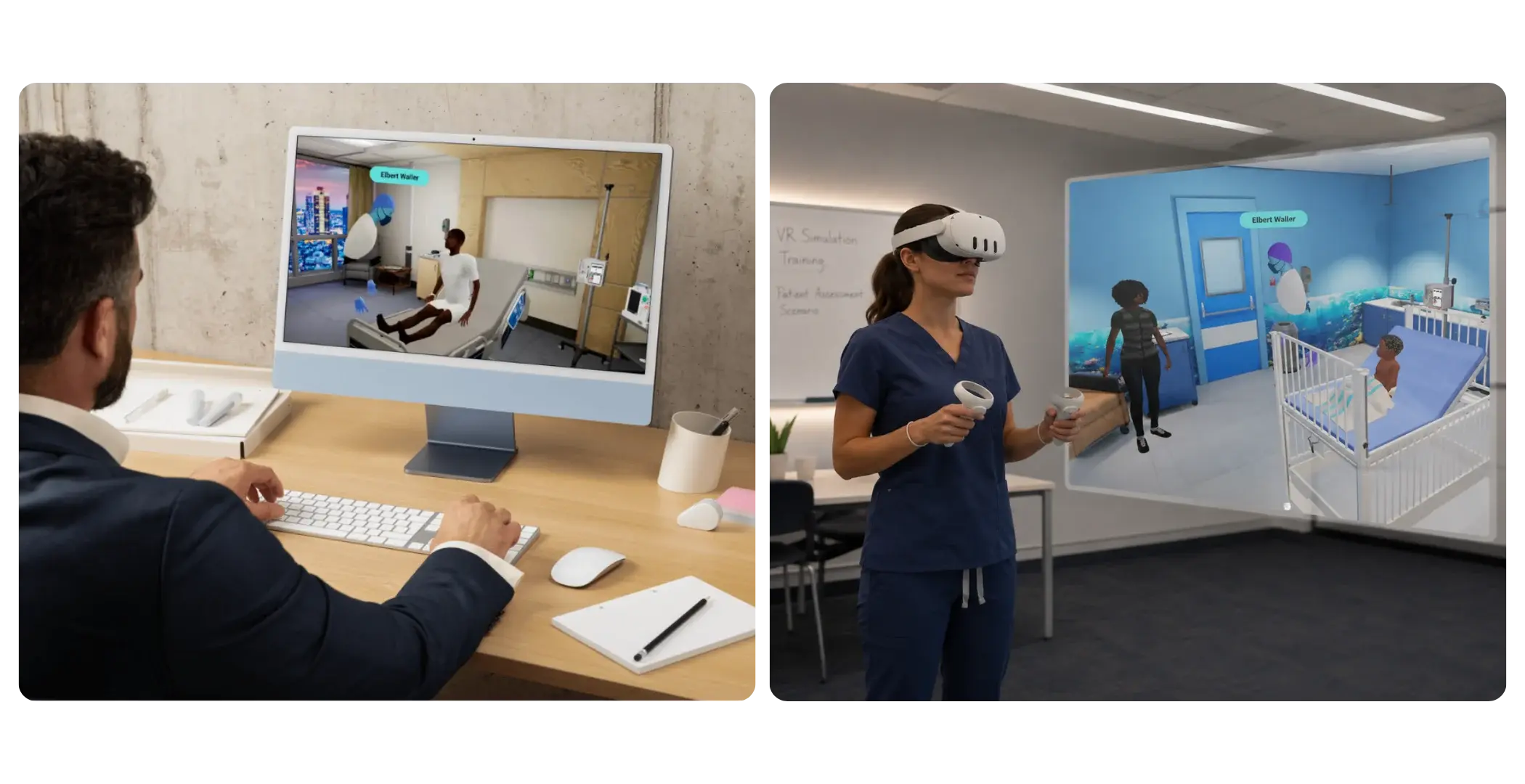
They work through the simulation in real time, making clinical decisions as the case unfolds. Self-directed learners do this on their own. Instructor-led learners may share the scenario with others.
5
Review results
Performance data is captured automatically and appears in the Web Portal for debrief and assessment.
.png)
💡
Tip
You can combine both formats across a curriculum. A cohort might practise self-directed cases first, then meet for a facilitated group session.
👋
You're set on the basics.
Pick the path that matches your setup.
-1.png?width=150&height=66&name=Lumeto%20Logo%20Reverse%20Transparent%20(1)-1.png)