Beginner
InvolveXR VR app: first-time user guide
Your step-by-step guide to your first VR training session, from opening the app to starting a scenario.
01Before you start
Have these three things ready
You'll need your phone or computer during setup, so keep it within reach.
Checklist
- Your headset is charged and ready. Not sure? Use the pre-session headset checklist.
- You've created your InvolveXR account. Need one? See Creating your InvolveXR account.
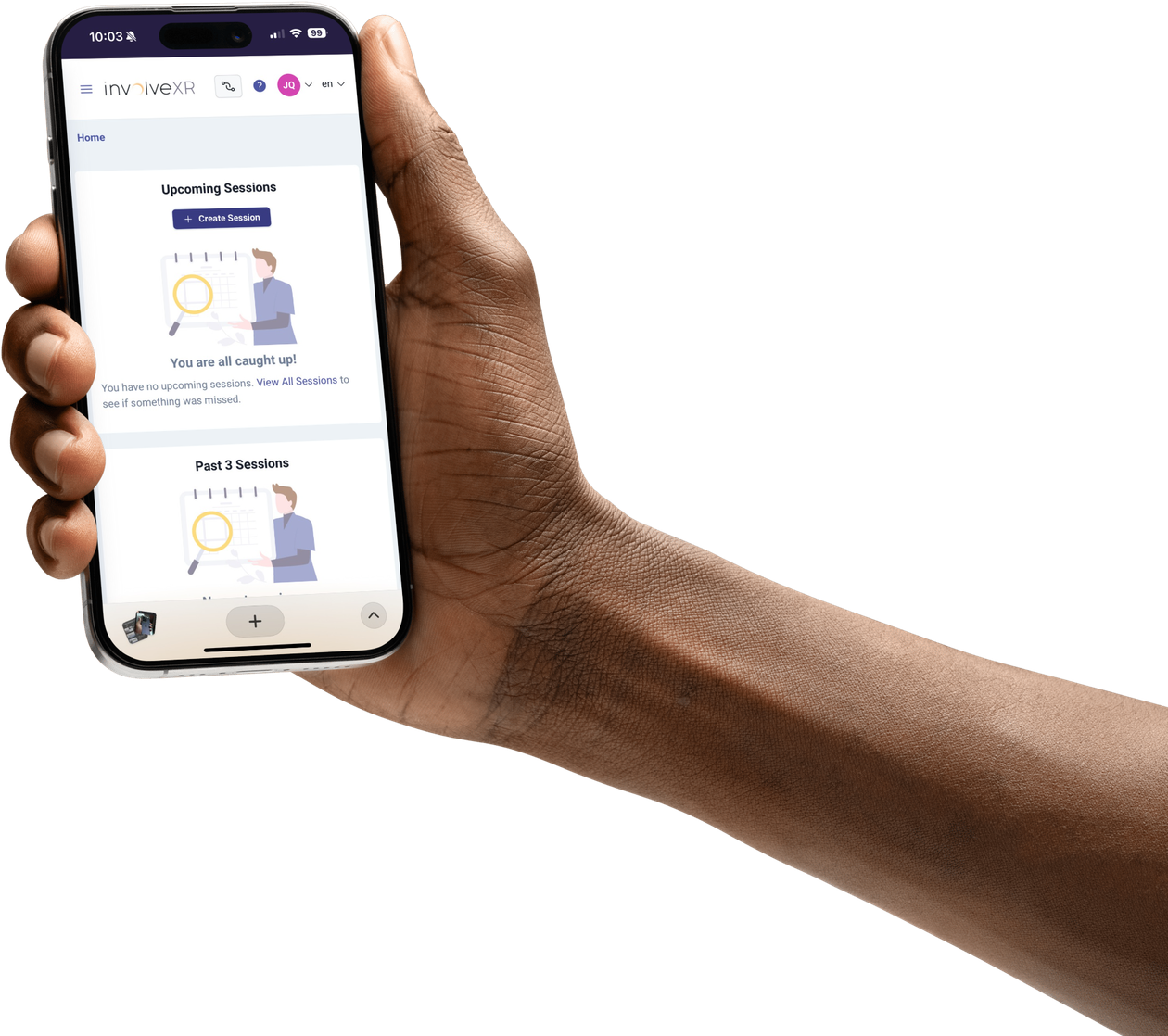
- A phone or computer next to you, signed in at healthcare.lumeto.com
ℹ️
Why the phone or computer?
You'll use it to pair your headset with your account. It only takes a code, and you only do it once per headset.
02Launch the app
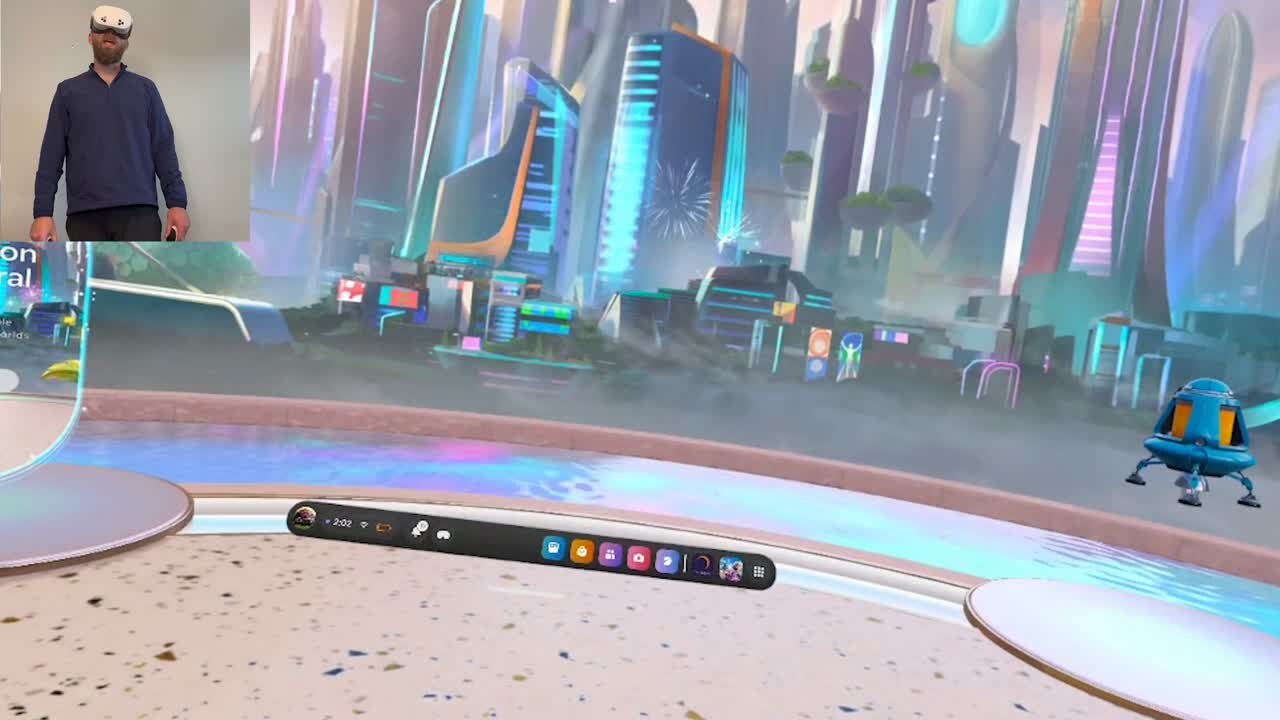
Open InvolveXR in your headset
- Put on your headset and select InvolveXR from your Content or home screen.
- Wait for the app to load. You may see a loading screen for a few moments.
- Follow the on-screen prompts to begin.

💡
Can't see InvolveXR?
Open your App Library and search "Healthcare".
03Pair your headset
Pairing links the headset to your account, so your sessions and results are saved to you. Watch the video, or follow the steps below.
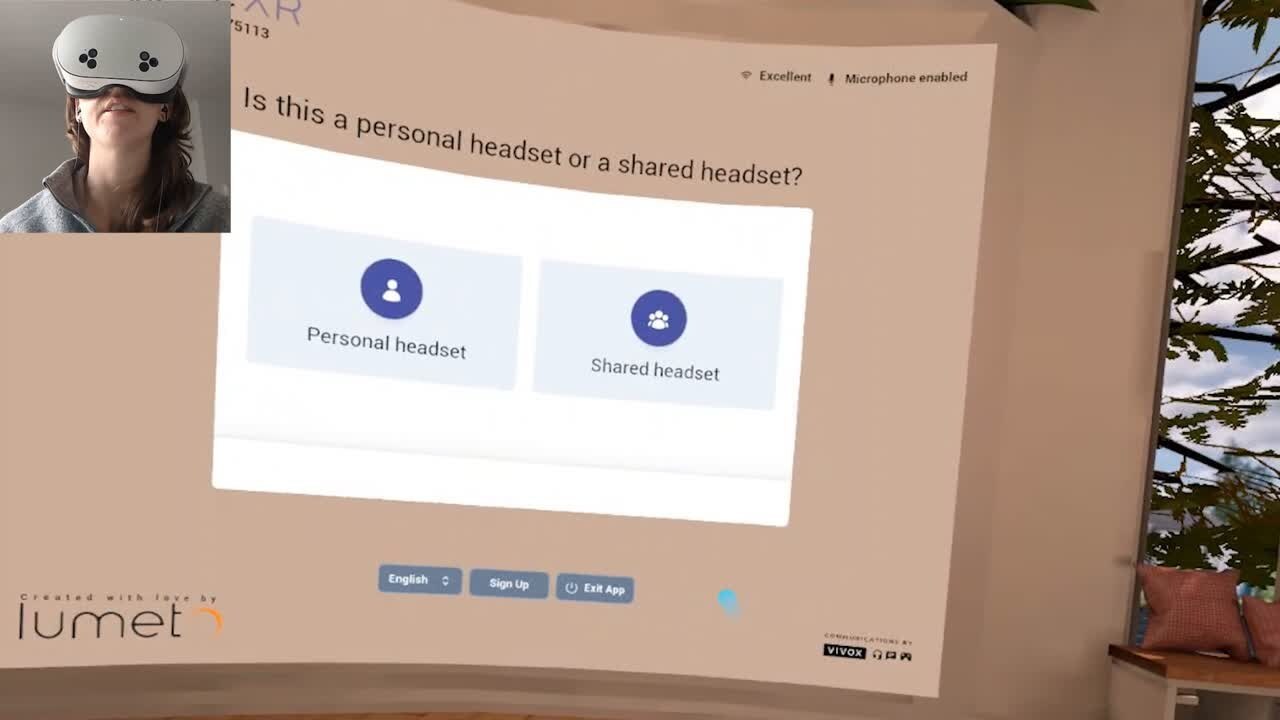
- Note the pairing code shown in your headset.
- Lift your headset up so you can see your phone or computer.
- On the Web Portal, click the Pair icon.
- Enter the code from your headset, then lower the headset back down.
You're paired when
- The headset moves past the pairing screen and shows your InvolveXR options
04Start your session
Choose how you're training today, then pick your session.
Instructor-led
With a trainerA scheduled session your trainer runs. Choose this if you've been invited to a session at a set time.
Self-directed
On your ownLearning experiences assigned to you to complete on your own time.
Then
- Select your session from the list and your scenario begins
⭐
Best practice
Clear a safe space around you before the scenario starts, and check your Guardian boundary is set.
05Having trouble?
I can't find the InvolveXR app
Open the App Library in your headset and search "Healthcare". If it isn't installed, ask your administrator.
I can't see the Pair icon
Most commonMake sure you're signed in at healthcare.lumeto.com on your phone or computer.
My session isn't listed
Check you picked the right option, instructor-led or self-directed. If it's still missing, ask your trainer to confirm you've been added.
🥽
You're ready for VR.
Your headset is paired, and you know how to start a session.
-1.png?width=150&height=66&name=Lumeto%20Logo%20Reverse%20Transparent%20(1)-1.png)