Beginner
Setting up OnScreen for trainers
Install the InvolveXR Desktop App, pair it with your account, and know where learner results land.
01Before you start
What you'll need
System requirements
- A Windows PC
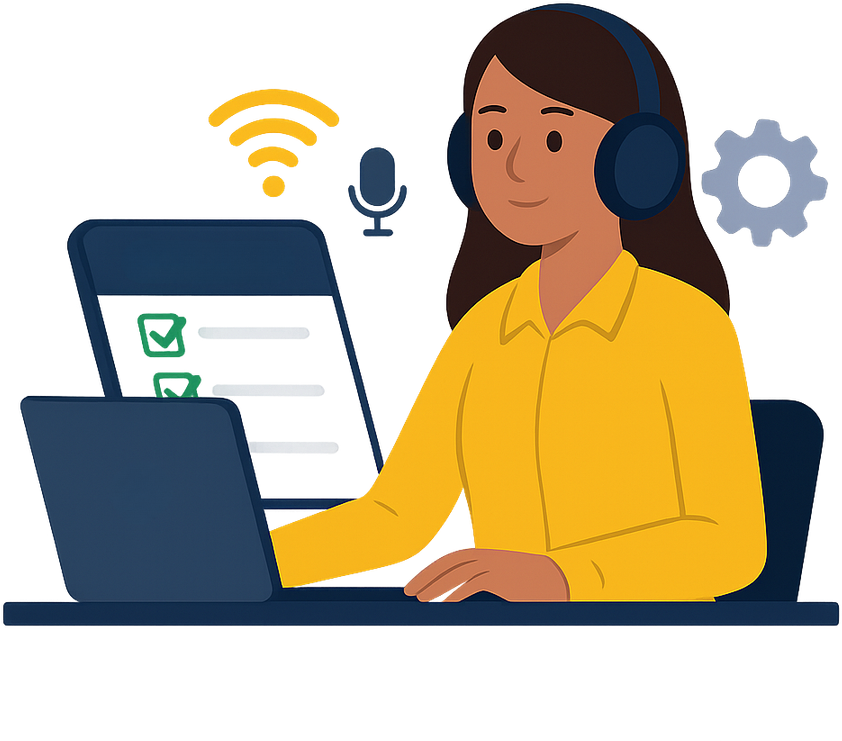
- Stable Wi-Fi, at least 5 Mbps download and 5 Mbps upload
- A web browser, for the Web Portal
- Headphones and a working, enabled microphone
02Download the desktop app
From the Web Portal
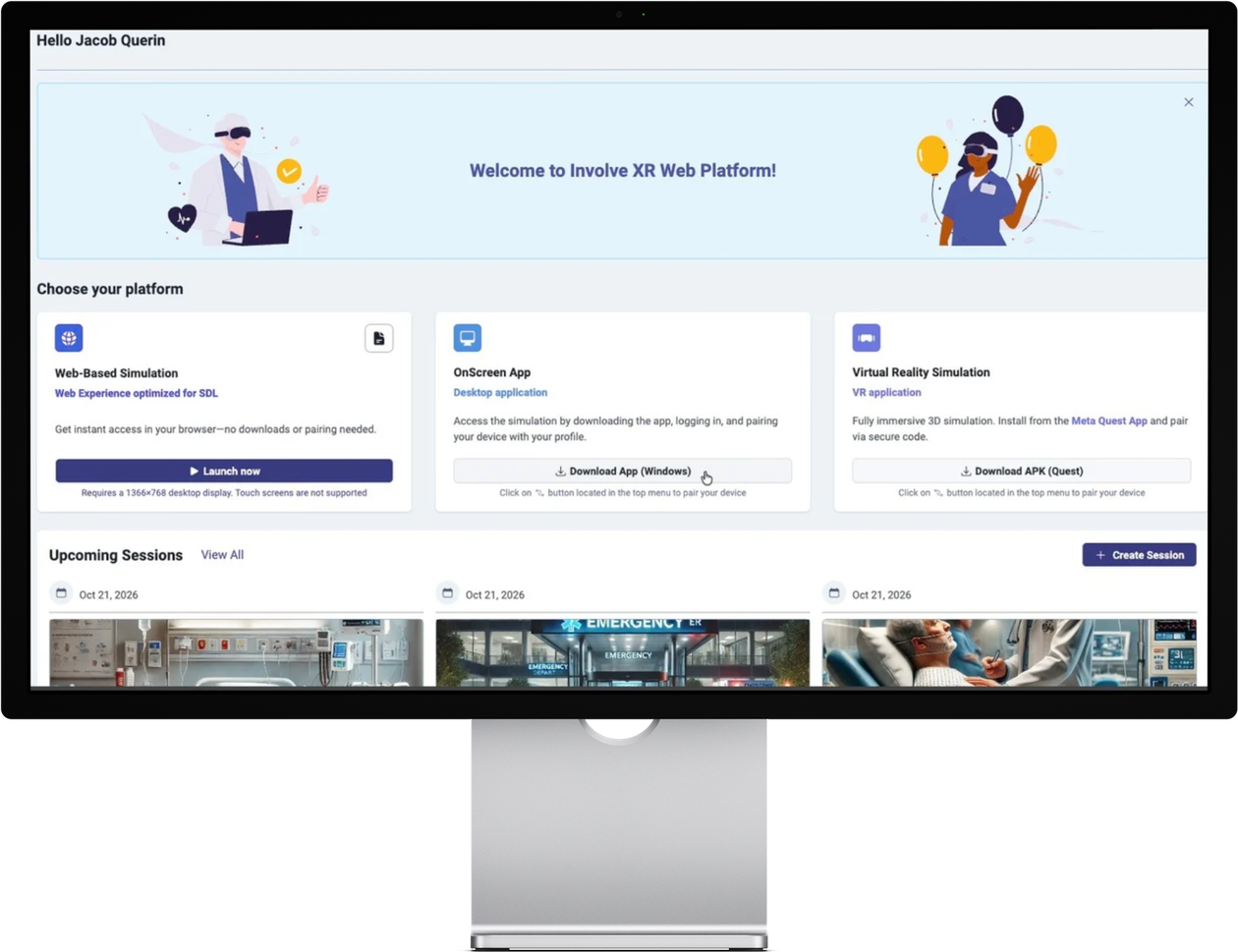
- Go to healthcare.portal.lumeto.com and sign in.
- Under Choose your platform, find the OnScreen App box.
- Select Download App (Windows).
- Open the downloaded file, install it, then launch the app.
03Pair the app with your account
Link the app
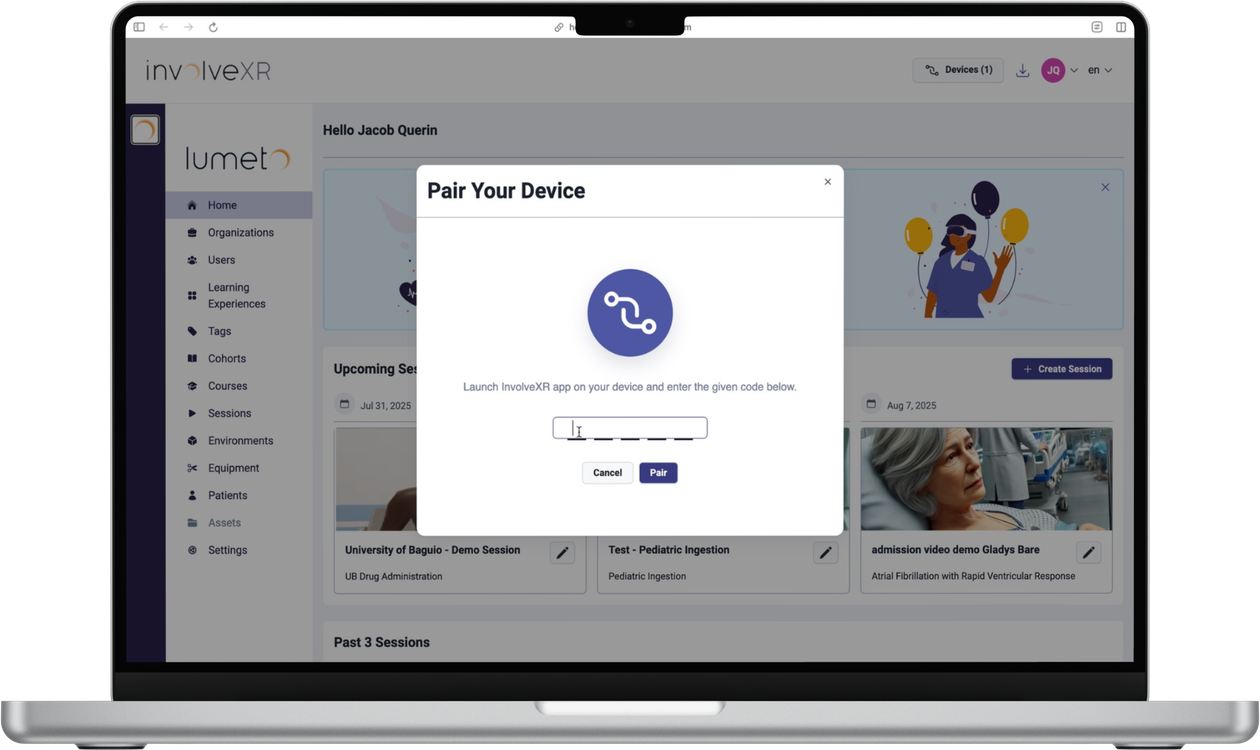
- Open the desktop app. It shows a pairing code.
- In your browser, go to healthcare.portal.lumeto.com and sign in.
- Select Devices at the top right, then Pair Device.
- Enter the code in the New Device field and select Pair.
You're set when
- The app moves past the pairing code and shows your sessions
04Where learner results go
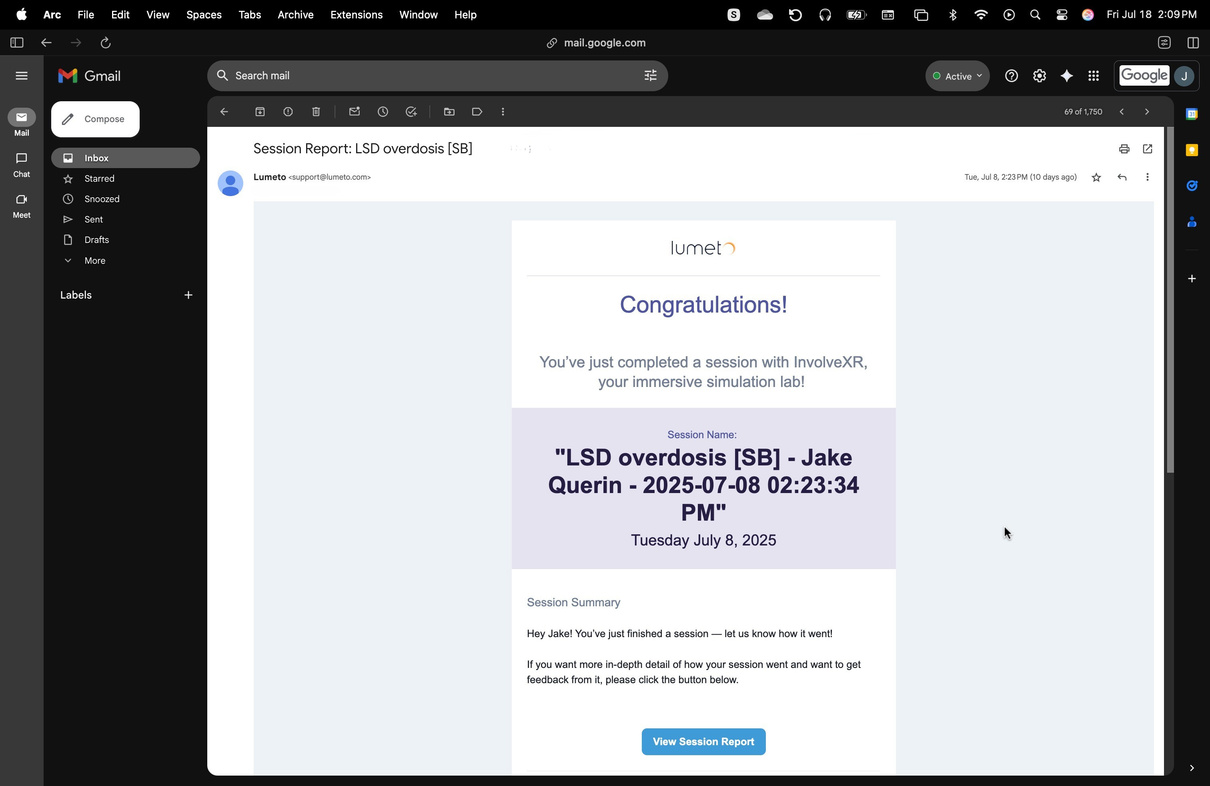
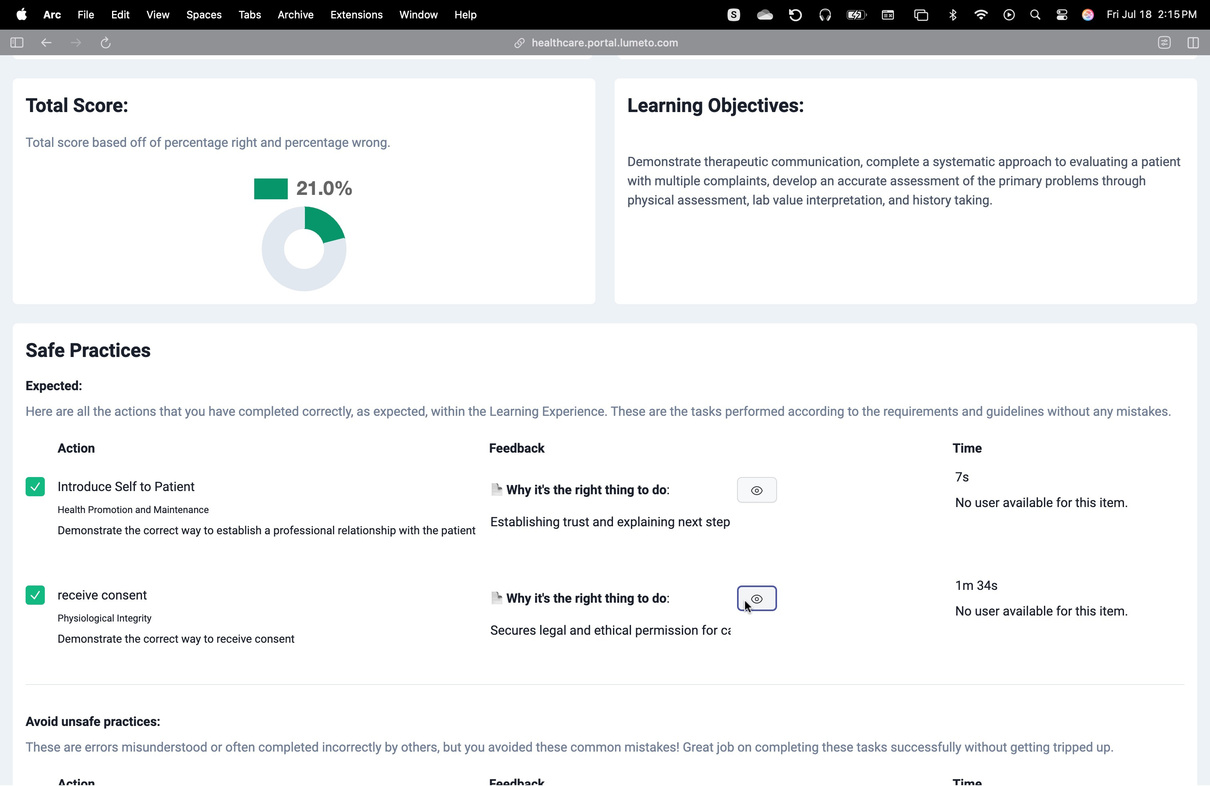
After a lesson, each learner gets an email summary. View Session Report opens the Web Portal, where they can see feedback, scores, and any comments you add.
💡
Your full history
Everything stays in the Web Portal. See Reviewing results and analytics.
✅
OnScreen is ready to go.
Build your first screen-based case.
-1.png?width=150&height=66&name=Lumeto%20Logo%20Reverse%20Transparent%20(1)-1.png)