Beginner
Casting VR to an external screen
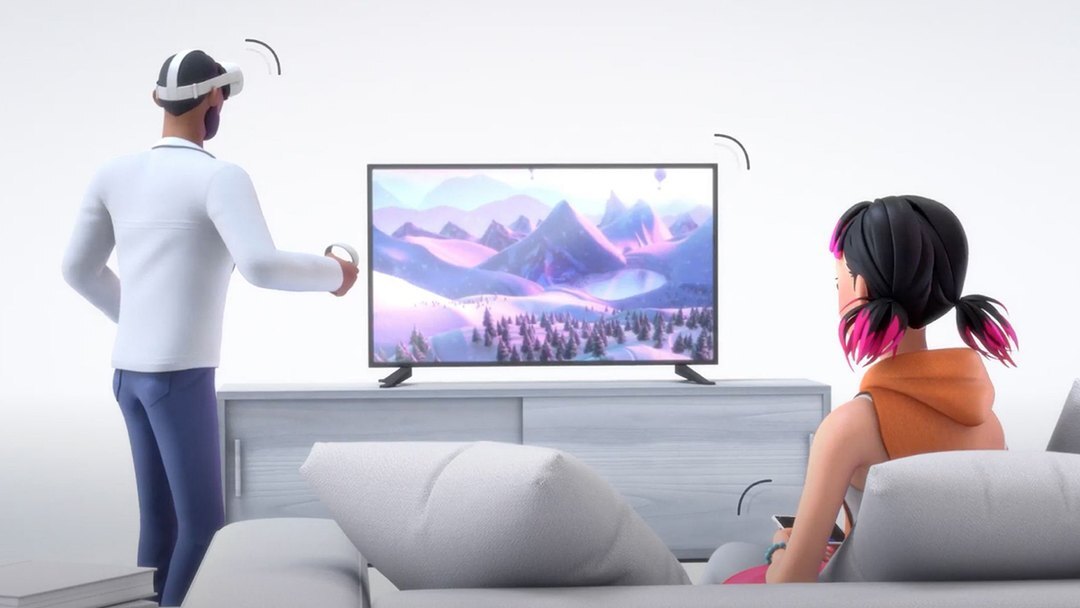
Mirror a Meta Quest headset to a TV, projector, or computer so others can follow along live.
01Before you start
What you'll need
Have these ready
- A Meta Quest headset, powered on
- A TV, phone, tablet, or computer to cast to
- Both devices on the same Wi-Fi network
Casting works best on a stable network with little other traffic.
02Pick a casting method
Cast to a computer
Best for classrooms, labs, and hybrid sessions: larger groups, a main display, or a recorded session.
Runs in a web browser with nothing to install, stays more stable for long sessions, and fits classroom AV setups.
Larger groupsCast from a phone or tablet
Best for quick setups in the same room, casting to a nearby TV or projector.
Needs the Meta Horizon mobile app. Works best for small groups, with less flexibility for screen sharing or recording.
Quick setup
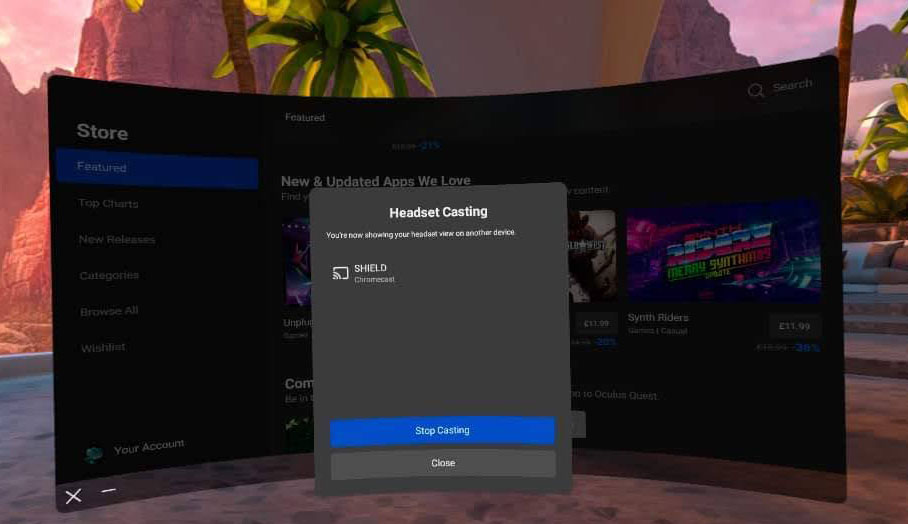
Start casting from the headset
- Open the Quick Settings menu in the headset.
- Select Cast.
- Choose the device to cast to.
03During the session
One view at a time
Casting shows one learner's view at a time.
Audio
Sound may come from the headset or the external device, depending on your setup.
Stopping
Stop casting any time from the headset's Cast menu.
⭐
Great for
Demonstrations, debriefs, and letting observers learn by watching.
04If casting doesn't work
Nothing appears or it drops
Most commonCheck both devices are on the same Wi-Fi, then restart casting from the headset.
It's slow or choppy
Close unused apps on the headset to free up performance.
ℹ️
Still stuck?
Contact your Lumeto Product Specialist for support.
📺
Everyone can see what's happening.
Keep sessions running smoothly.
-1.png?width=150&height=66&name=Lumeto%20Logo%20Reverse%20Transparent%20(1)-1.png)