Beginner
InvolveXR OnScreen Web
Run your learning experiences right in your browser. Nothing to download or install.
Release 18What's changed on this pageEverything new →
01Prepare your computer
Have these ready
- A modern desktop browser on a wired or high-speed Wi-Fi connection
- A desktop or laptop at 1366×768 resolution or higher
- A working microphone, for talking with the AI patient
- Your login for healthcare.portal.lumeto.com
ℹ️
Check your resolution
On Windows, go to Settings > System > Display > Resolution. On Mac, go to System Settings > Displays > Resolution.
💡
Tip
Unsure about your setup? Check with your trainer before the session starts.
02Log in
.png)
2
Land on your dashboard
You arrive on the Home dashboard. This is your starting point.
.png)
03Launch
1
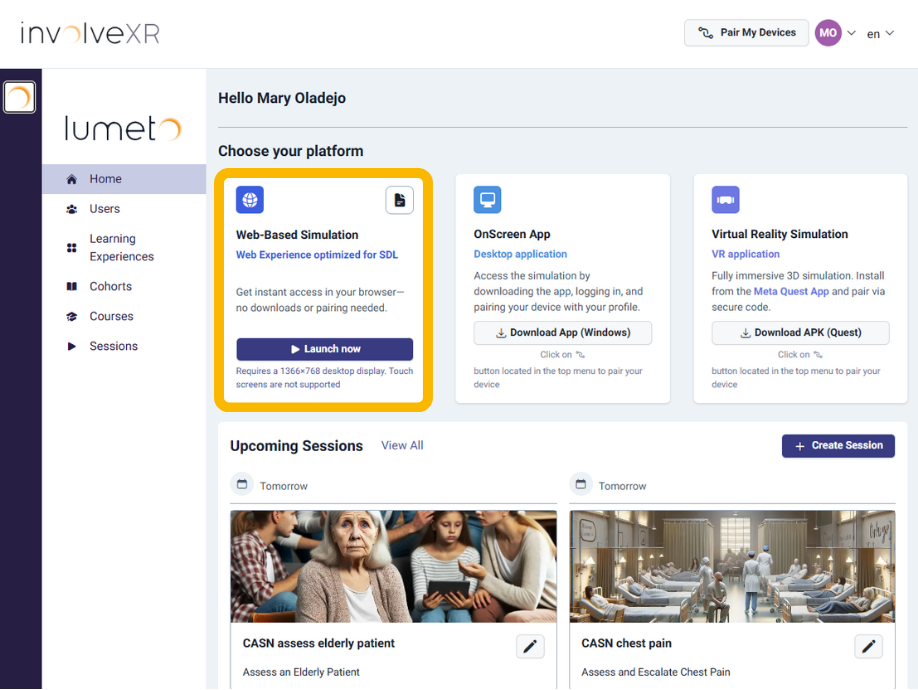
Find the Web-Based Simulation card
Under Choose your platform, find the Web-Based Simulation card.
2
Click Launch Now
Select Launch Now to start loading your learning experiences.
.png)
⭐
Go full screen
During the Beta, some content can look cut off. Use full screen for the best fit: Command + Control + F on Mac, or F11 on Windows.
04Loading
Updated
Loading usually takes 5 to 10 seconds while the simulation connects. If you see one of these screens, here is what to do.
Poor connection warning
Check your Wi-FiA built-in connection check flags a weak internet connection before it causes problems. Move closer to your router, use a wired connection, or close other tabs and apps that use the internet.
In Queue: High Traffic
Wait 1 to 2 minLots of learners are joining at once. Keep the page open and you'll connect automatically.
CCU Limit Reached
Keep page openThe platform is at capacity. Your spot is held, so there's no need to refresh.
Error Message
Refresh pageSomething went wrong on the network side. A quick refresh usually fixes it.
Video Stream Failed
Refresh pageThe connection took too long to start. Refresh and try again.
Inactive Session
Refresh pageThe session went idle. Press F5 or refresh to jump back in.
The connection check
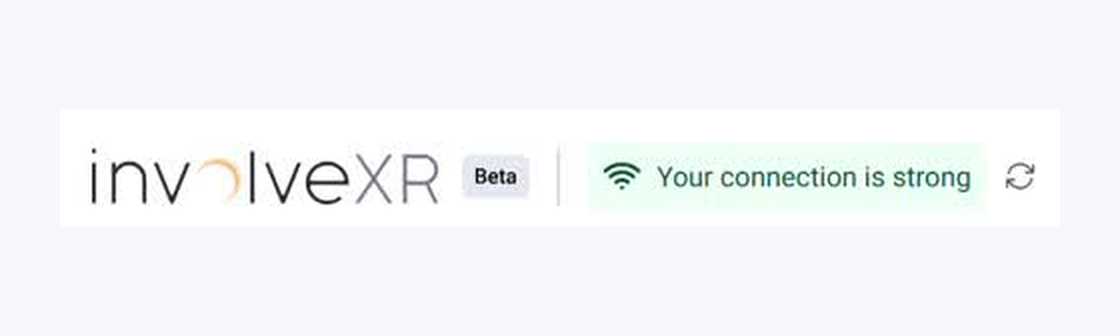
OnScreen Web checks your internet connection and shows the result at the top left. Your connection is strong means you're good to go. If it's weak, you'll see a warning, so you can fix it before you begin.
Use the Screen Guide
Seeing a screen you don't recognise? Click Screen Guide at the top right. It explains what each screen means.
.png)
05Set up your microphone
Updated
1
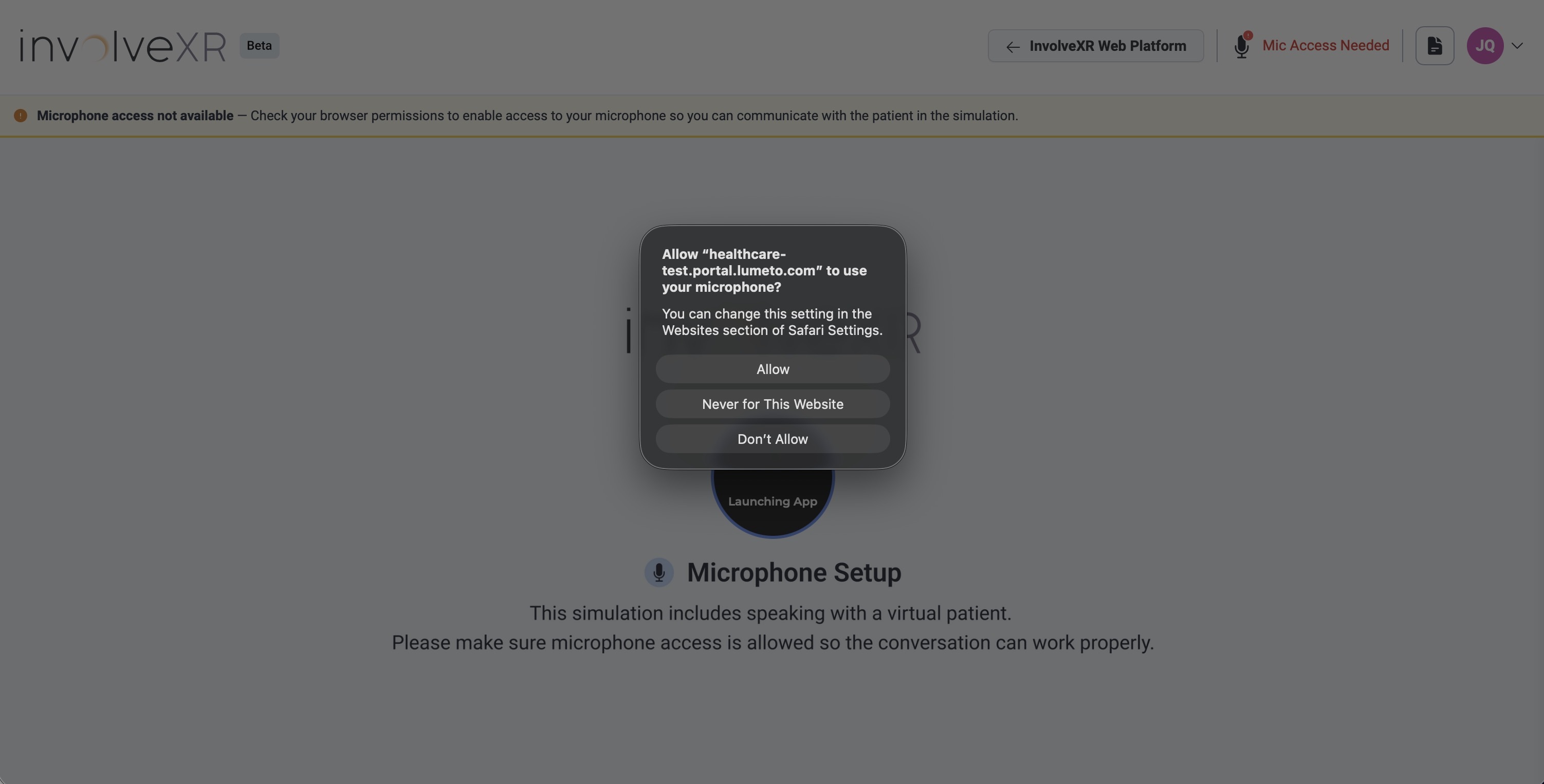
Click Allow
You talk to the AI patient out loud, so the browser needs mic access. When it asks, click Allow. A green Microphone Access Allowed message confirms you're set.
2
Test your microphone
A short setup guide walks you through choosing your microphone and testing it before the session starts. Speak and check that it picks you up.

3
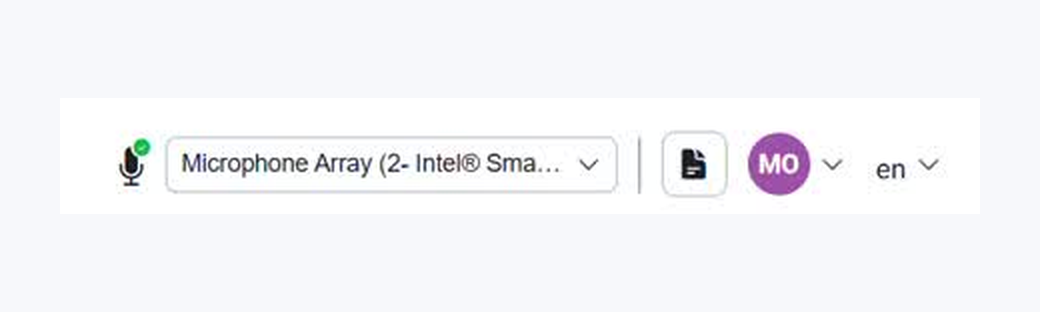
Switch microphones any time
Plugged in a headset mid-session? Use the microphone menu at the top right to pick a different microphone. You don't need to leave the session.
⚠️
Clicked Block by mistake?
Refresh the page. When the browser asks again, click Allow.
06Begin your simulation
Updated
1
The platform opens in a tab
Your learning experience loads right inside the browser tab.

2
Find your session, then click Learner
On the Welcome screen, find the session your trainer set up and click Learner next to it.

3
Read the brief, then click Start
The brief opens as a set of cards. Read each one and click Continue. The last card is Start: click it to begin.

You should now see
- A Welcome screen with your name
- A list of learning experiences, each with a Learner button
💡
Tip
Not sure which session is yours? Your trainer can point you to the right one.
During the session
- Hold T to talk. Push-to-talk has a short delay built in, which makes it easier to use on slower connections
- A pulsing circle on the speech widget shows you're being heard
- Hover over the vitals monitor to magnify it
🎉
You're ready for OnScreen Web.
Next, learn your way around a scenario.
-1.png?width=150&height=66&name=Lumeto%20Logo%20Reverse%20Transparent%20(1)-1.png)