Release notes
What's new in Release 18
Phone calls, ventilators that respond to the patient, and a smoother OnScreen experience.
01For learners: a smoother OnScreen
Changes to OnScreen Web and the desktop app.

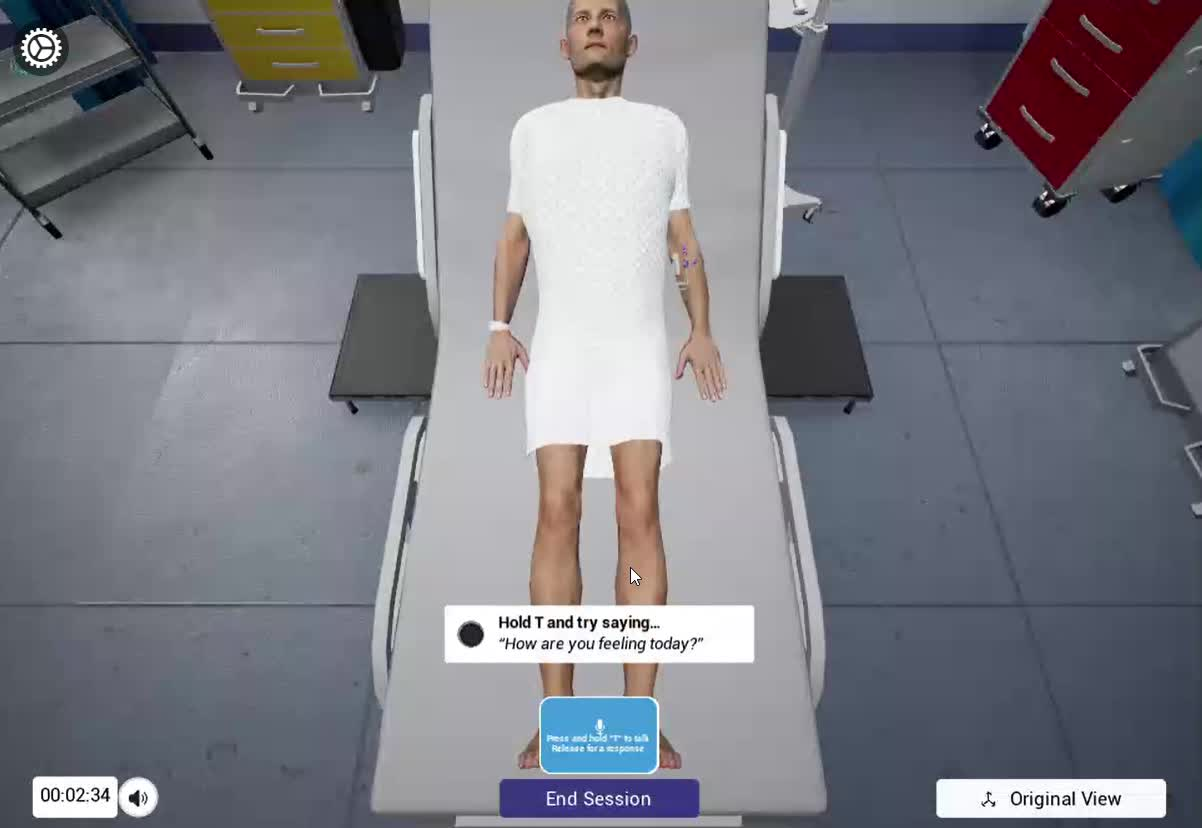
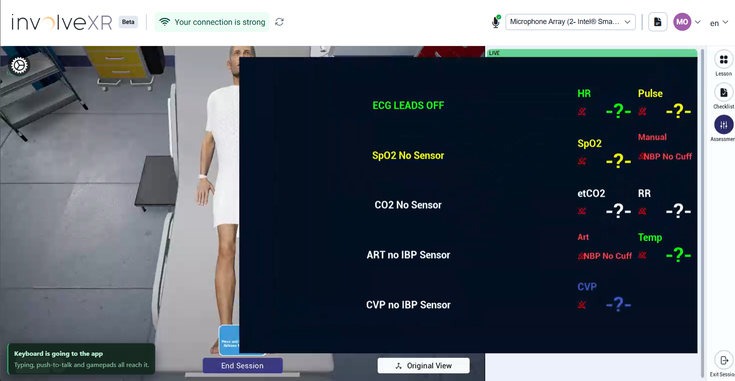
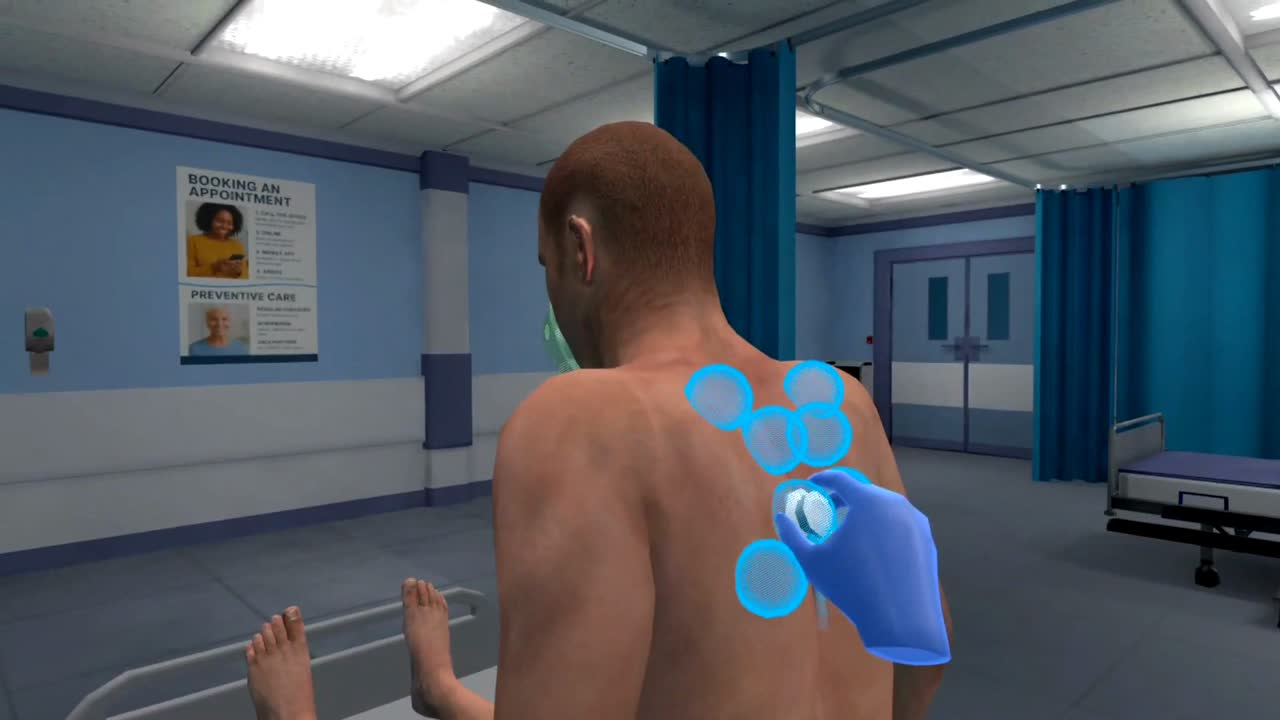
OnScreen Web only
Connection check and microphone menu
See your connection status and switch microphones from the top of the screen, without leaving the session. InvolveXR OnScreen Web →
Microphone setup and test
Check your microphone before the session starts.
Easier push-to-talk
A short delay makes push-to-talk easier to use on slower connections.
A refreshed layout and better crash reporting
A cleaner look, and when something goes wrong, our team can find and fix it faster.
02For trainers: new ways to build cases
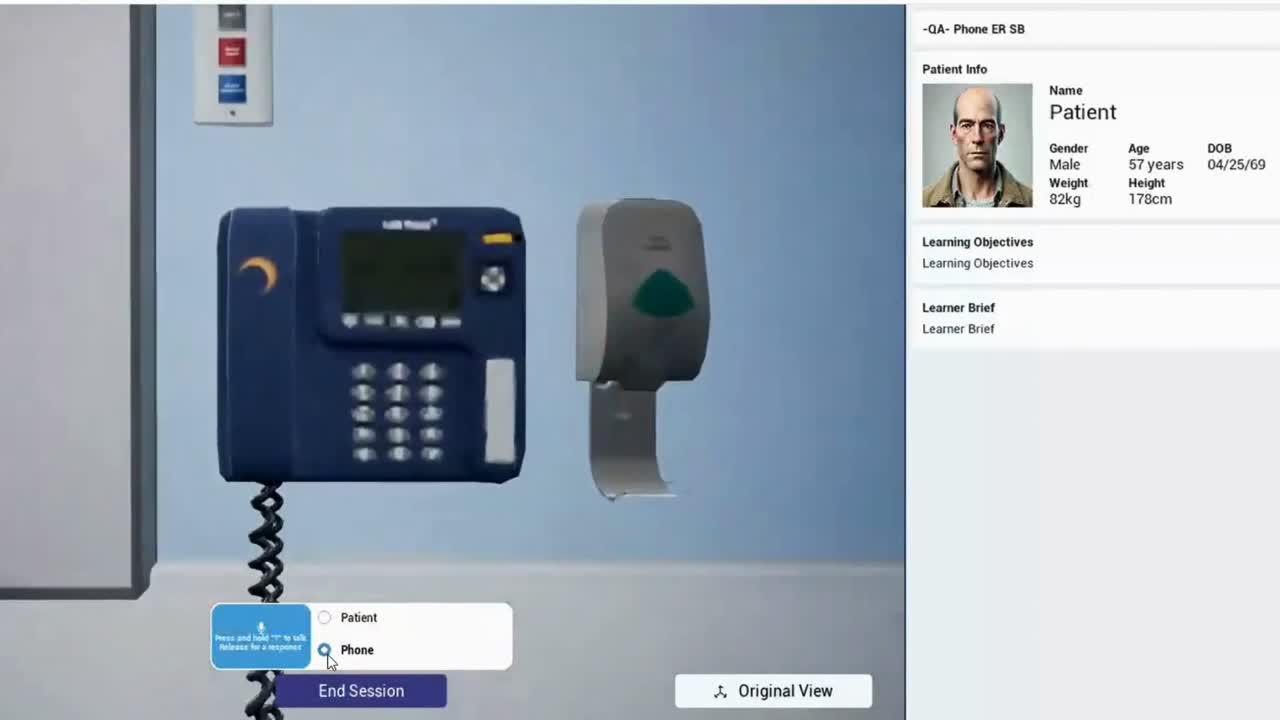
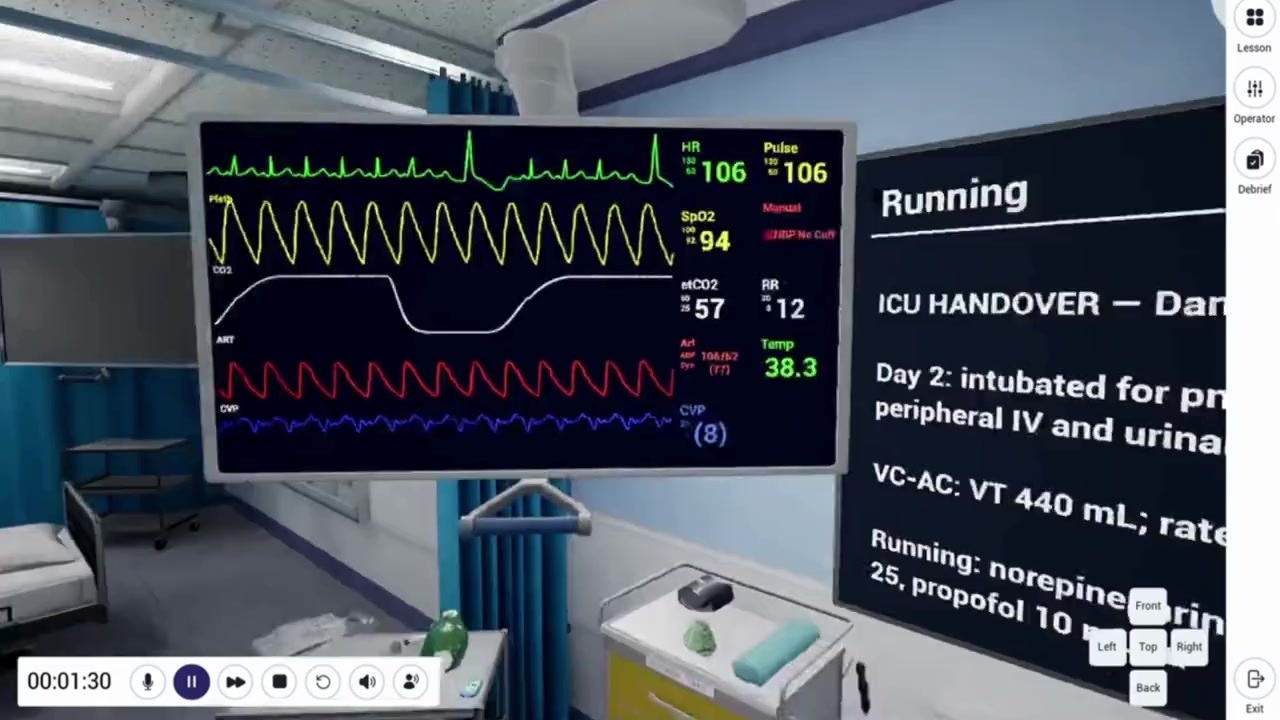
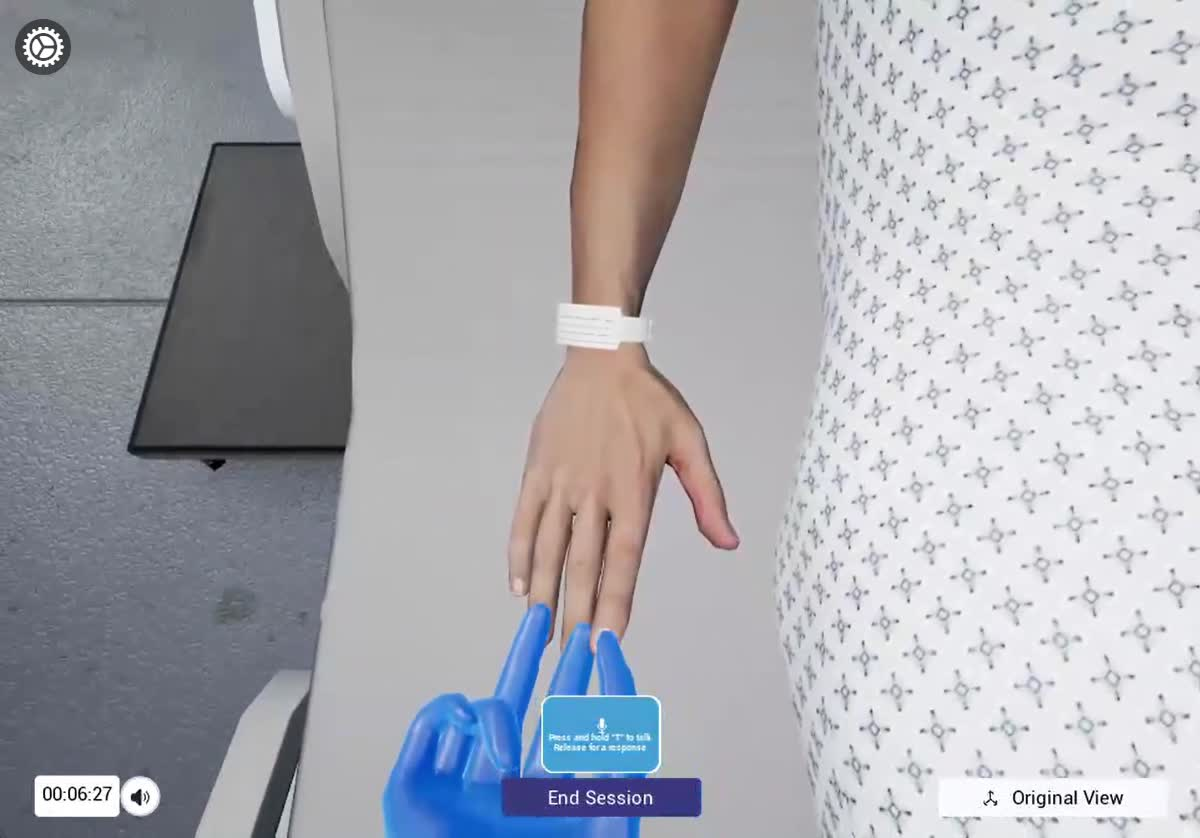
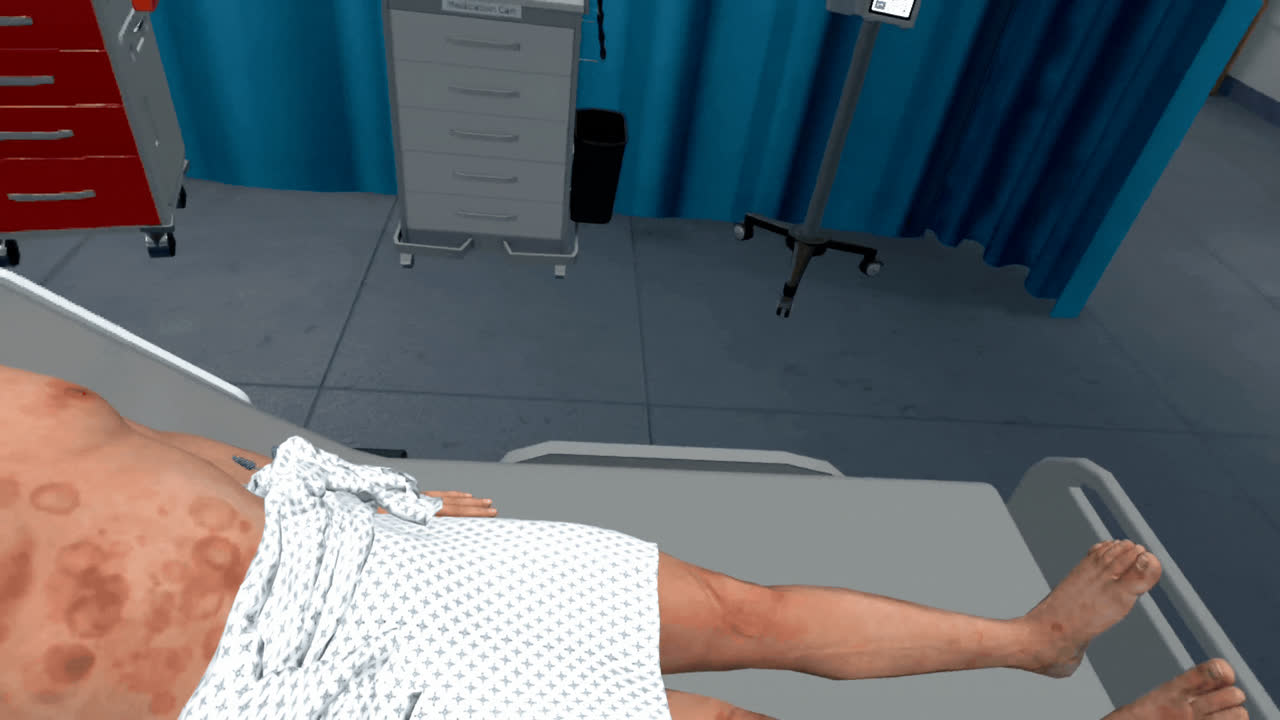
Date of birth and automatic age
Patients now have a date of birth, and their age is calculated automatically.
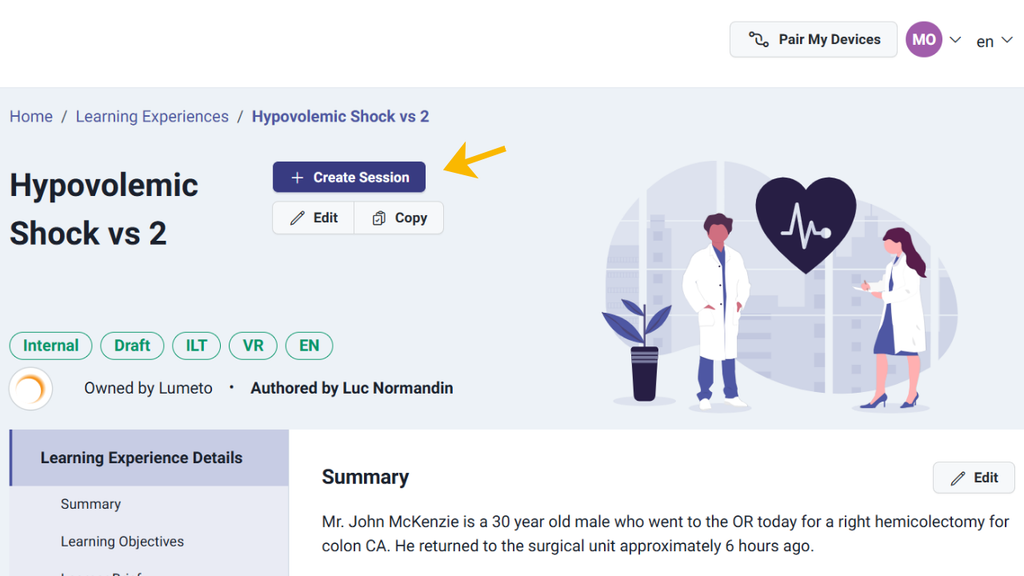
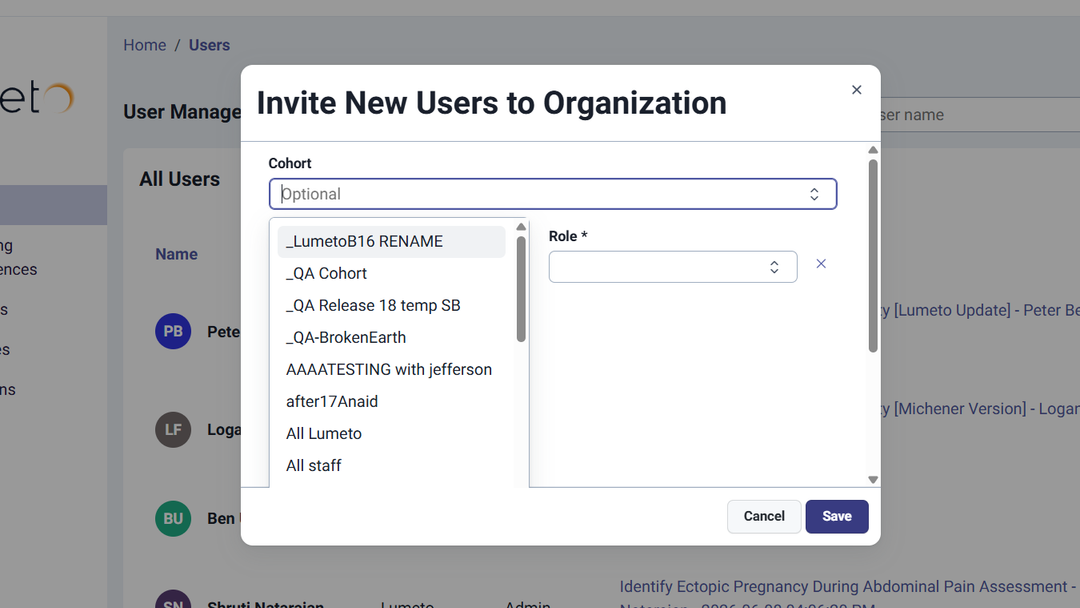
03For admins: fewer steps
04Better reporting for self-directed learning
More context, and results that send themselves
In self-directed sessions
- Learners see the description behind each checklist item
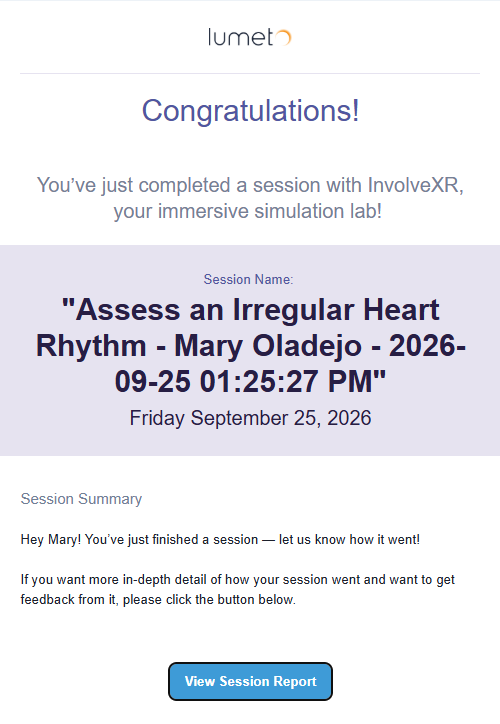
- Session reports are emailed to learners automatically when the session ends, in VR and on screen
ℹ️
Need a hand?
Your Customer Success Manager can help you bring any of this into your learning experiences. For quick questions, ask Lumi using the chat button.
✨
That's Release 18.
Explore the new phone feature first.
-1.png?width=150&height=66&name=Lumeto%20Logo%20Reverse%20Transparent%20(1)-1.png)