Beginner
Includes video
InvolveXR OnScreen Web
Access your learning experiences directly from your browser. No downloads or installation required.
Overview · 2 min
Watch: Launching OnScreen Web
A short walkthrough of everything in this lesson, start to finish.
What you'll learn
- Launch InvolveXR OnScreen from your browser
- Allow microphone access
- Troubleshoot common loading screens
- Start your learning experience
01Prepare your computer
Here is what to have ready before you start.
- A modern desktop browser on a wired or high speed Wi-Fi connection
- A desktop or laptop at 1366×768 resolution or higher
- A working microphone for talking with the AI patient
- Your login for healthcare.portal.lumeto.com
ℹ️
Info
To check your resolution: on Windows go to Settings > System > Display > Resolution. On Mac go to System Settings > Displays > Resolution.
💡
Tip
If you are unsure about your setup, check with your trainer before the session starts.
02Log in
1
Go to the portal
Open the web portal and sign in with your credentials.
.png)
2
Land on your dashboard
You arrive on the Home dashboard. This is your starting point for the session.
.png)
⭐
Best practice
The web version works best on a desktop or laptop display.
03Launch
1
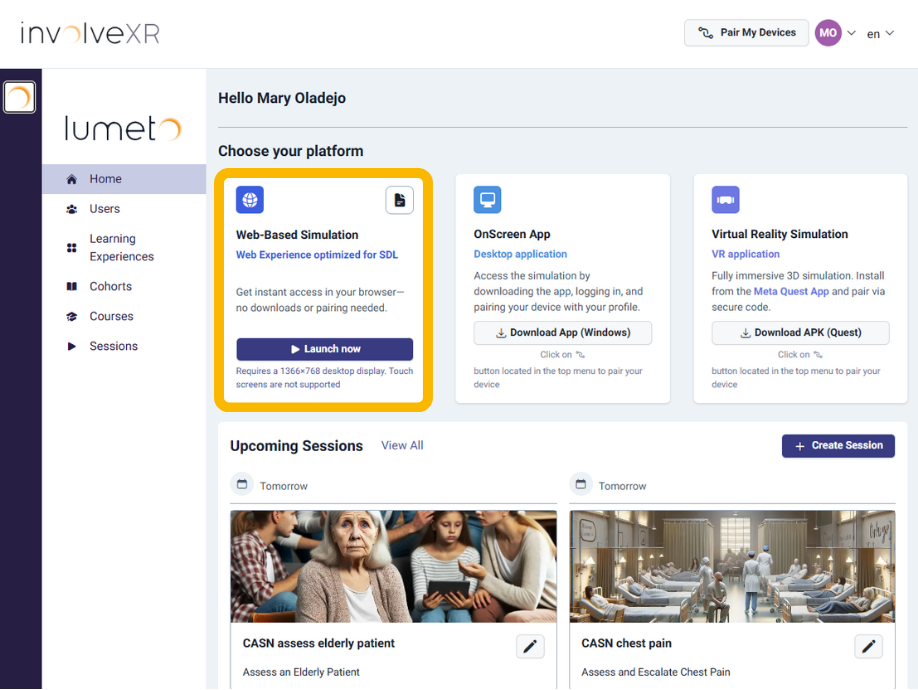
Find the Web-Based Simulation card
Under "Choose your platform", locate the Web-Based Simulation card.
2
Click Launch Now
Select Launch Now to begin loading your learning experiences.
.png)
⭐
Best practice
During the Beta, some content can appear cut off. Put your browser in full screen for the best fit. Mac: Command + Control + F. Windows: F11.
04Loading
After you click Launch Now, the platform starts loading. This can take a few seconds.
⏳
Info
Initializing, wait 5 to 10 seconds. The simulation is connecting to the server and starting to load. This is normal, so let it load for a moment.
⚠️ What you might see while loading
In Queue · High Traffic
Wait 1 to 2 minA lot of learners are joining at once. You will be connected automatically once a spot opens up. Keep the page open.
CCU Limit Reached
Keep page openThe platform is at full capacity. Your spot is reserved, and you will be connected as soon as one opens up. No need to refresh.
Error Message
Refresh pageSomething unexpected happened on the network side. A quick page refresh usually sorts it out.
Video Stream Failed
Refresh pageThe connection took too long to get going. This is usually temporary, so refresh and try again.
Inactive Session
Refresh pageThe session went idle and disconnected. Press F5 or refresh the page to jump back in.
💡
.png)
Tip
Seeing a screen you do not recognise? Click the Screen Guide button in the top right. It explains what each screen means.
05Microphone
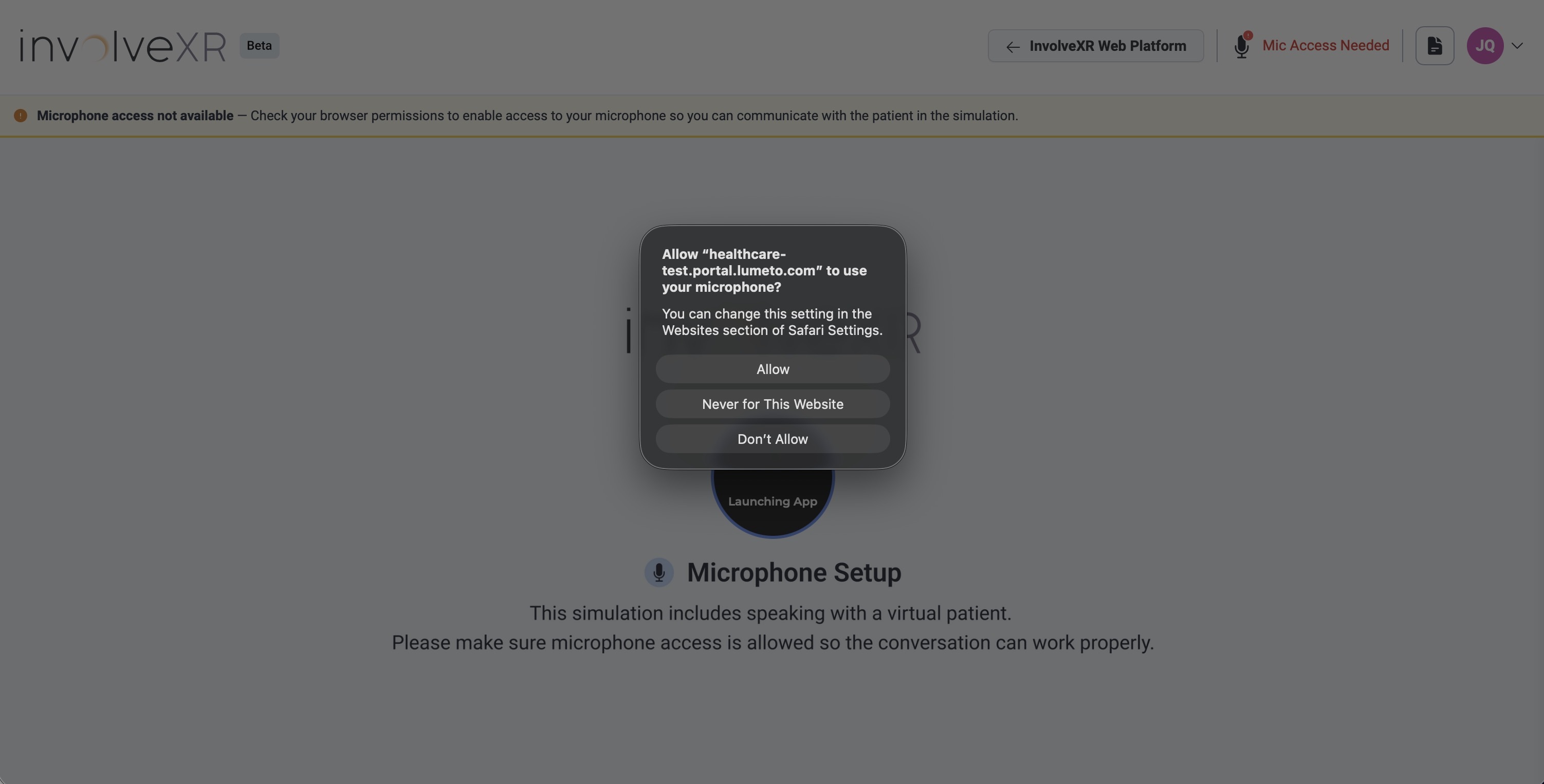
InvolveXR uses voice to communicate with the AI patient. Allowing mic access is what makes the conversation work.
✅
Success
Click Allow. When your browser asks for mic access, click Allow. A green "Microphone Access Allowed" message appears in the corner. That means you are set.
⚠️
Warning
Accidentally clicked Block? Refresh the page, and when prompted to allow mic access again, press Allow.
06Begin simulation
1
The platform opens in a tab
Your learning experience loads right inside the browser tab.
.png)
2
Find your session, then click Learner
On the Welcome screen, find the session your trainer set up and click the Learner button next to it.
.png)
You should now see
- A Welcome screen showing your name
- A list of available learning experiences, each with a Learner button
💡
Tip
Not sure which session is yours? Your trainer can point you to the right one.
🎉
Congratulations!
You are ready to begin browser-based simulations in InvolveXR OnScreen Web.
Continue learning
Navigating a Learning Experience
-1.png?width=150&height=66&name=Lumeto%20Logo%20Reverse%20Transparent%20(1)-1.png)