Beginner
Navigating a learning experience
Learn how to move through the training environment using your mouse and keyboard.
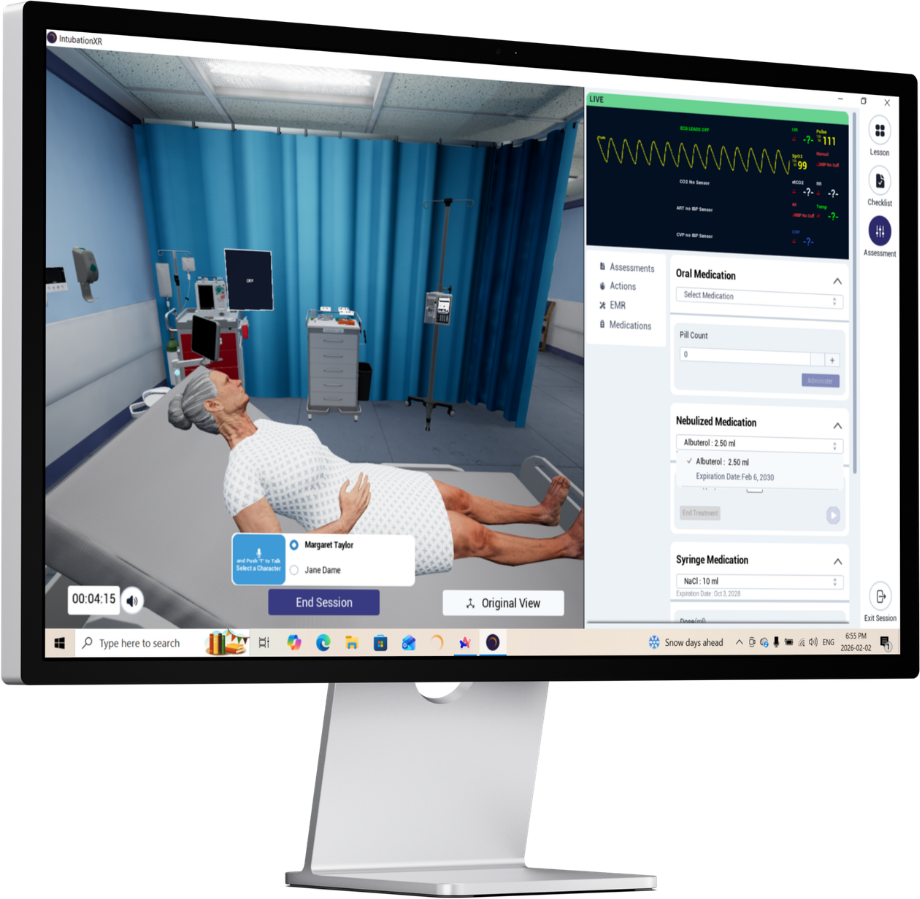
What you'll learn
- Read the Learner Brief before you begin
- Move the camera and talk to virtual characters
- Use the side menu to run assessments, actions and the EMR
- Review your results at the end of a scenario
01
Every scenario starts with a brief
When you launch a scenario, the first thing you see is the Learner Brief. It sets up who your patient is and what you are there to do.
Read your setup before you start
Step through the brief screens, then click Start Lesson when you are ready. You can come back to this information from the Lesson tab at any time.
.png)
What the brief includes
Clinical role and setting
Where you are and the role you are playing for this scenario.
Patient background and presenting issue
A short summary of the patient and why they are here.
Clear expectations for the interaction
What you are expected to do during the session.
Learning objectives
OptionalThe skills the scenario is designed to help you practise.
02
Your OnScreen interface
Once the lesson begins, you move around the room with your mouse and act using the panel on the right. Here are the three ways you interact.
Everything you need is on screen
The simulation fills the left side. The side menu and assessment panel sit on the right, with the camera and talk controls along the bottom.
.png)
How you interact
Lessons, actions and assessments
Side menuUse the side menu to run assessments, check the EMR tablet and more.
Speaking and prompts
Hold TPress and hold the T key on your keyboard to talk to virtual characters.
Camera view
Original viewPress the Original View button to bring the camera back to its original position.
💡
Tip
Hold the key while you speak. Keep the T key held down for as long as you are talking, then let go when you finish.
03
Key tools in the side menu
The side menu on the right holds three tabs. They give you the lesson overview, your checklist and every patient assessment and action.
Lesson and Checklist tabs
The Lesson tab shows an overview of the lesson, the patient and the learning objectives. The Checklist tab shows your current objectives and ticks tasks off as you complete them.
.png)
The three tabs
Lesson tab
Top iconSee an overview of the lesson, the patient and the overall learning objectives.
Checklist tab
Middle iconSee your current objectives. Tasks tick off as you complete them.
Assessment tab
Bottom iconReach patient assessments and actions, and open the EMR tablet.
ℹ️
Info
The checklist only appears in education mode.
Inside the Assessment tab
The Assessment tab is split into three areas. Use them to examine the patient, carry out actions and open the electronic medical record.
.png)
The three areas
Assessments
Click Assess or Auscultate to check things like the wristband, heart and lungs.
Actions
For example, Wash Hands. Click Sanitize to record handwashing.
EMR
Click View to open the EMR tablet, including the Medication Administration Record and patient info.
ℹ️
Info
There is no handwashing animation yet. Pressing Sanitize still ticks the task off on your checklist.
04
Finishing a scenario
When you reach the end of the scenario, you see a summary of how the session went. A full report also lands in your email.
Your results at a glance
The results screen shows your total score along with the safe and unsafe practices from your session, so you can see what to build on next time.
.png)
When you reach the end you'll see
- A closing message
- Performance insights and checklist feedback
- Detailed results emailed to you, covering your performance throughout the session
🎉
Congratulations!
You know how to move through a scenario, from reading the brief to reviewing your results.
Continue learning
Completing a Learning Experience
-1.png?width=150&height=66&name=Lumeto%20Logo%20Reverse%20Transparent%20(1)-1.png)