Beginner
Setting up a VR station
Get your headsets, space, and accounts ready so learners can step straight into a session.
01What you'll need
Equipment
Have these ready
- One Meta Quest 3 or 3S headset per learner in the session
- Strong Wi-Fi signal in the simulation space
- Headphones or earbuds, for clearer audio (recommended)

⚠️
Quest 2 is being phased out
Meta is phasing out the Quest 2. We recommend Quest 3 or 3S for the best InvolveXR experience. See the Meta Quest hardware overview.
02Prepare the space
A safe place to move
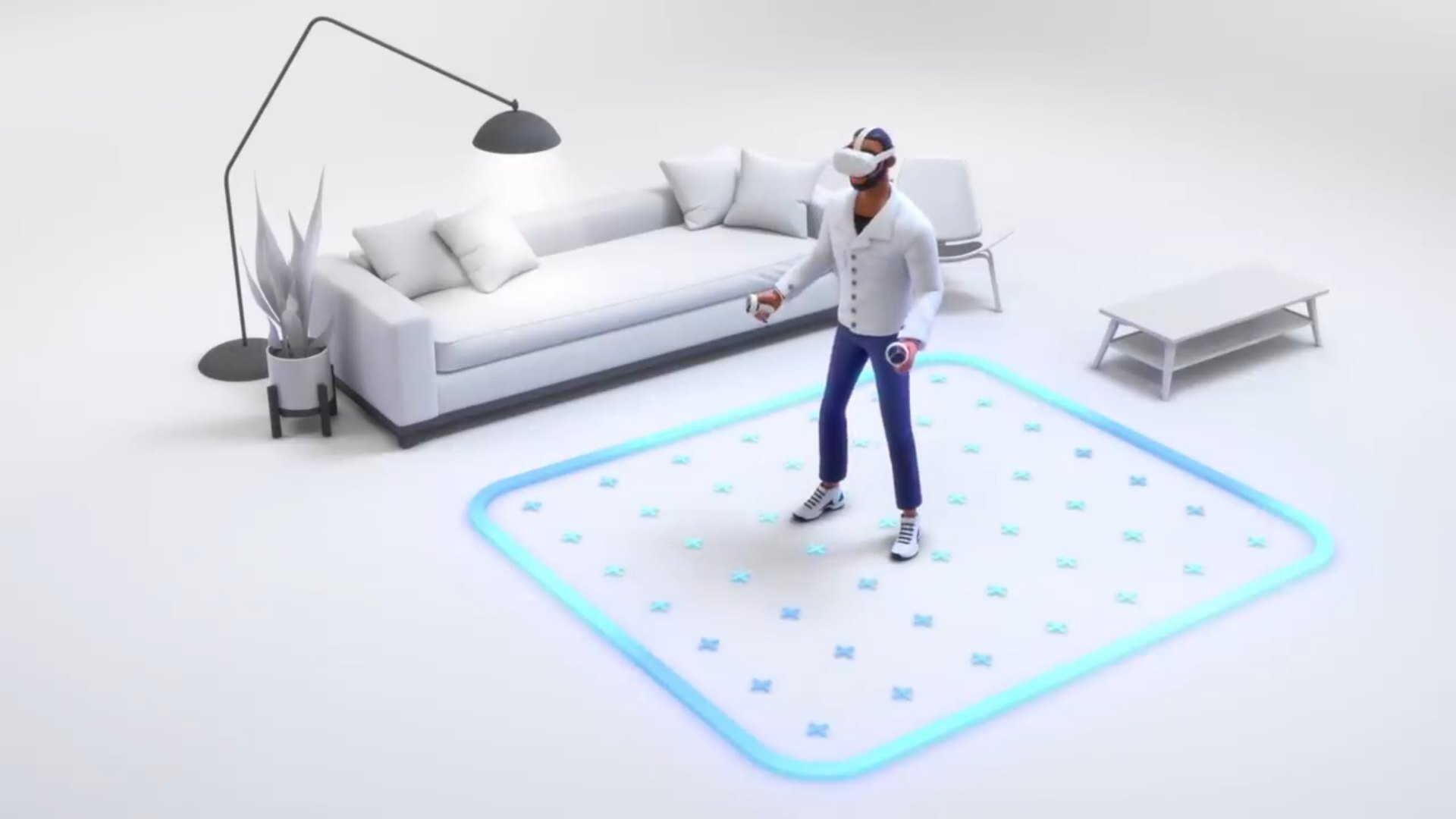
- Choose an open space with clear boundaries.
- Remove trip hazards and low-hanging objects.
- Give each learner at least 5 by 5 feet (1.5 by 1.5 m) to move.
03Set up each headset
Install InvolveXR
- Turn on the headset and complete Meta's Quest setup.
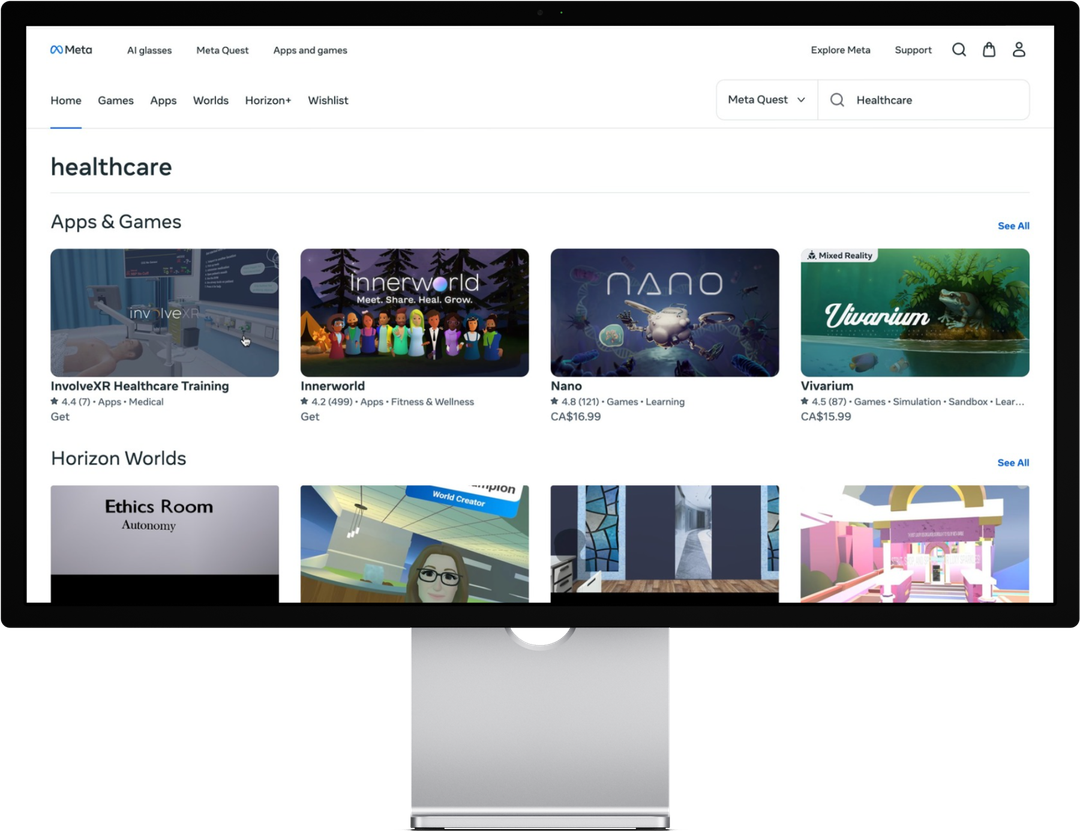
- Open the Meta Quest Store and search "Healthcare".
- Install the InvolveXR VR app.
ℹ️
Using device management (MDM)?
Contact us directly and we'll help with setup.
04Before each session
Pre-session checklist
Check every headset
- Fully charged (a solid green light means full)
- InvolveXR installed (search "Healthcare" in the App Library)
- Connected to your facility Wi-Fi
- Guardian boundary set up in your session space
- Lenses adjusted for each learner (Quest 3 and Quest 2)
- Controller batteries checked
And for each learner
- They have an InvolveXR account. Send them Creating your InvolveXR account.
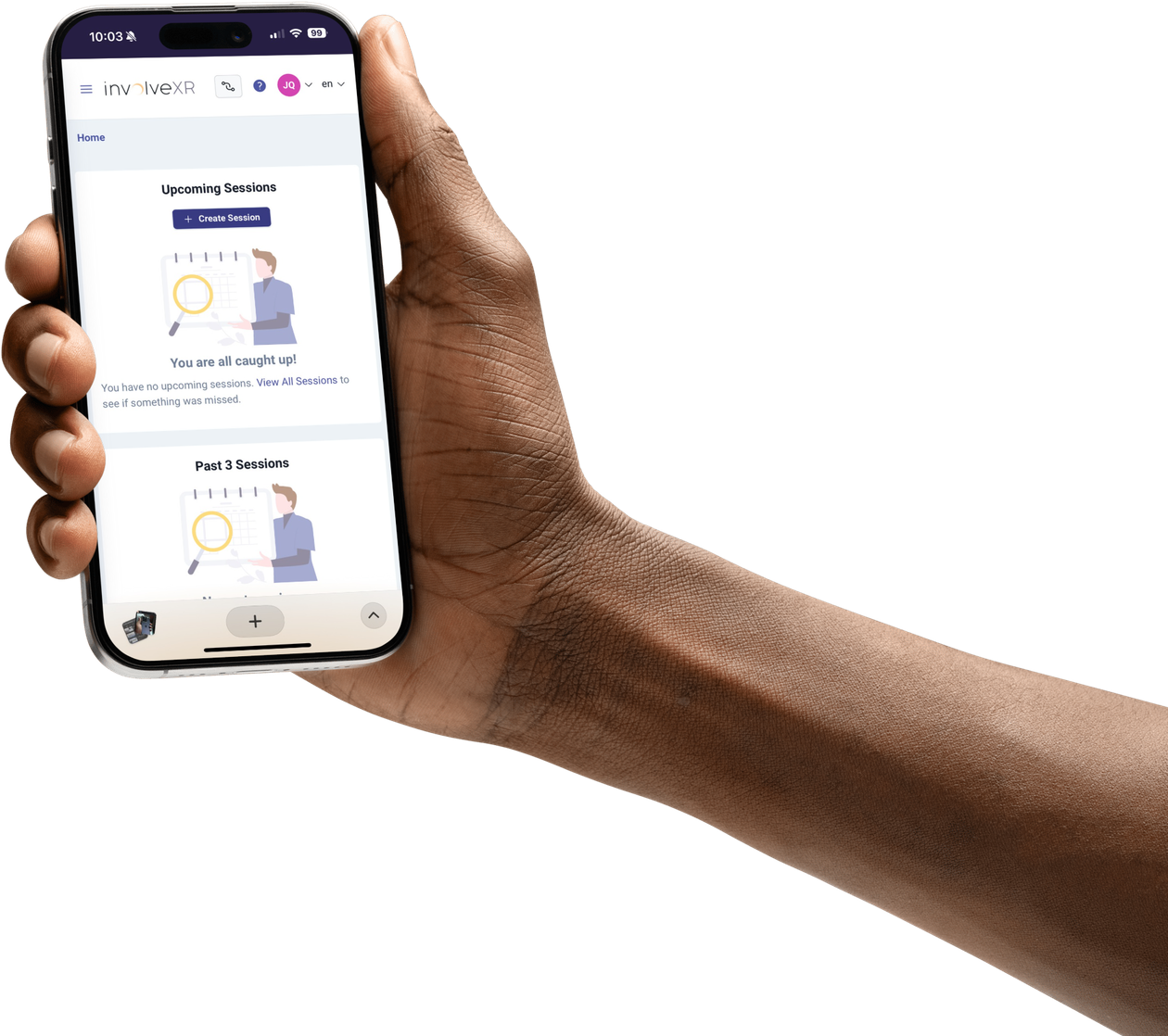
- A phone or computer is nearby, signed in to the Web Portal, for pairing.
05Launch the app and pair the headset
In the headset
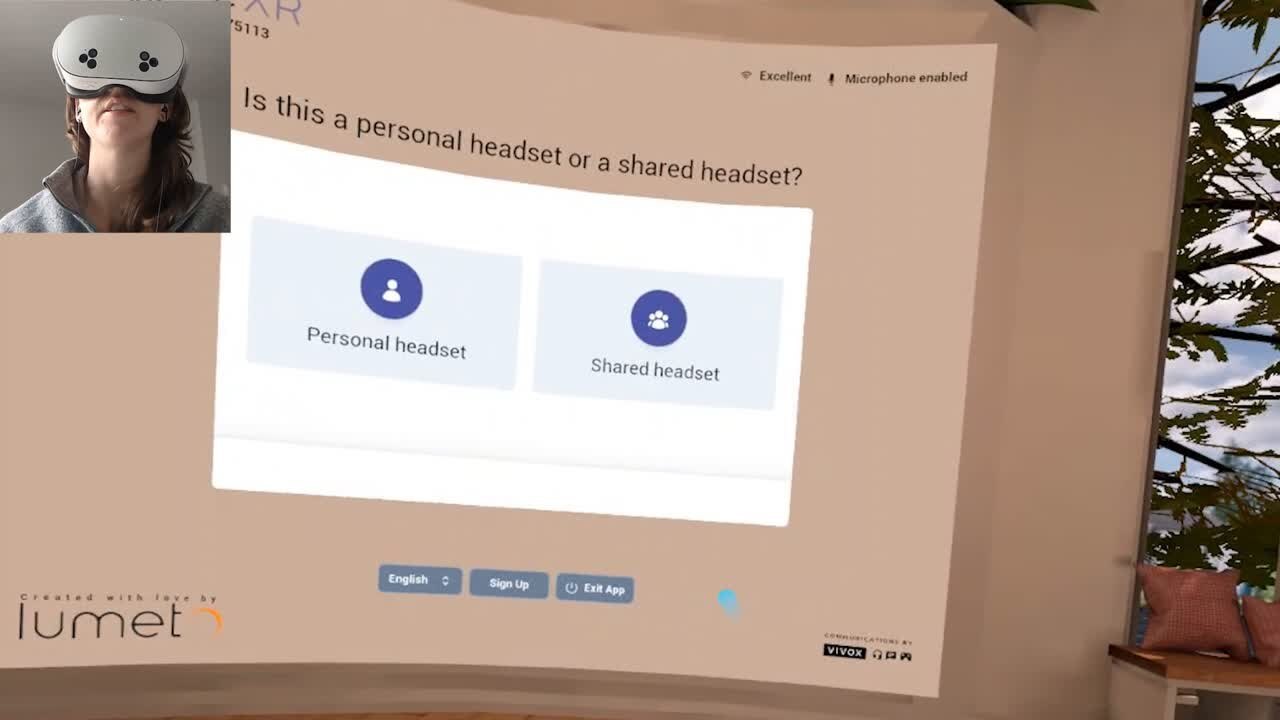
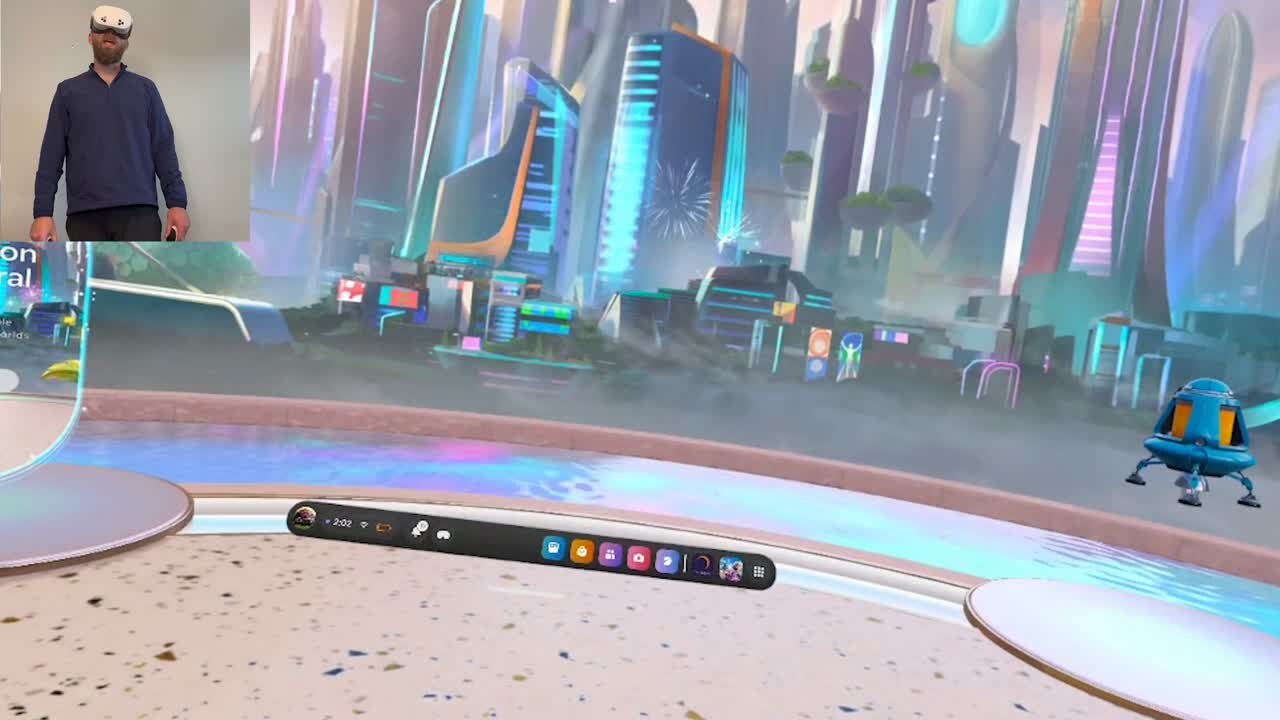
- Select InvolveXR from the Content or home screen.
- Wait for it to load.
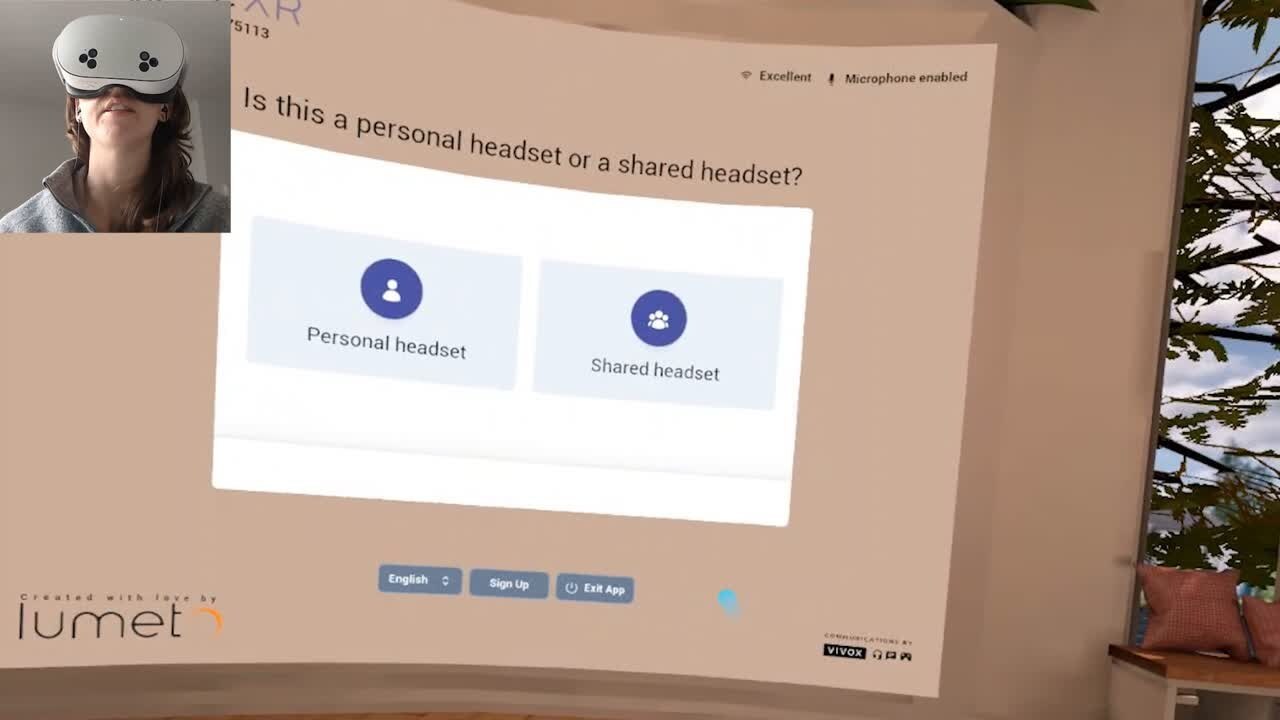
- Lift the headset and note the pairing code.
- In the Web Portal, click the Pair icon and enter the code.
- Choose instructor-led or self-directed, then select the session.
🥽
Your station is ready.
Next, manage who can use it.
-1.png?width=150&height=66&name=Lumeto%20Logo%20Reverse%20Transparent%20(1)-1.png)