Start here
VR basics for internationally educated nurses
New to virtual reality? Learn what it is, the words you'll hear, and how to get your headset ready, before your first InvolveXR session.
01What is VR?
ℹ️
Start with these
New to InvolveXR? Read Introduction to Lumeto and InvolveXR and Creating your InvolveXR account first.
A 3D world you can step into
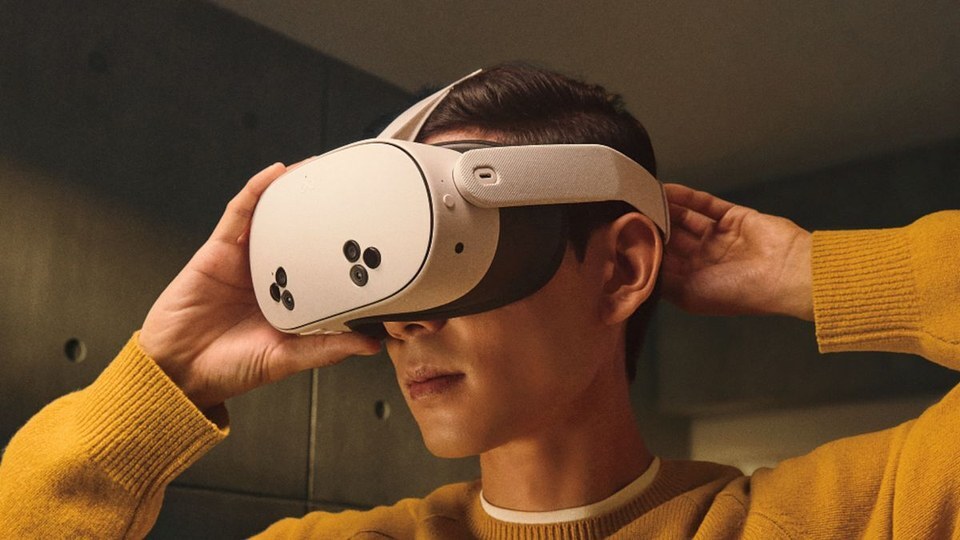
Virtual reality (VR) is a computer-made 3D world that you can look around and interact with. It feels like you are inside a new place.
- The headset covers your eyes and shows you the virtual world.
- Hand controllers let you pick up and use virtual objects.
Why practise in VR
A safe place to practise
Try procedures without any risk to a real patient.
Lifelike patients
Work through patient scenarios that feel like a real shift.
Mistakes are okay
Learn from errors with no real-world consequences.
What to expect
Good to know
- Feeling a little dizzy at first is normal
- Take a break whenever you need one
- Start with shorter sessions and build up
- Ask for help if you are unsure about anything

02Words to know
You'll hear these words in your sessions. Each card shows the term, how to say it, and what it means in plain language.
Vibration or touch response
Haptic feedback
HAP-tik FEED-bakWhen you touch an object in VR, you may feel a small vibration, like your phone buzzing.
Jump move or instant step
Teleportation
tel-uh-por-TAY-shunInstead of walking, point to a spot and move there instantly.
Virtual hand movement
Controller tracking
kun-TROH-ler TRAK-ingYour controller acts as your hand. When you move it, your virtual hand moves too.
Hold and press to pick up
Grabbing and interacting
GRAB-ing and in-ter-AK-tingPress and hold a button to pick up objects, instead of grabbing them with your hand.
What you can see in VR
Field of view (FOV)
feeld uv VYOOHow much of the VR world you can see at once, like looking through glasses.
Reset your view
Recalibration
ree-kal-ih-BRAY-shunIf something looks off, use the reset button to centre yourself again.
Feels like real life
Immersive experience
ih-MUR-siv ik-SPEER-ee-unsThe feeling that you are really inside a hospital room.
Delay in movement
Latency and lag
LAY-tun-see and LAGWhen things in VR feel slow or delayed, that delay is called lag.
💡
Tip
Say each word out loud once. It makes them easier to recognise when a facilitator uses them.
03Check your understanding
Eight quick questions. Tap the word that matches each description.
1When you touch something in VR and feel a small vibration, like your phone buzzing.
The answer is Haptic feedback.
2Moving instantly to a different spot by pointing at it.
The answer is Teleportation.
3How much of the virtual world you can see at once, like looking through glasses.
The answer is Field of view.
4Your virtual hand moves in sync with your real controller.
The answer is Controller tracking.
5Pressing and holding a button to pick up objects.
The answer is Grabbing and interacting.
6Using a button to make sure you are centred in the virtual room.
The answer is Recalibration.
7Feeling as if you are really inside a hospital room.
The answer is Immersive experience.
8Movements in VR feel slow or delayed.
The answer is Latency and lag.
04Know your headset
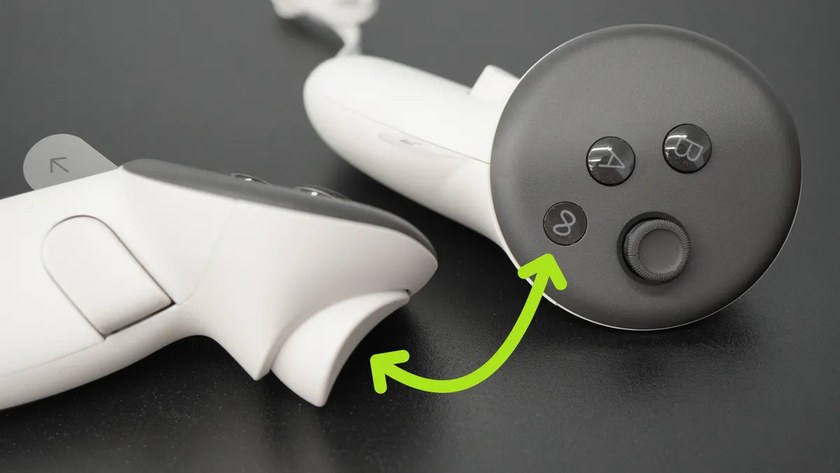
Learn the buttons on the Meta Quest headset and controllers before you go further.
05Before you put the headset on
Run through this list before every session.
Ready checklist
- Headset is charged
- Controllers are charged
- At least 6.5 by 6.5 feet (2 by 2 m) of clear space, with no obstacles
- A stable Wi-Fi connection
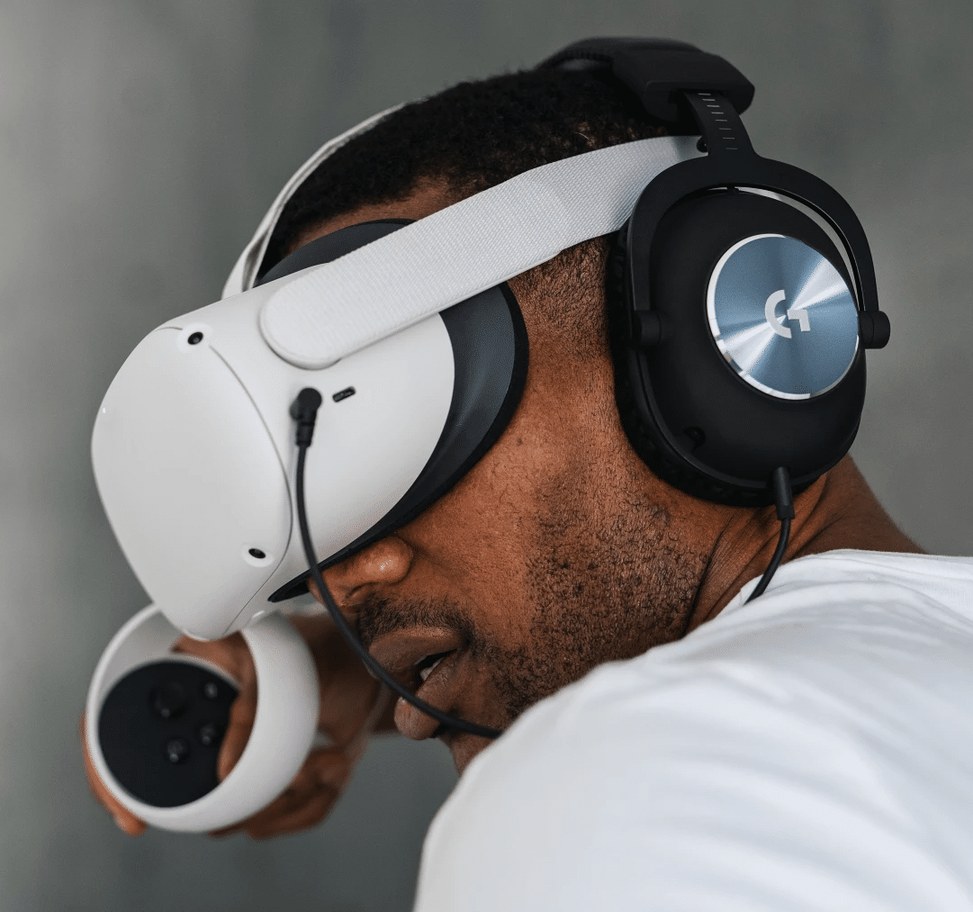
- Headphones plugged in if the room is noisy
06Find your way around
The home screen
Three areas you'll use most.
App menu
CentreOpen your apps and library.
Quick actions
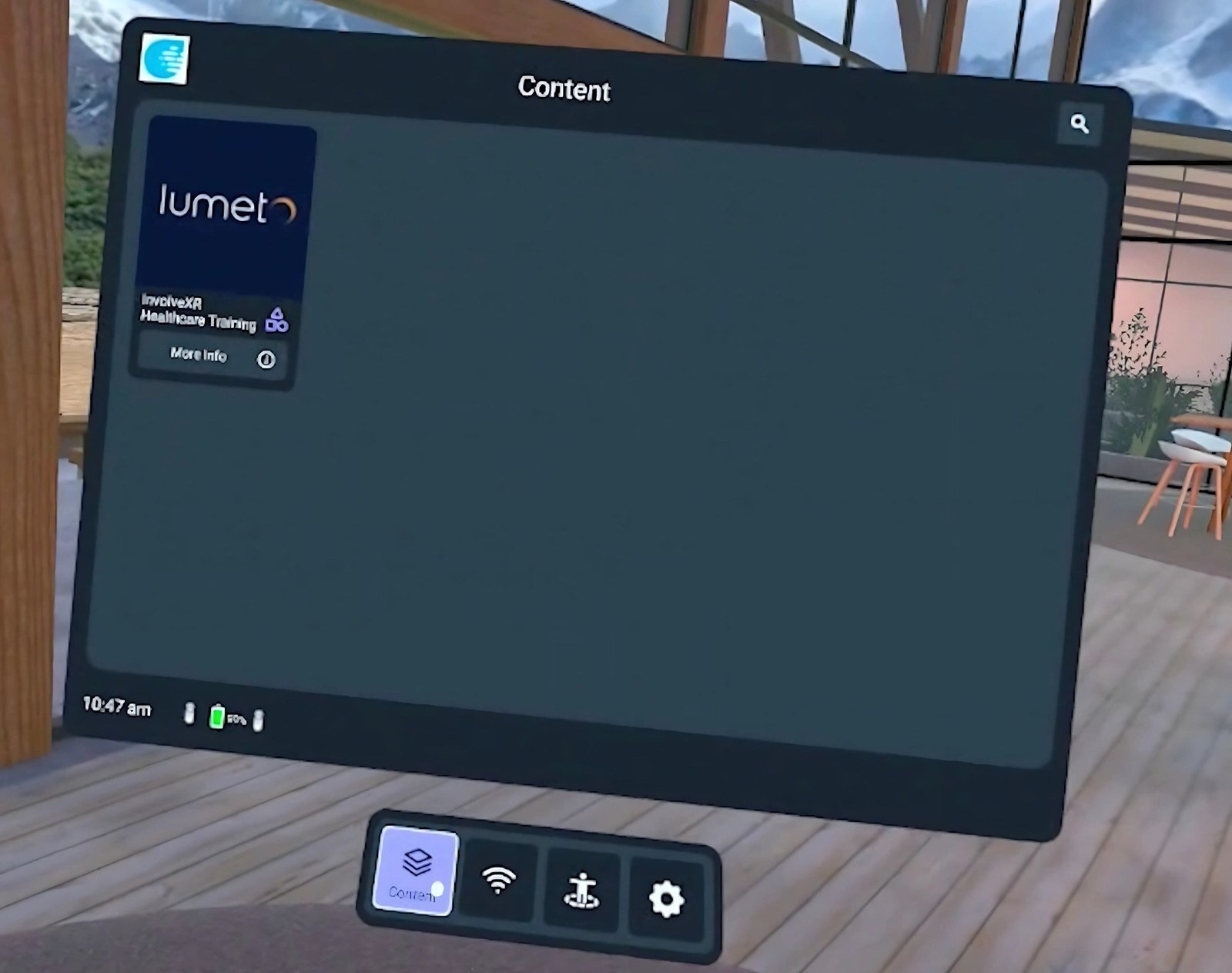
Left of toolbarBattery, time, and Quick Settings.
Toolbar
BottomContent, Wi-Fi, Guardian, and settings.
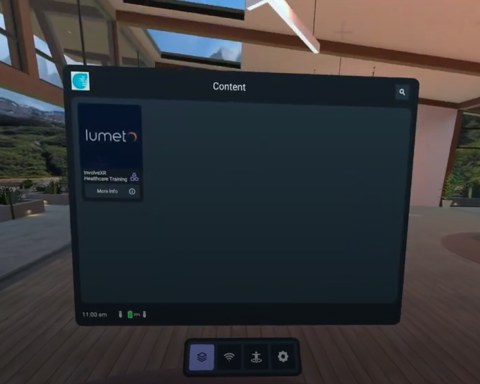
Move between screens
- Point your controller at an option.
- Press the trigger button to select it.
- Press the Meta button to go back to the home screen.
Connect to Wi-Fi
- Open the Wi-Fi settings menu.
- Select your network and press Join.
- Enter your password when asked.
07Set up your Guardian
What the Guardian does
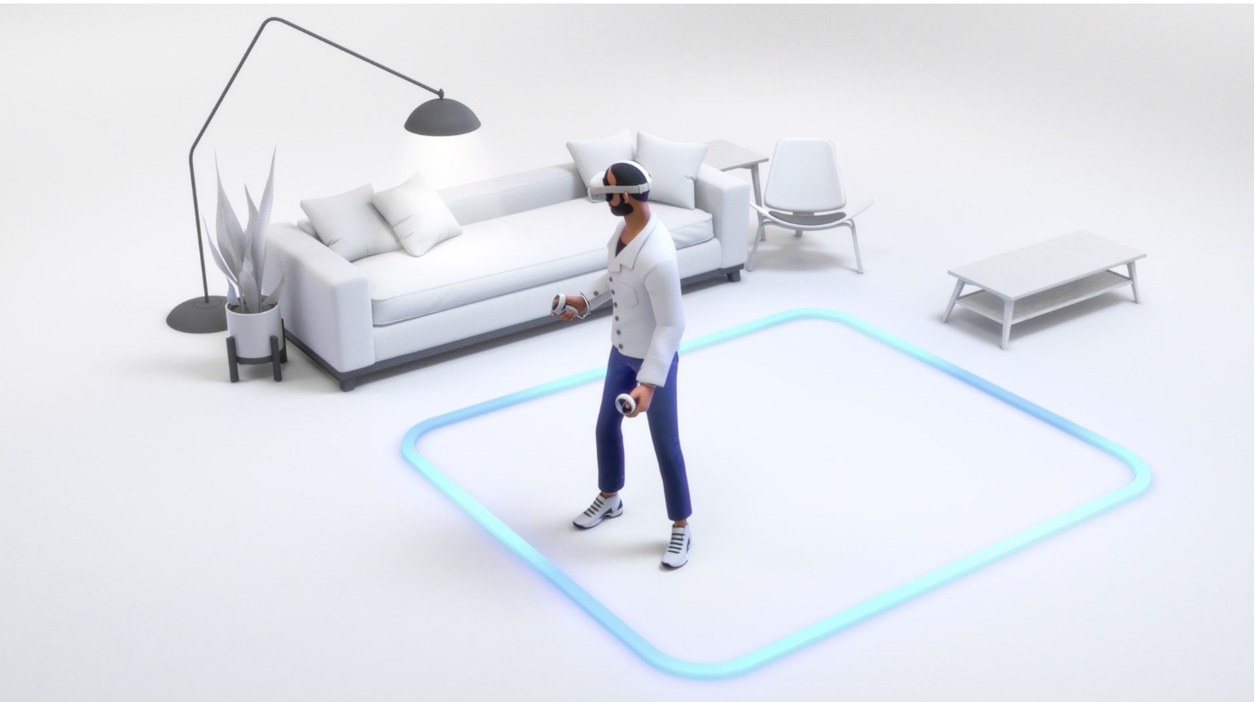
The Guardian is a virtual boundary around your play area. It keeps you from bumping into real furniture and walls, and you can change it to fit your room.
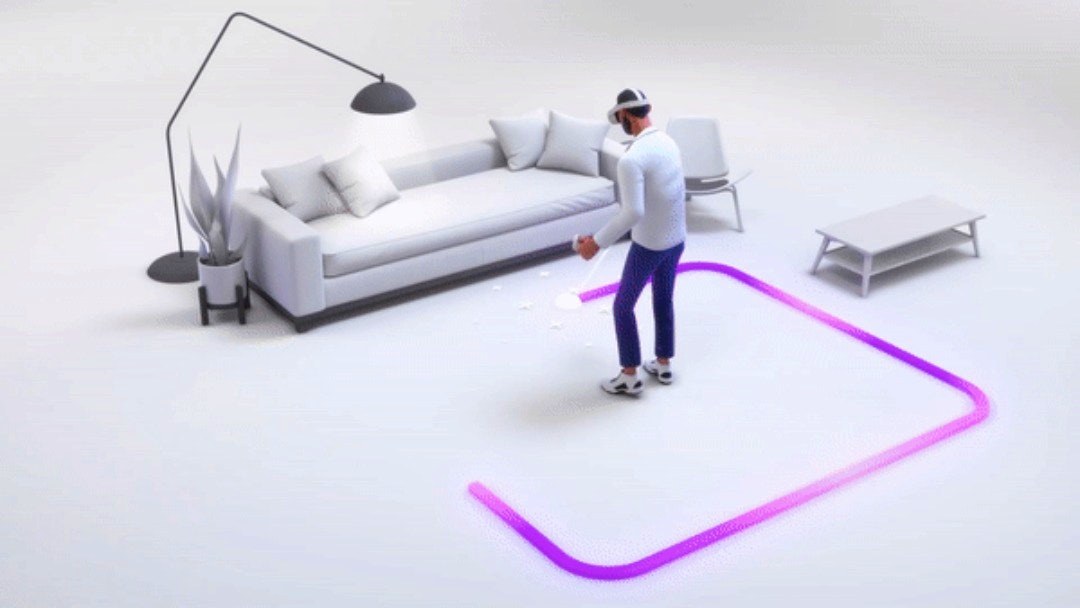
Pick a mode
Roomscale
For walking around. Needs a large play area.
At least 6.5 by 6.5 ft (2 by 2 m)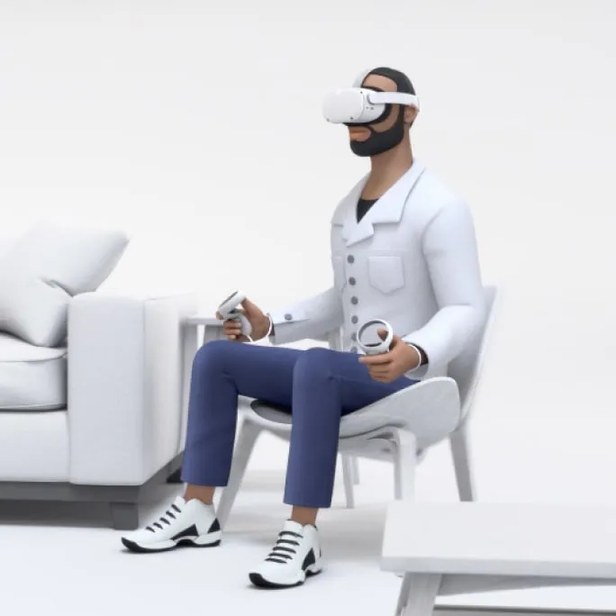
Stationary
For seated or standing sessions in a small space.
Small spacesDraw your boundary
- Open the Guardian menu.
- Set the floor level.
- Look down, point your controller at the floor, and trace around your play area.
- Adjust the boundary size if needed.
- Confirm when the boundary appears.
Setting up your Guardian
Watch the full setup, from floor level to confirming your boundary.
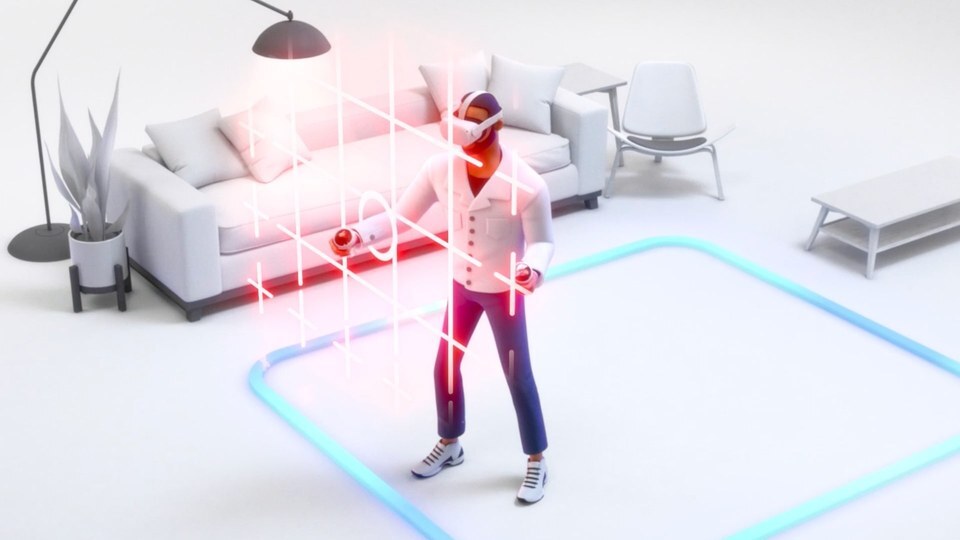
Guardian alerts
See what happens when you get close to the edge.
Change it later
- Edit the boundary from Settings if your space changes.
- Turn on passthrough to see the real room without taking off the headset.
- Reset the Guardian after a big change to the room layout.
⚠️
Stay inside the lines
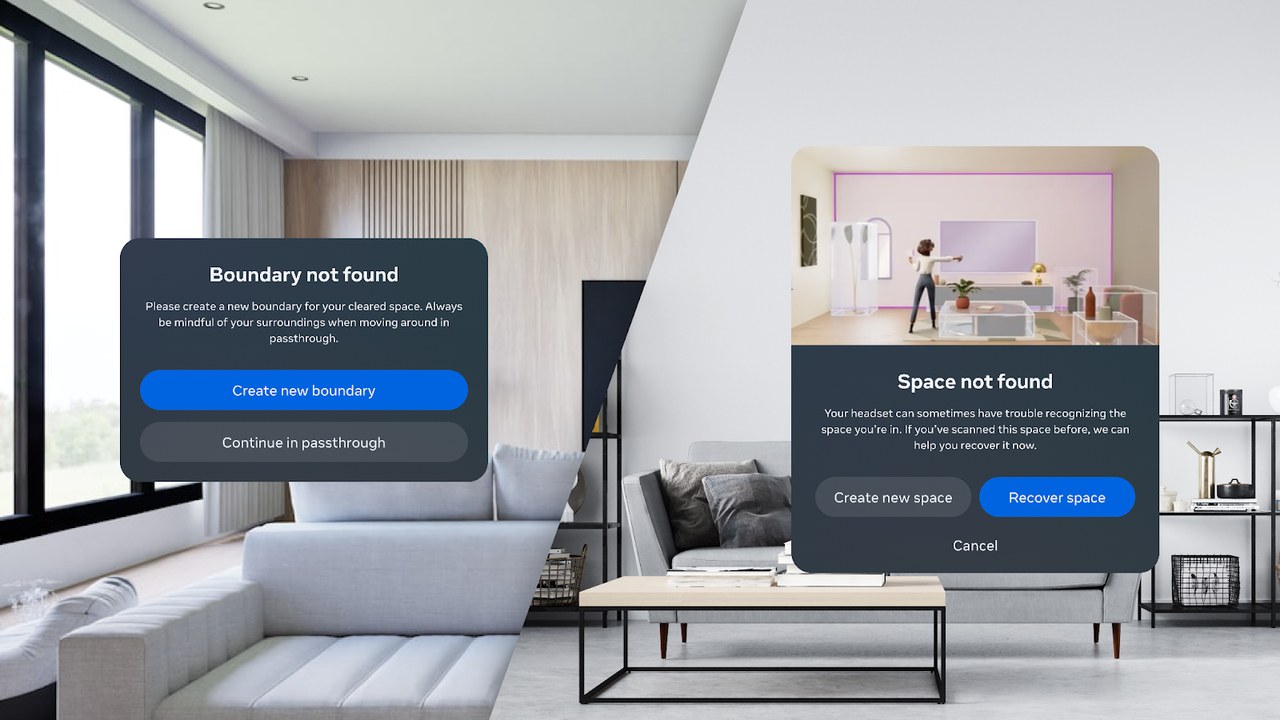
A grid appears when you get close to the boundary, and a warning shows if the headset loses tracking. Check and update your boundary often.
🥽
You're ready for your first session.
Keep going with the rest of your path, in this order.
-1.png?width=150&height=66&name=Lumeto%20Logo%20Reverse%20Transparent%20(1)-1.png)