Beginner
OnScreen for trainers: overview
What you can do in InvolveXR OnScreen today, what you can customize, and what your learners will see.
01What you can do right now
OnScreen is in early beta, but you can already build, launch, and test cases.
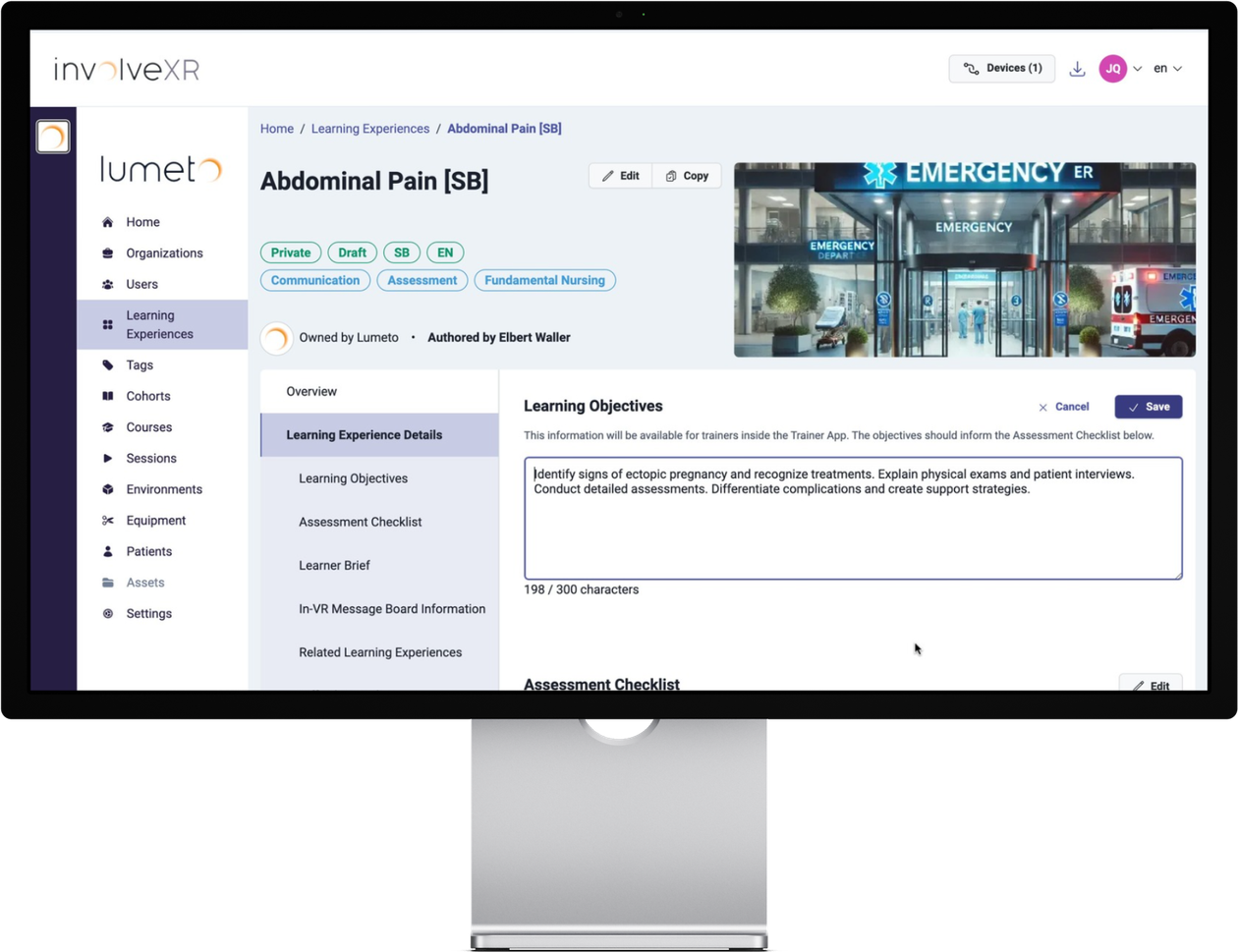
Build cases and preview them
Cases you build in the Web Portal's authoring tool are available in OnScreen straight away. Use it as a rehearsal space to:
- Test interactions and conversation flow.
- Preview how AI characters respond.
- Refine pacing, dialogue, and learning objectives.
Launch from the desktop app
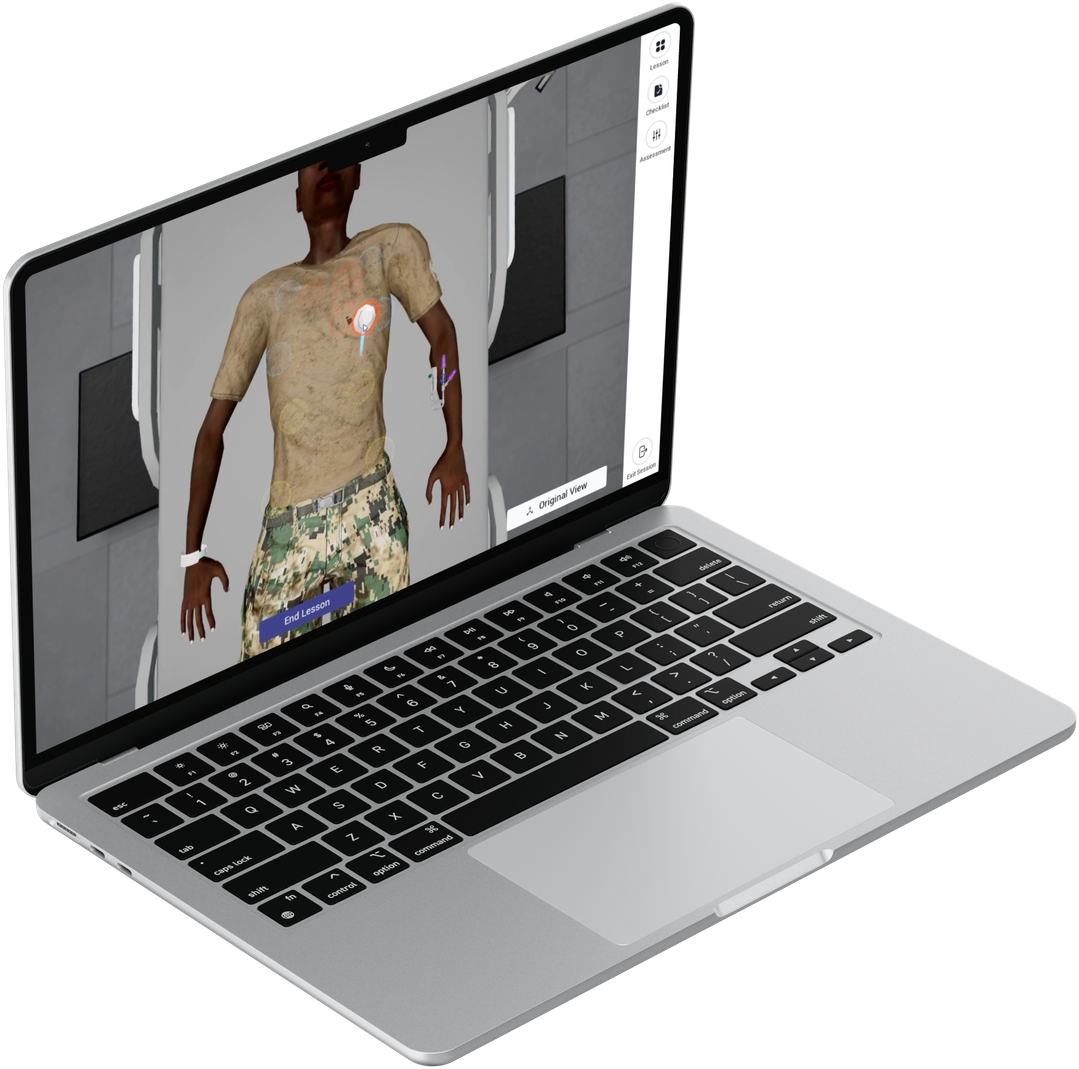
OnScreen runs in the InvolveXR Desktop App. Your team can sign in with their InvolveXR account, launch scenarios built in the Web Portal, talk to AI characters, and move through the whole experience without a VR headset.
See the AI in action
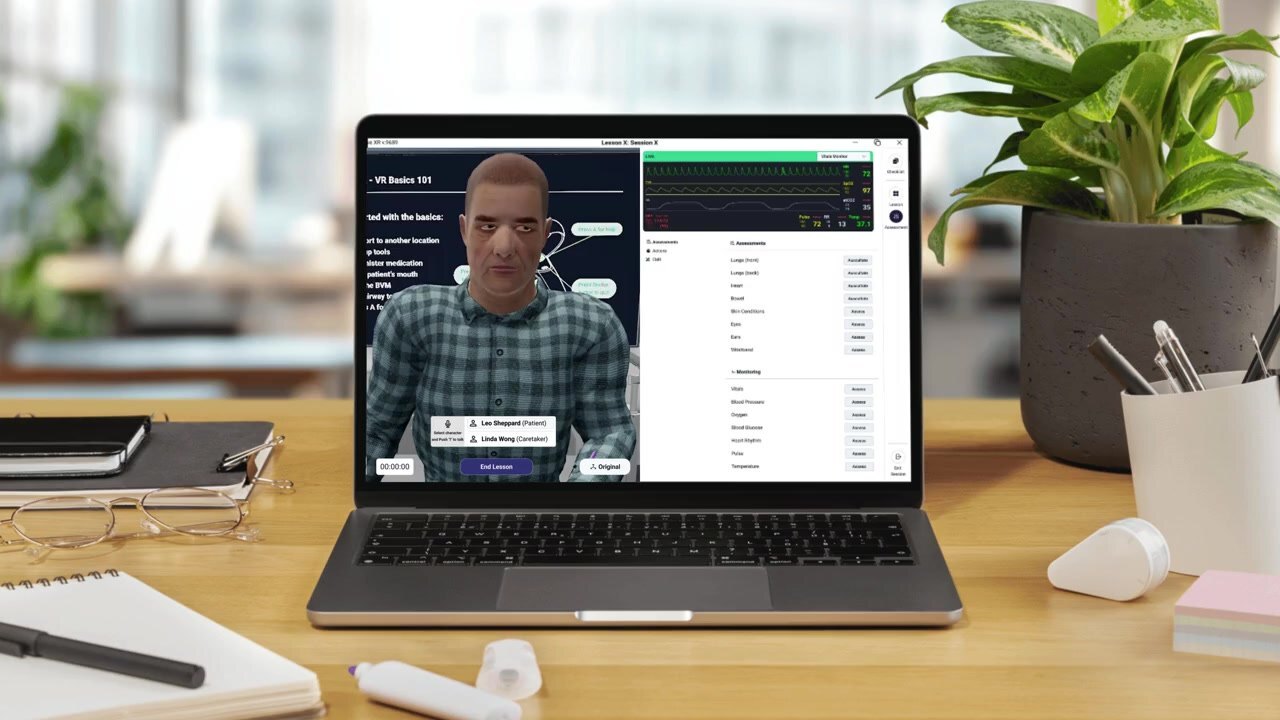
Scenarios support natural conversation, so you can check:
Phrasing
How the AI character understands different ways of asking.
Guardrails
That your scripted rules hold up.
Objectives
That the conversation reinforces your learning objectives.
What you can and can't do yet
Create screen-based (SB) cases
Ready nowCopy an existing Scenario Builder case or start from an SB template. This works out of the box.
Copy ILT or SDL cases into SB
Ask usThis needs a quick backend update. Contact your Lumeto Product Specialist and we'll set it up.
Platform status
BetaOnScreen is improving quickly. You may notice small UI quirks or feature gaps as updates roll out.
02What you can customize
You control every part of an OnScreen case, from the patient's personality to how learners are assessed.
Your patient
Model and voice
Pick from a library of patient models, and choose a voice and speaking style.
Personality
Plain-text settings shape tone and emotion, with an emotional baseline such as calm, anxious, or irritable.
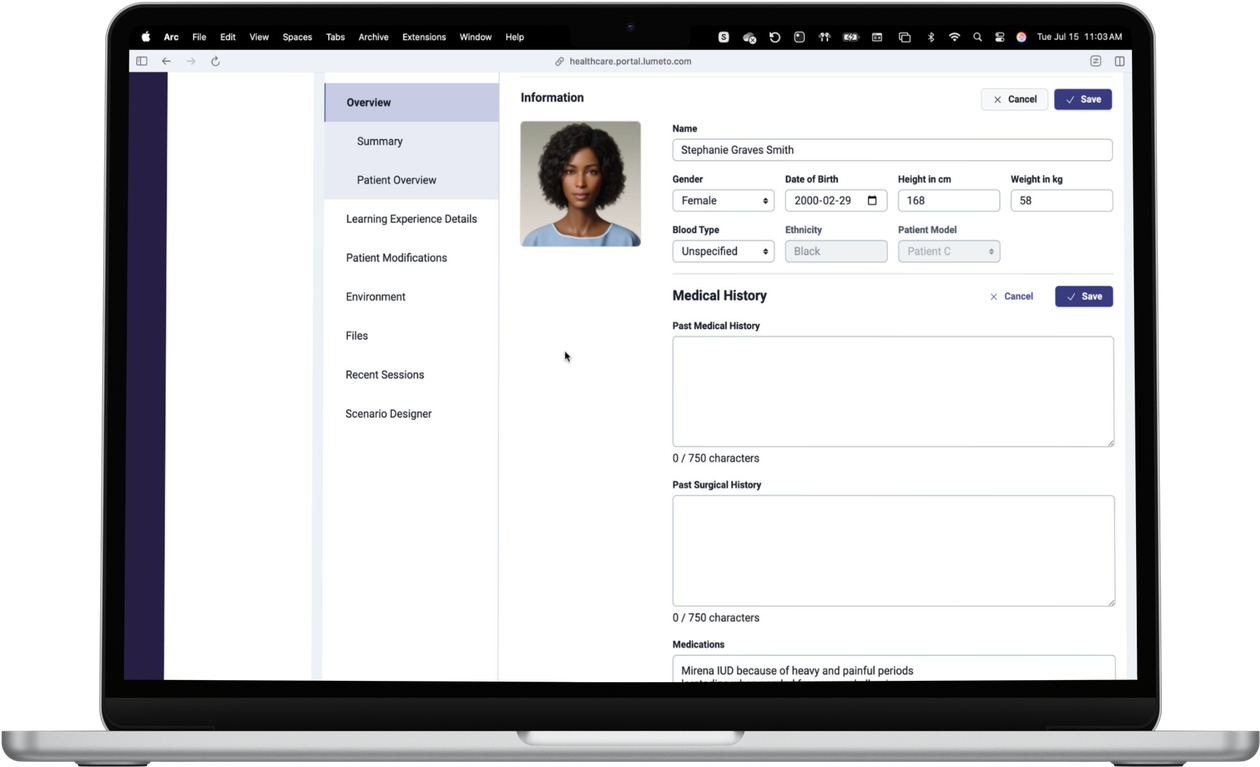
Medical overview
Name, age, condition, and background.
Learner brief
Every caseShown at the start of every scenario. Edit the setting and role, case background and presenting complaint, and the goals for the interaction.
Learning objectives
Optional displayList measurable outcomes, link them to conversation triggers, align them with your frameworks, and decide if learners see them.
Assessment checklist
Drives feedbackDefine success with checklist items. Tie them to what learners say or do, mark correct and incorrect actions, and weight the scoring.
ℹ️
Go deeper
See Building a case for OnScreen and Customizing the assessment checklist.
03What learners see
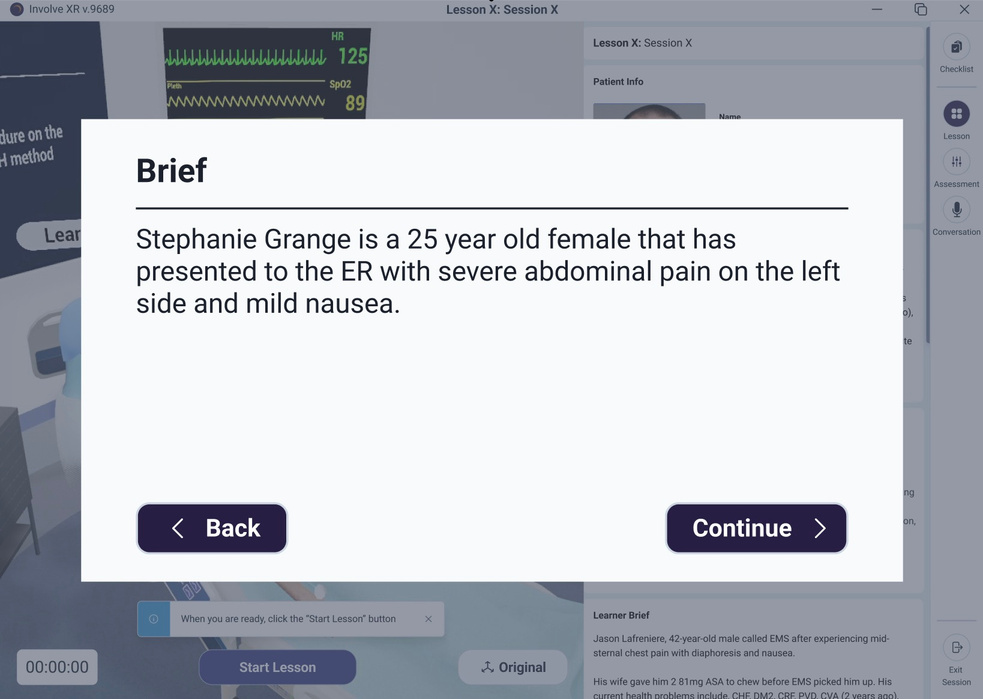
From the opening brief to the final screen, here is the learner's journey.
2. The scenario
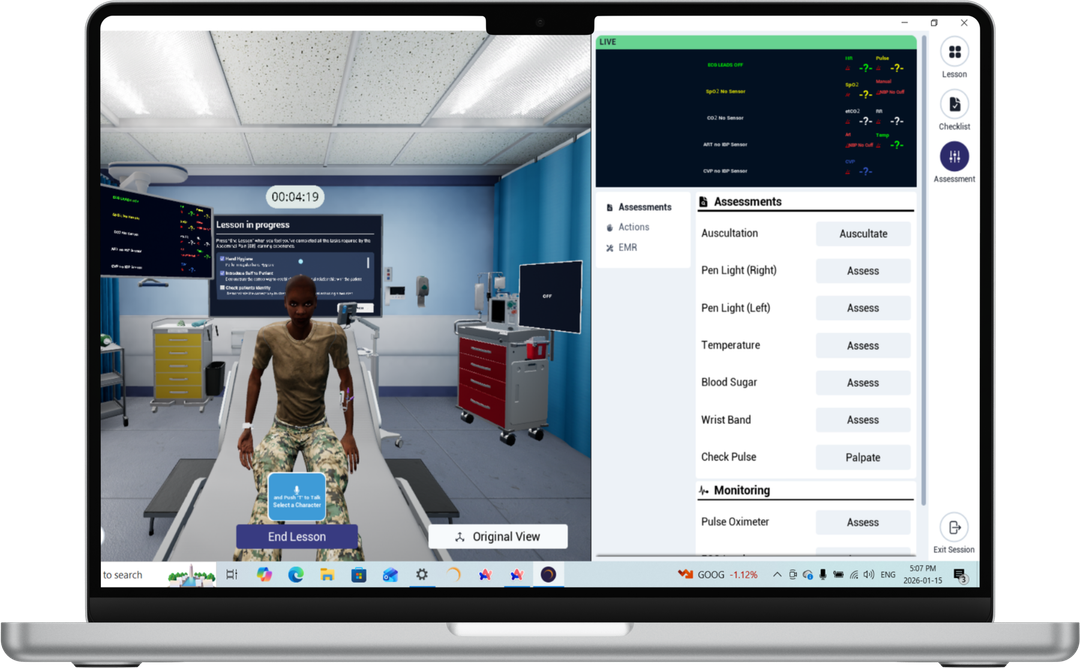
Talk
Learners press and hold T to speak to characters.
Side menu
Lesson, Checklist, and Assessment tabs for actions, assessments, and the EMR tablet.
Camera
Original View resets the camera.
3. Checklist visibility
Education modeThe Checklist tab only appears in education mode.
Handwashing
Known gapClicking Sanitize ticks it off the checklist. There is no animation yet.
After the session
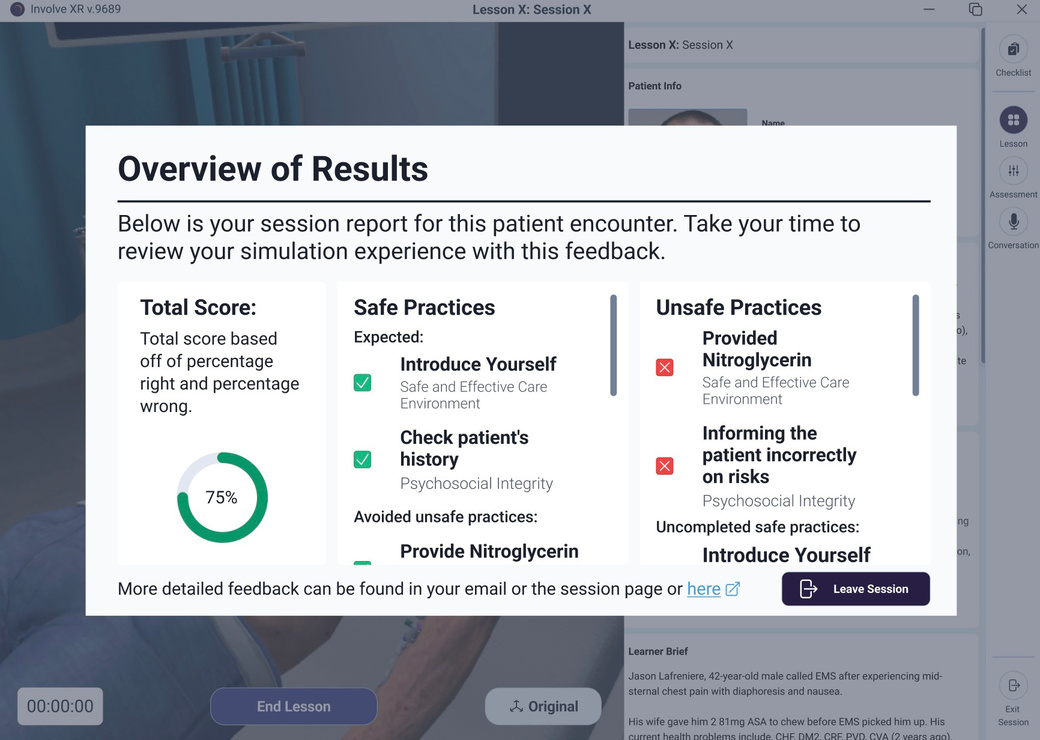
Results emailLearners see a closing message, performance insights, and checklist feedback, and get a detailed results email.
💡
Walk through it yourself
Share Navigating a learning experience with learners. It covers every control in detail.
💻
You know what OnScreen can do.
Get the app set up next.
-1.png?width=150&height=66&name=Lumeto%20Logo%20Reverse%20Transparent%20(1)-1.png)