Advanced
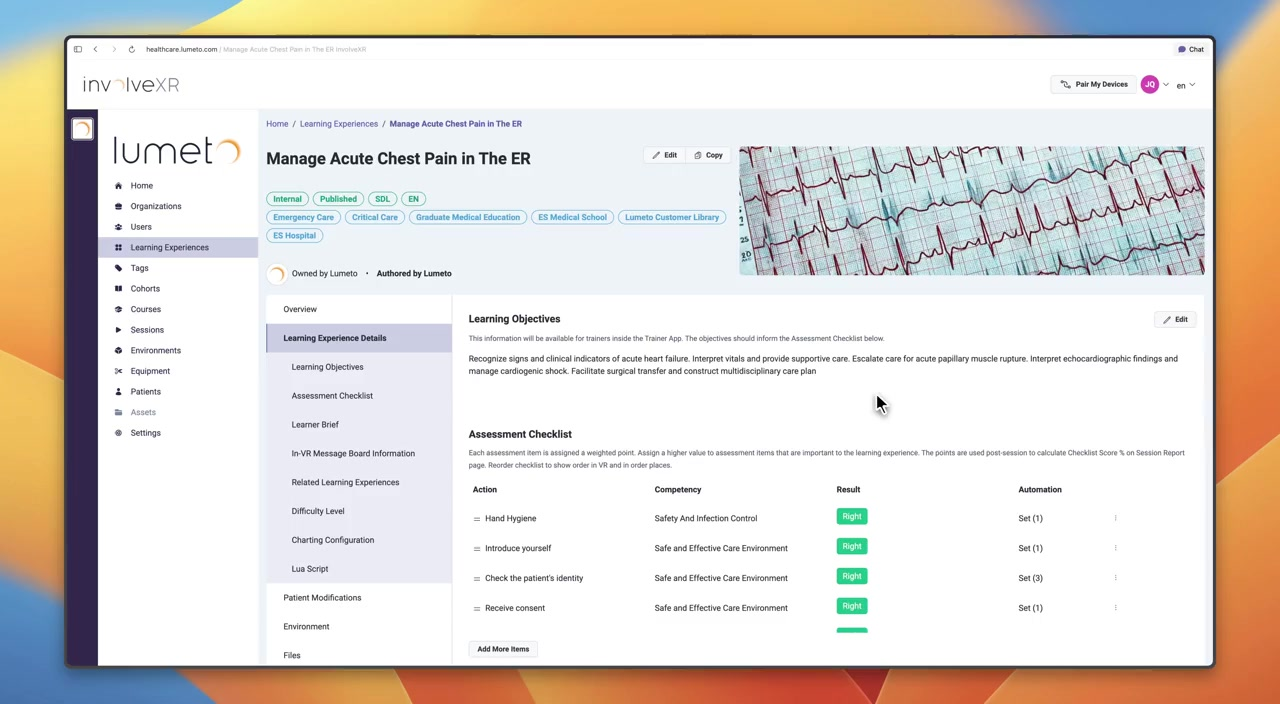
Customizing the assessment checklist
Build checklist items, then let them tick off automatically from what learners do or say.
Release 18What's changed on this pageEverything new →
01Design the checklist
Updated
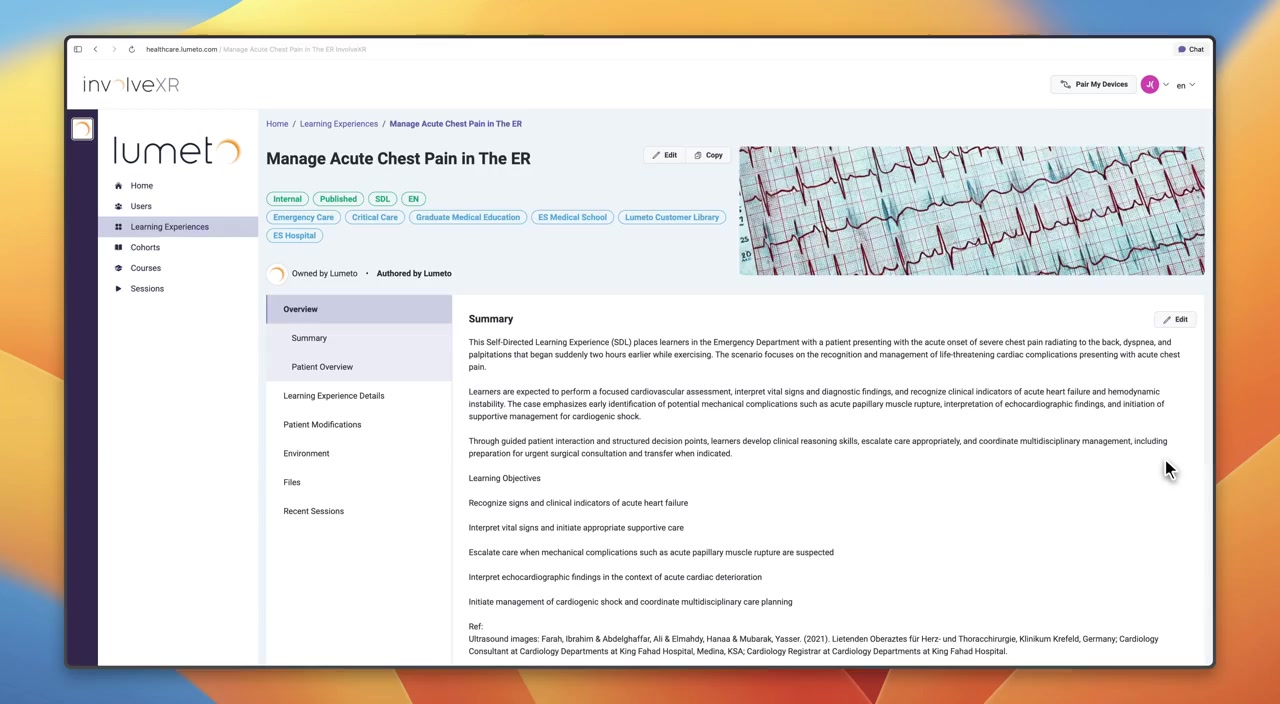
Learning Experience Details tab
Open the Assessment Checklist section and add the key actions learners should take. Each item is a learning objective, such as "Confirm patient identity" or "Ask about chief complaint".
Instructors can tick items by hand, or you can automate them.
💡
Write descriptions learners can act on
In self-directed sessions, learners see each item's description while they work. Keep it short and specific, such as "Ask the patient to state their full name and date of birth."

02Two ways to automate
Add a rule to any item and it ticks off on its own, with no instructor input.
Action-based
Physical actionsTriggered by what the learner does, such as attaching a device, giving a medication, or using an object. Example: blood pressure cuff attached to patient.
LLM-based
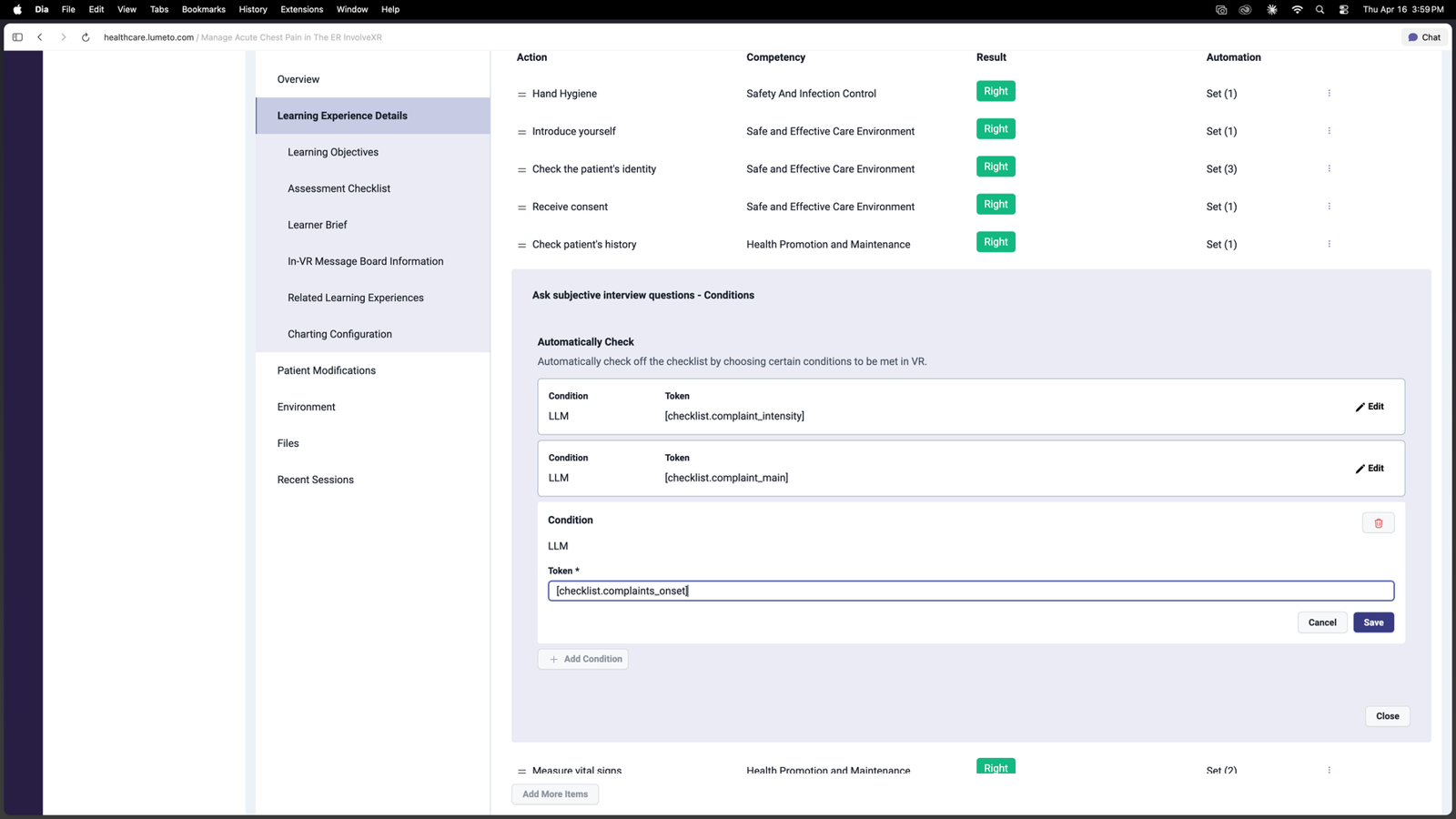
ConversationTriggered by what the learner says. The AI listens to the conversation and ticks the item when it hears specific language, using tokens you define in the patient prompt. Example: learner asks about the chief complaint.
03Set up an action automation
Step by step
- In the Assessment Checklist, open the item, select the three dots, then Edit Conditions. Create the item first if it doesn't exist.
- Review any existing conditions. You can edit or delete them.
- Select Add Condition and choose the object or element to watch for.
- Choose the interaction, add any extra details like medication, dose, or time, then save.
Condition: Blood Pressure Cuff · Interaction: Attached to Patient
04LLM automations and tokens
LLM automations need two things to match: a token in the patient prompt, and the same token in the checklist item.
1. Token in the patient prompt
Write the token and when to use it at the bottom of the patient prompt. This tells the AI what to listen for.
2. Token in the checklist item
Copy the exact token into the item's Token field. When the AI outputs it, the item is ticked.
Example tracking section
Tracking what the user says. When detected, add a token like [checklist.token_name].

User asks the patient's name:
 → [checklist.confirm_patient_name]
User asks about the main complaint:
 → [checklist.complaint_main]
User asks about complaint severity:
 → [checklist.complaint_intensity]
No match:
 → [checklist.nothing]
Plain language
Describe the trigger in everyday words. The AI understands intent, not just exact phrases.
One token per behaviour
Each line maps one learner action to one token.
Keep the fallback
[checklist.nothing] stops random output when nothing matches. It is already in all Lumeto templates.
Only what can be heard
Tokens detect speech only. For gestures or body language, use an action automation or track it by hand.
05Connect a token to a checklist item
- Open the checklist item and select Edit Conditions.
- Select Add Condition, or edit an existing one.
- Set the condition type to LLM.
- Paste the token exactly as it appears in the prompt, square brackets included.
- Save. The automation is live.
⚠️
It has to match exactly
[checklist.complaint_main] in the prompt must be identical to the Token field. Any difference and the item won't tick.
06Why it's worth it
Consistent assessment
Items are checked on what happened, not on what an instructor caught in the moment.
Instructors stay focused
Observers can watch the learner instead of ticking boxes.
Richer debriefs
More tracked behaviours means more detail in session reports.
⭐
Best practice
The more you automate, the less manual work during sessions and the more reliable your data over time.
✅
Your checklist runs itself.
Schedule the case and see it in action.
-1.png?width=150&height=66&name=Lumeto%20Logo%20Reverse%20Transparent%20(1)-1.png)