Release notes
What's new in Release 17
The IV pump and oxygenation come to OnScreen, new practice cases, Lumi in your Web Portal, org code login, and a first look at a new way to build patients.
01IV pump gets an upgrade
Better accuracy. Broader access.
Release 17 brought the refined IV pump to every modality.
Refined IV pump
Better calculation accuracy, more stable interactions, and a cleaner screen. Less friction, better fidelity.
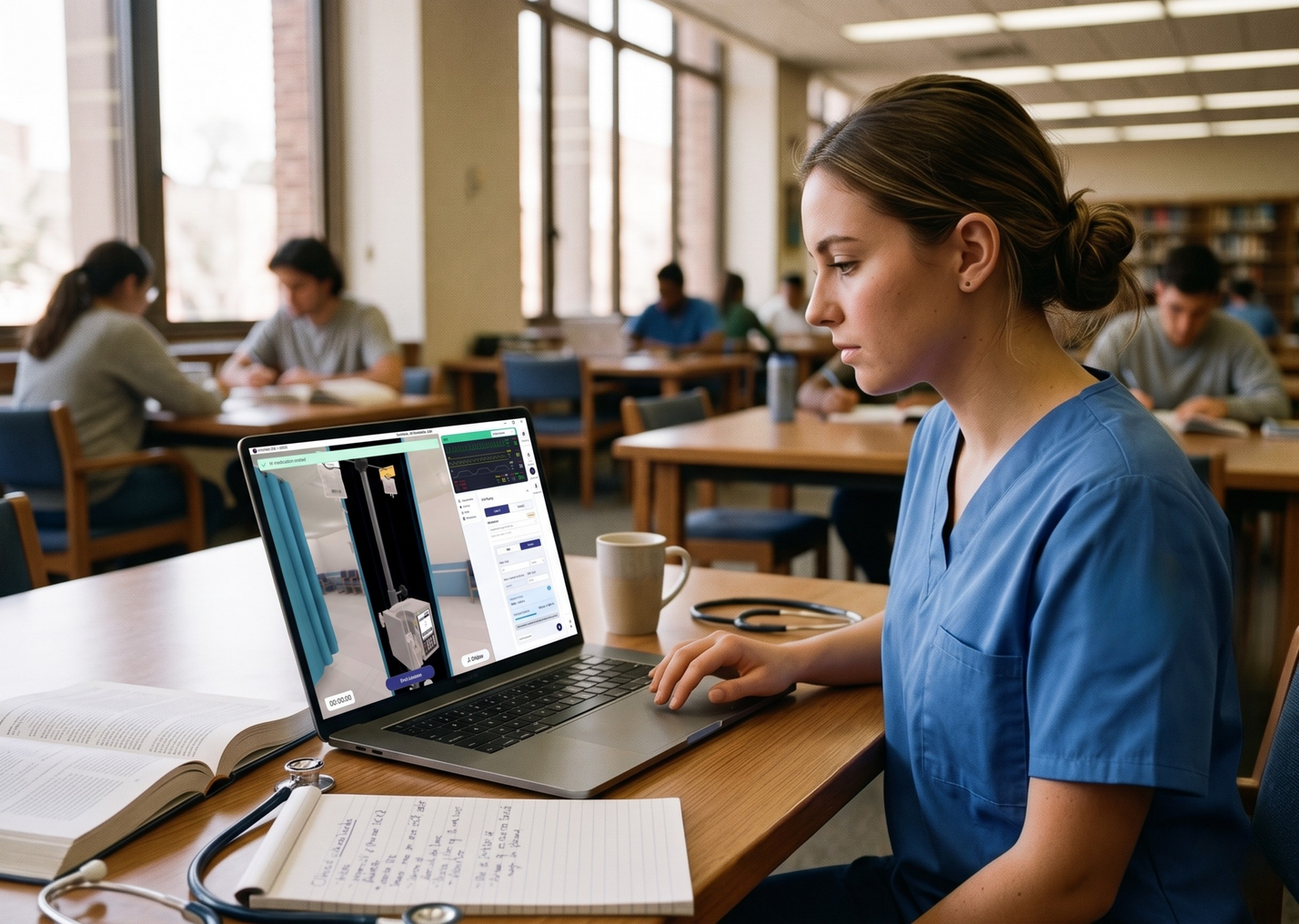
Now on OnScreen
The IV pump is in all screen-based learning experiences. Learners can practise IV management with no headset.
Start an infusion by dose
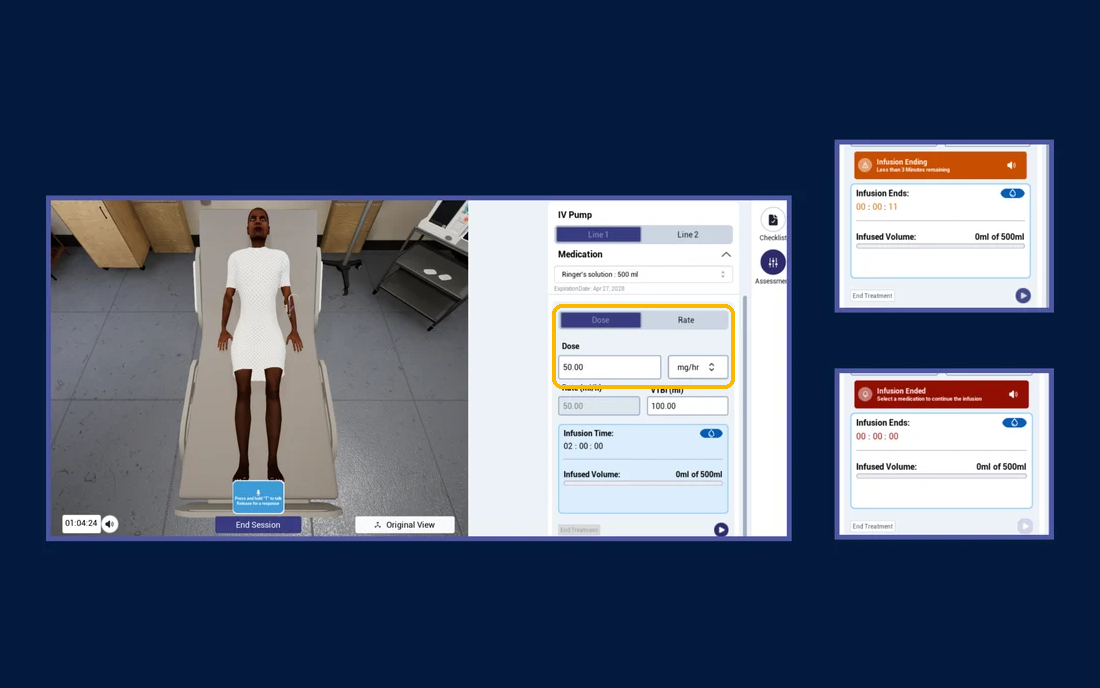
Learners can now start an infusion by dose, using the Dose setting next to Rate on the pump. This works in VR and OnScreen.
- In the Web Portal, set the concentration of the medication in each IV fluid bag, in mg/ml or mcg/ml.
- If you don't set one, the bag uses a default of 1 mg/ml, so dose and rate match one to one.
The pump also shows when an infusion is ending (less than 3 minutes left) and when it has ended.
⚠️
Check your learning experiences
If a case uses the IV pump, set the concentration for each bag in the Web Portal so the dose setting gives learners the right numbers.
💡
Learn more
See Building a case for setting up medications and fluids.
02Oxygenation comes to OnScreen
High-fidelity respiratory care, without the headset
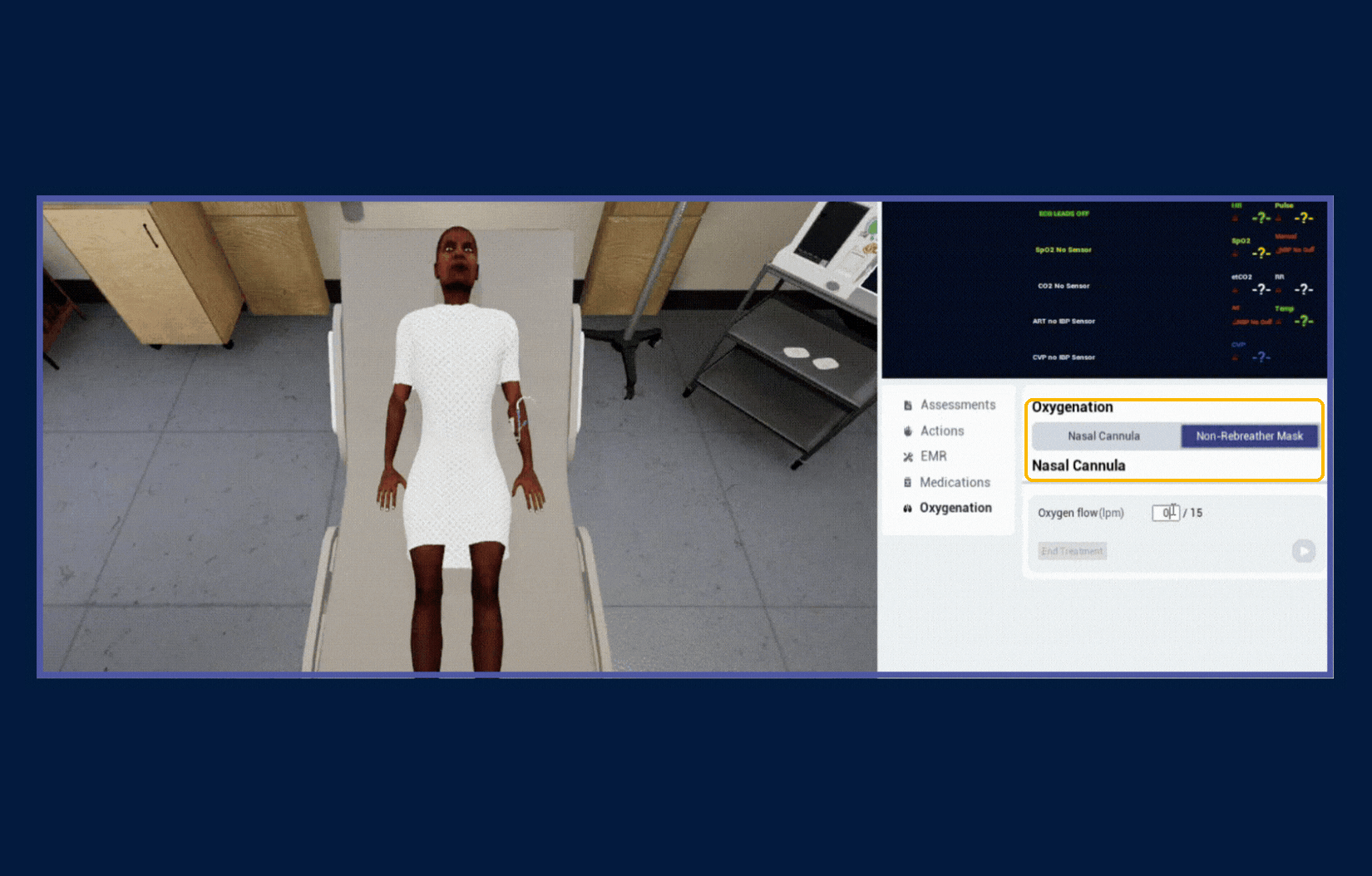
Oxygenation devices are now in OnScreen, so learners at a browser can practise oxygen management and meet the same learning objectives as learners in a headset.
Nasal cannula
O2In all OnScreen learning experiences, for low-flow oxygen delivery practice.
Non-rebreather mask
NRHigh-flow oxygen management, now on screen-based modalities.
Find it under Oxygenation in the menu, choose the device, and set the oxygen flow.
OnScreen parity
This continues our commitment to bringing the highest level of simulation quality to every learner, in any modality.
03Easy, deliberate practice using OnScreen
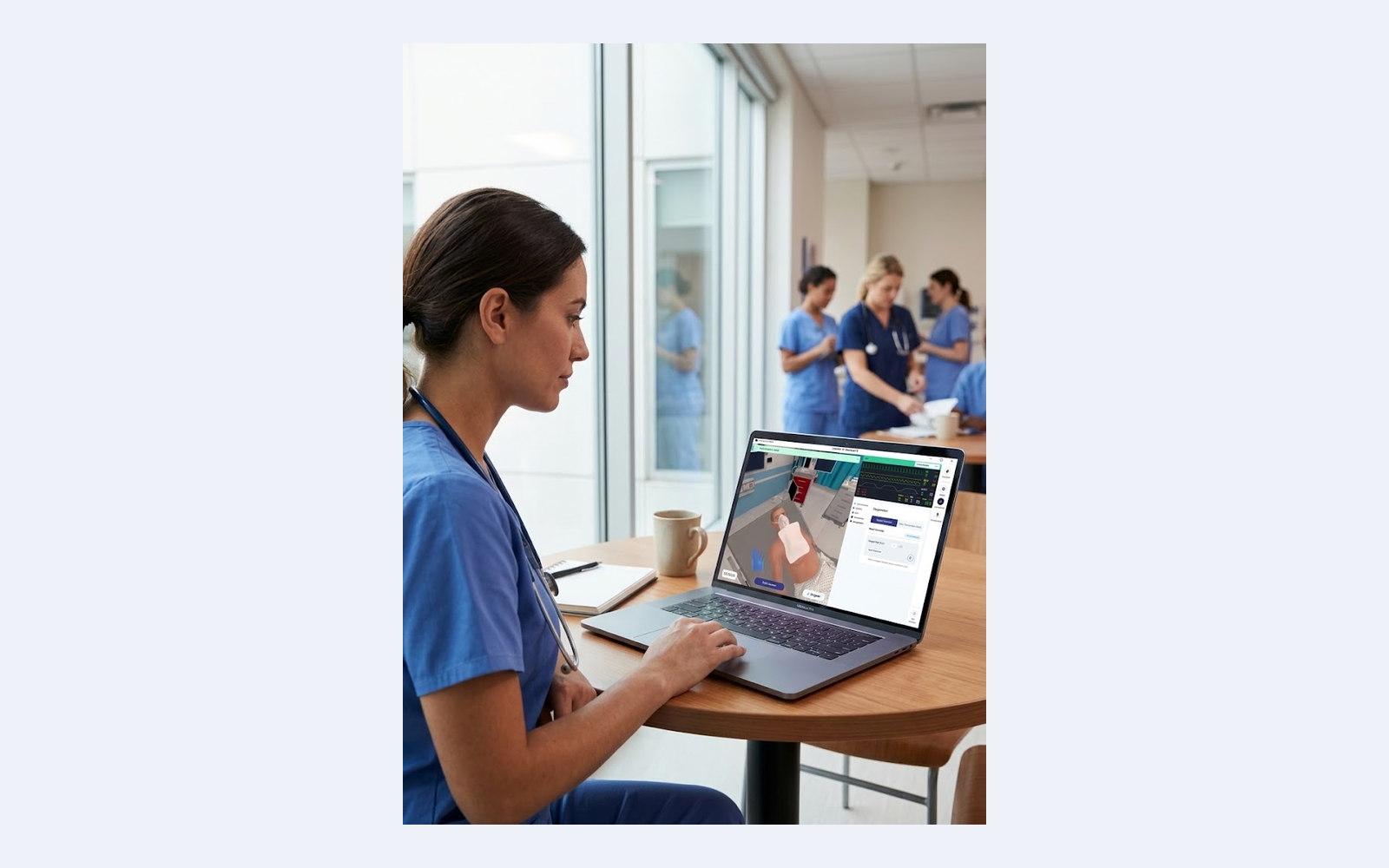
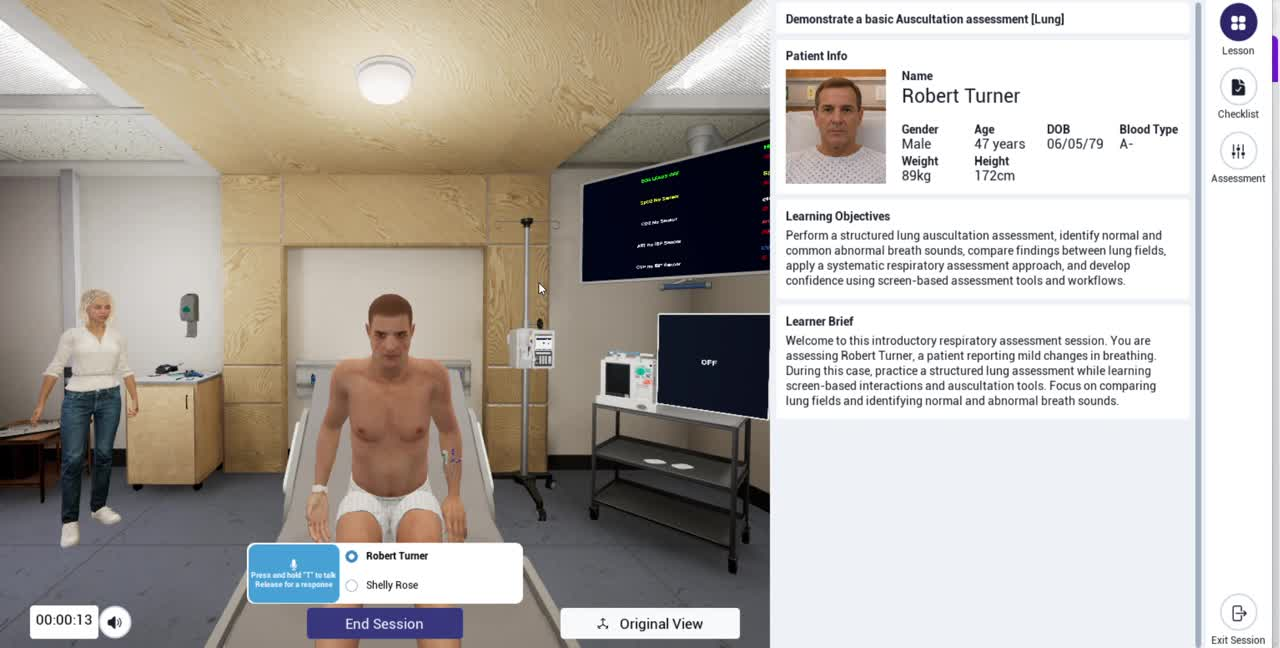
12 new OnScreen learning experiences
Short lessons on high-frequency subjects, with one subject focus per lesson.
Auscultation
AUThe learner hears a series of lung sounds, identifies each one, and reports it.
Rhythm detection
CardiacThe learner sees a series of heart rhythms, identifies each one, and reports it.
SBAR handovers
SBARThe learner receives an SBAR handover, or gives one, with an AI colleague.
💡
Where to find them
Open the Lumeto Library and use the SB (screen-based) filter.
04Lumi is live
Your AI support assistant, in the Web Portal
Lumi is now in the InvolveXR Web Portal, ready to help.
Knows the LE library
Ask about available learning experiences, clinical areas, and what's in the catalogue.
Knows the platform
How InvolveXR works, where to find things, and how features work.
Points you to resources
Links to onboarding guides, support docs, and the right people when needed.

Where to find it
Look for the chat icon in the bottom corner of the Web Portal. Lumi is also in the onboarding guides and on the Lumi beta page.
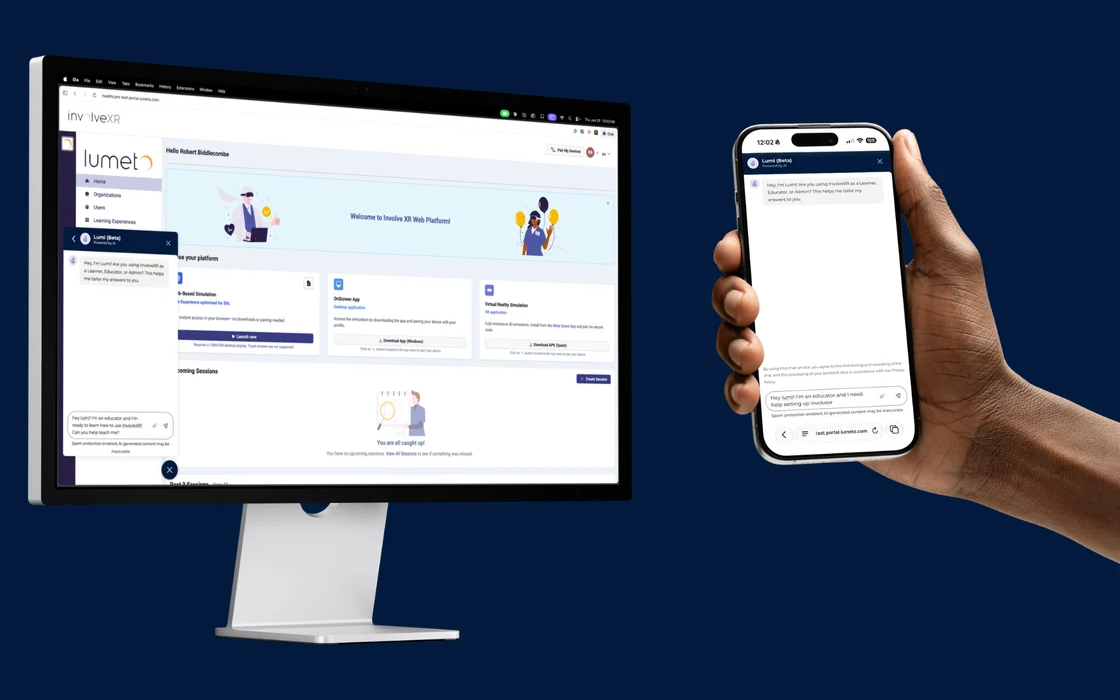
Try it. Use it. Tell us what you think.
Use the feedback form on the Lumi page to flag anything: wrong answers, gaps, or general impressions. Every submission goes straight to our team.

05Org code login
Secure access to your resources
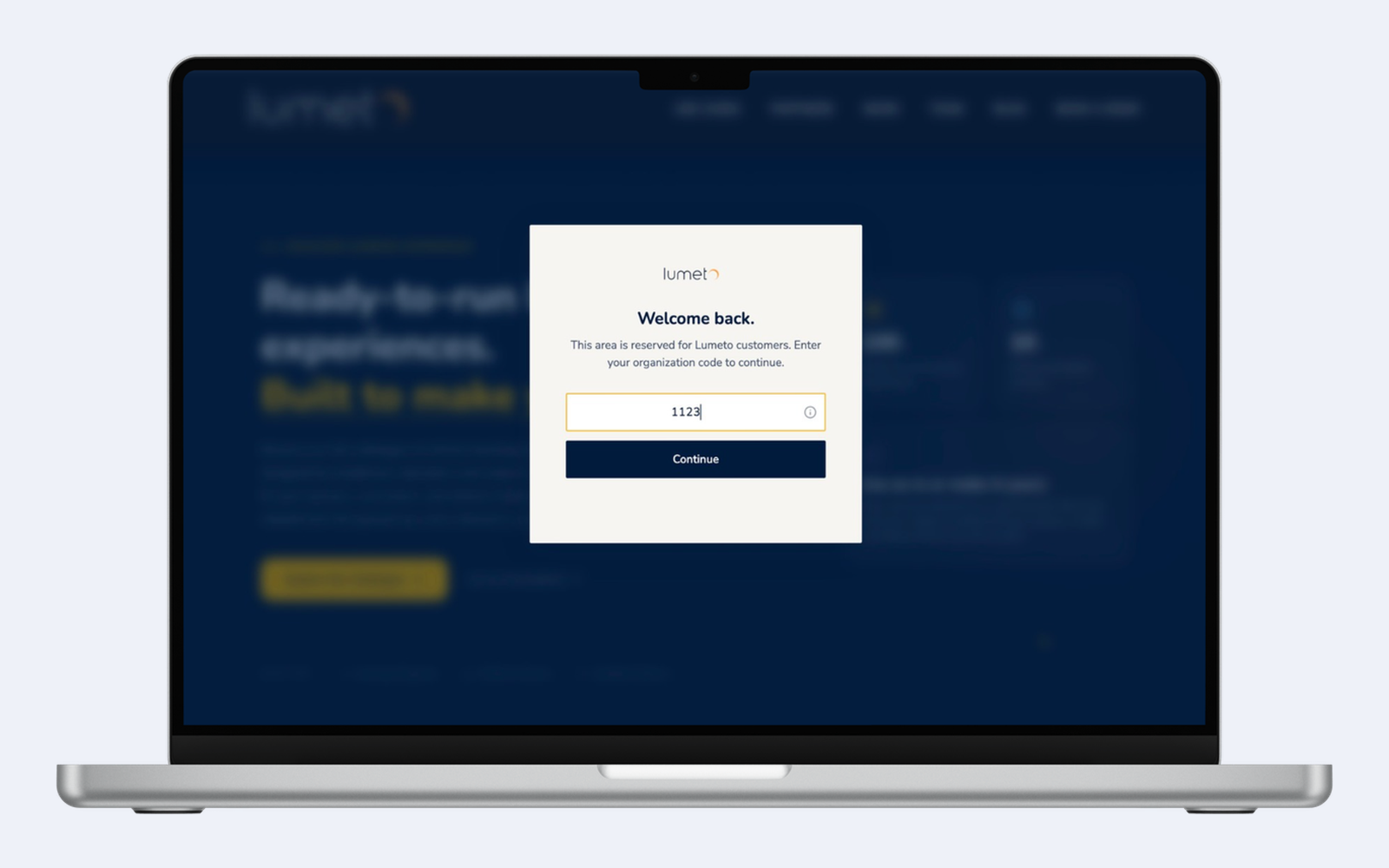
Your org code is now your key to Lumeto's web resources.
What's changing
1Onboarding guides, the LE Catalogue, and other web resources now need an org code to open.
Where to find your code
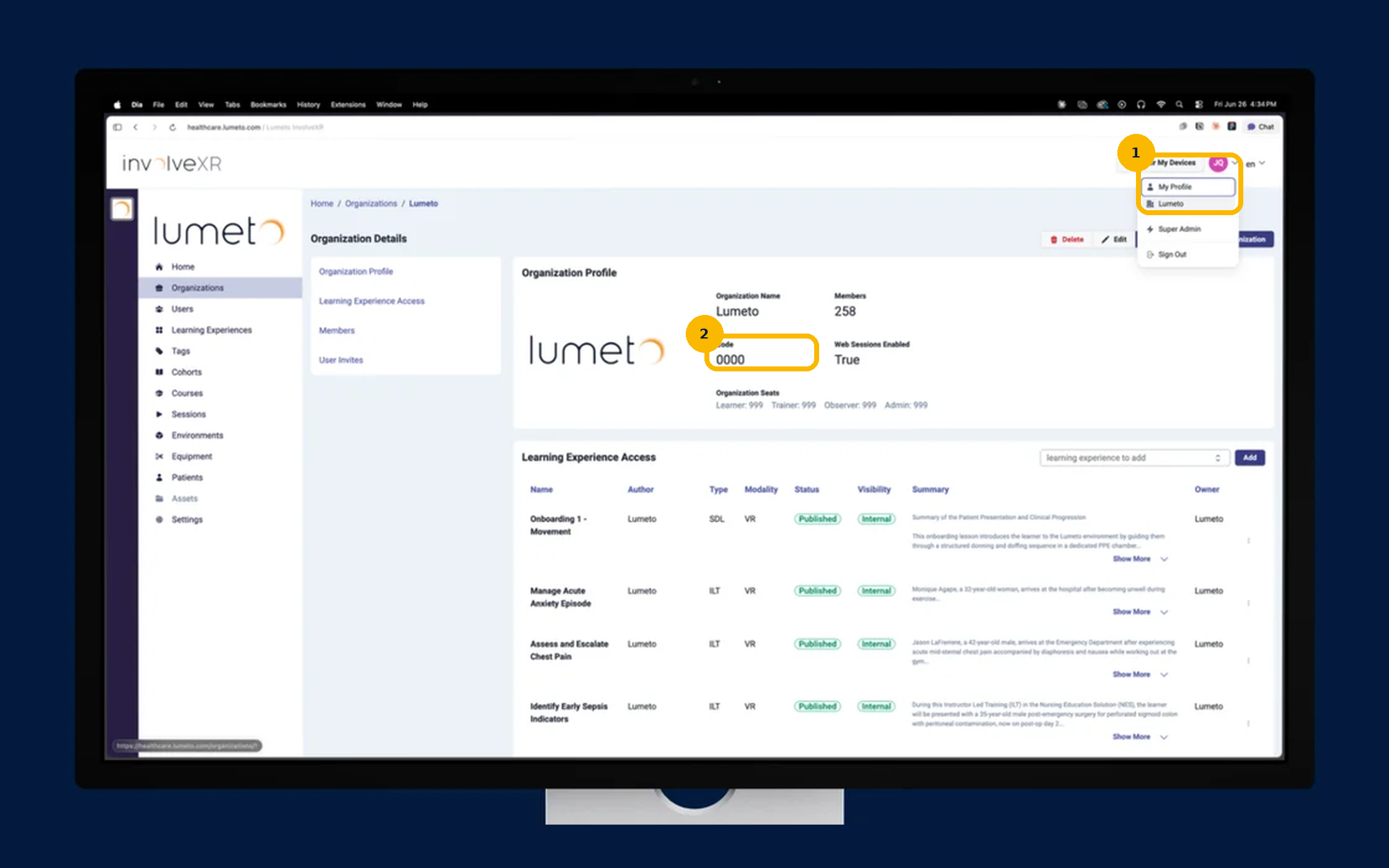
2Log in to the InvolveXR Web Portal, select your profile in the top right, then select your organization name. You'll see a 4-digit code.
How it works
3Enter your org code once and you're set for 30 days. No need to enter it on every visit.
Finding your code
Two places to look:
- Select your profile in the top right, then your organization name.
- The 4-digit code is on the Organization Profile, under Code.
06Coming soon: a new way to build patients
A visual patient prompt editor
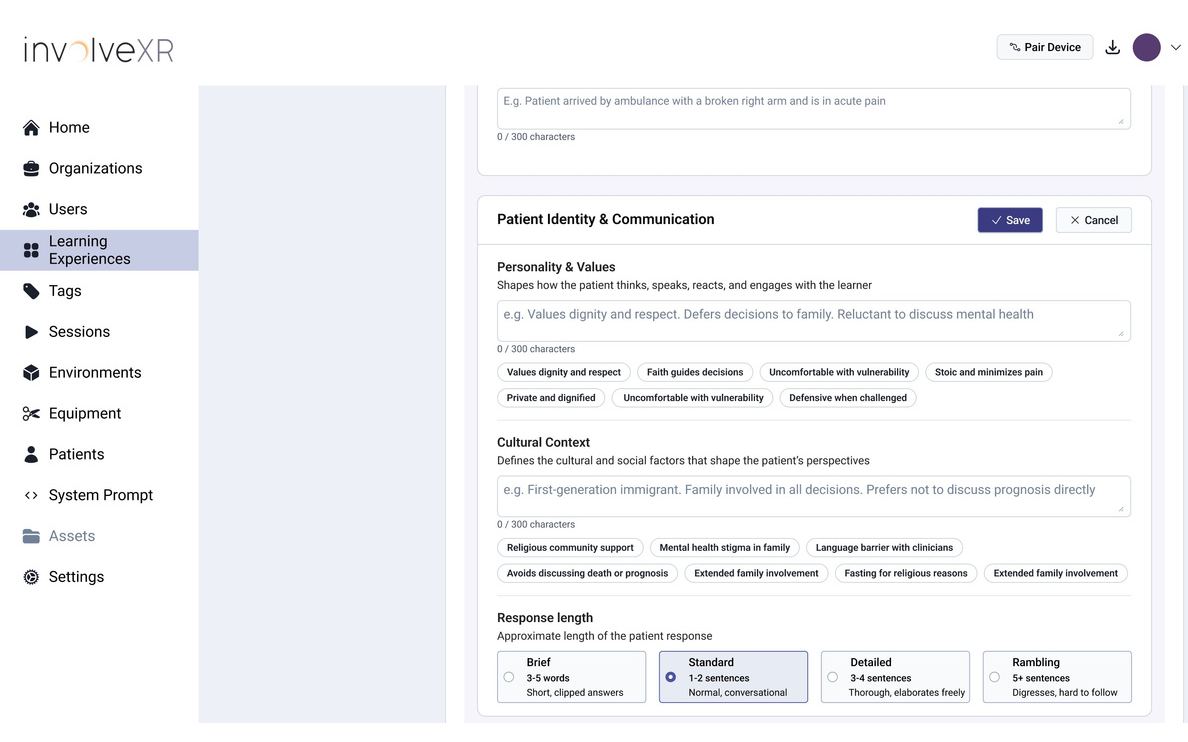
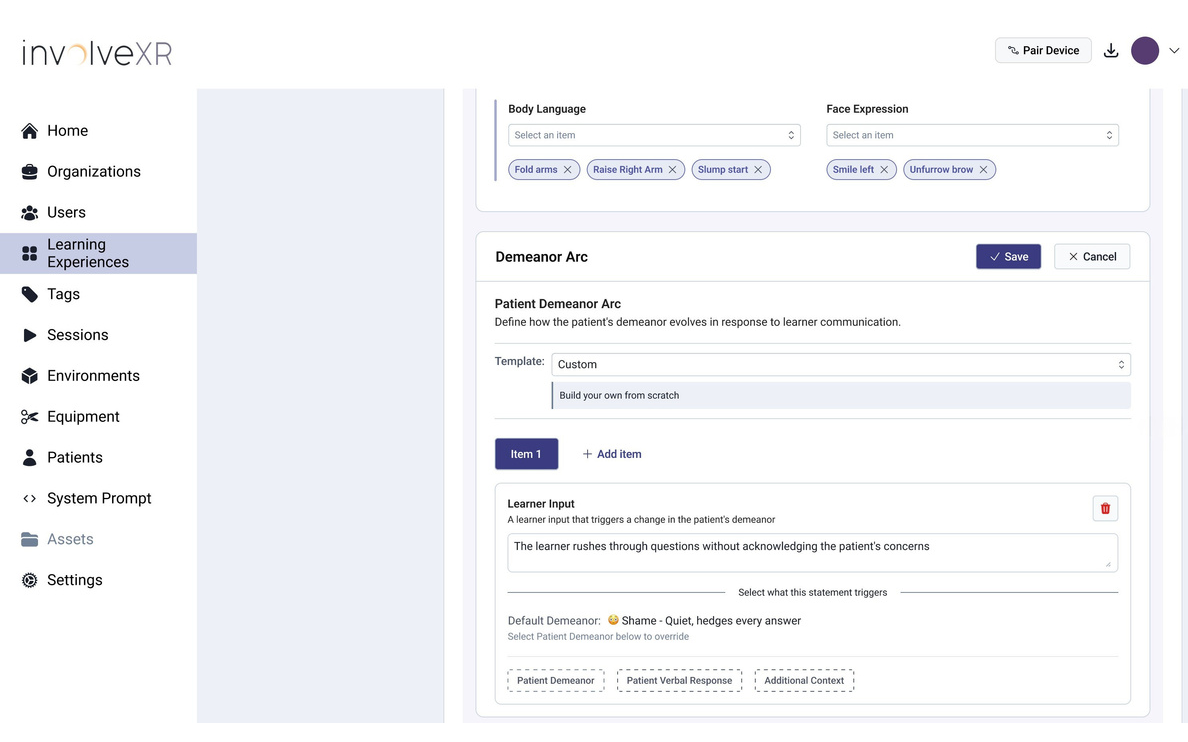
Release 17 gave a first look at a full rebuild of the Conversational AI prompt editor. Instead of one big text box with syntax to remember, you get clean, guided choices for the patient's condition, personality, cultural context, demeanor, and how they change during the learning experience.
- A visual, section-by-section editor, with no prompt syntax to memorize
- Clickable tags for personality, cultural context, and demeanor
- Demeanor Arc: define how your patient changes throughout the learning experience
- Start from Lumeto-built templates, or build from scratch
It is the first step toward a new scenario creation experience, shaped by your feedback.
ℹ️
Want to try the Beta?
A limited Beta of the new editor was planned. To share your interest, contact your Product Specialist.
💡
Writing prompts today
07The Release 17 huddle
Walkthrough and Q&A
On June 30, 2026, Shruti Natarajan and Elbert Waller walked through Release 17 live: the IV pump and OnScreen updates, oxygenation in OnScreen, Lumi, org code login, and the new patient prompt editor, followed by questions.
Lumeto Academy →Lumi beta page
Still have questions? Reach out to your Customer Success team.
ℹ️
Release schedule at the time
Release 18 was planned for September 24, 2026, and Release 19 for December 17, 2026.
🎉
That's Release 17.
See what came next.
-1.png?width=150&height=66&name=Lumeto%20Logo%20Reverse%20Transparent%20(1)-1.png)