Intermediate
Running an instructor-led session
Join, run, and wrap up a live VR session from the Trainer App, then debrief with a full replay.
01Pair and join
ℹ️
First time on this computer?
Pair the desktop app with your trainer account first. See Setting up OnScreen for trainers.
Join a scheduled session
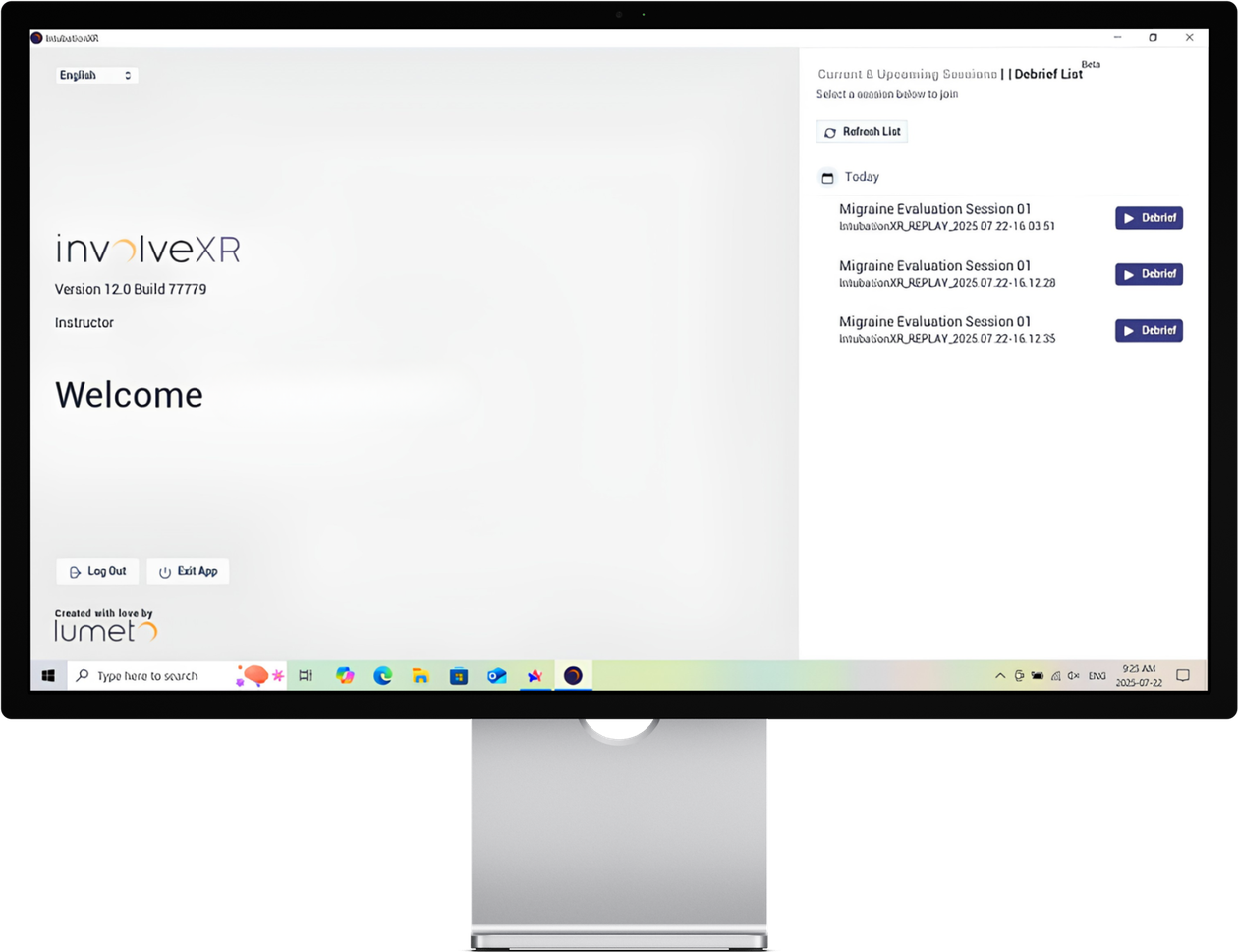
- Open the InvolveXR desktop app.
- On the home screen, find your scheduled sessions.
- Select the instructor-led session, then Join.
💡
Join early
Join a few minutes before learners arrive so you're set up when they enter.
02Control the session
Start and steer
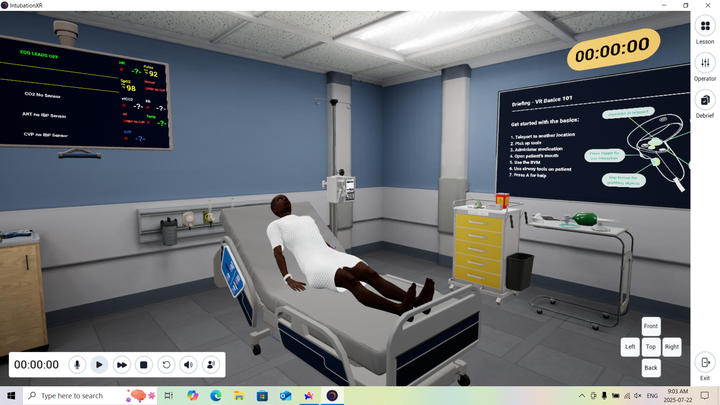
When all learners are in, press Play to begin. You'll see a live view of the room and your control panel.
Use the Session Controls bar at the bottom left to pause, mute, or reset the scenario.
03Use the checklist
Track as you watch
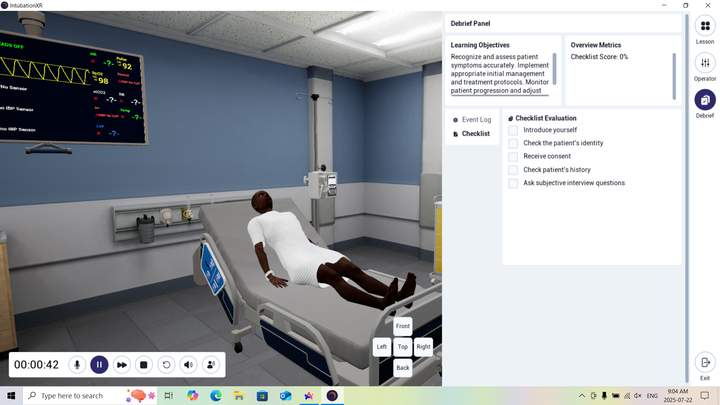
Open the Checklist tab in the debrief menu and tick off behaviours as you see them.
💡
Let ACE do some of it
Set up automations so items tick off on their own, such as "Hand hygiene" once every learner washes their hands. See Customizing the assessment checklist.
04Share files
EMR tablet and Message Board
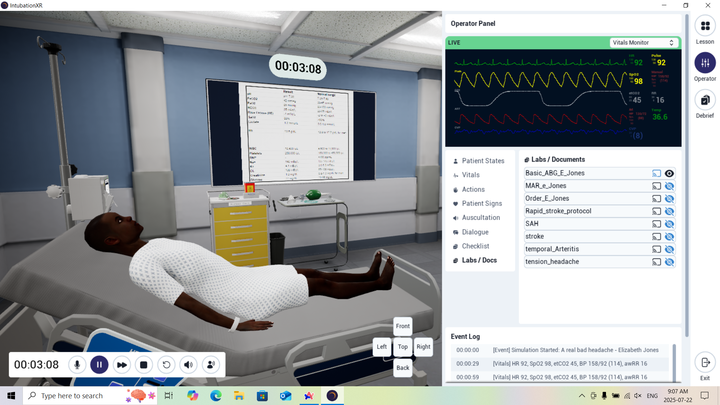
Open the Files tab in the menu bar to share lab results, imaging, medication charts, or case instructions when you choose.
Cast
Cast iconShow the file on the Message Board in the room.
Eye
Eye iconMake the file available on the learner's EMR tablet.
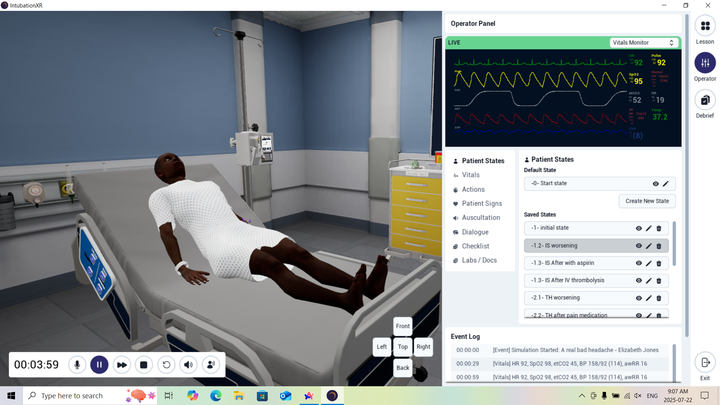
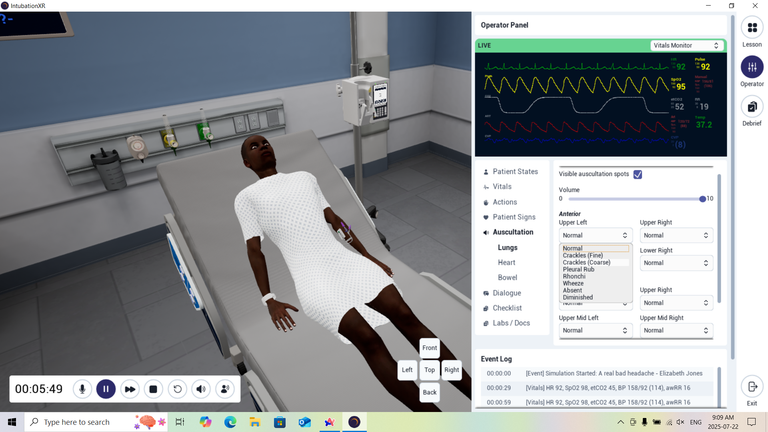
05Change patient states
Move the scenario forward or raise the challenge by changing the patient's condition, such as stable to decompensating, or by triggering animations, vital changes, or audio cues.
ℹ️
Some of this happens on its own
ACE can automate states and actions you set up in the Web Portal, and the AI moves the patient naturally. For example, if a learner asks the patient to open their mouth, they will.
06End the session
Wrap up
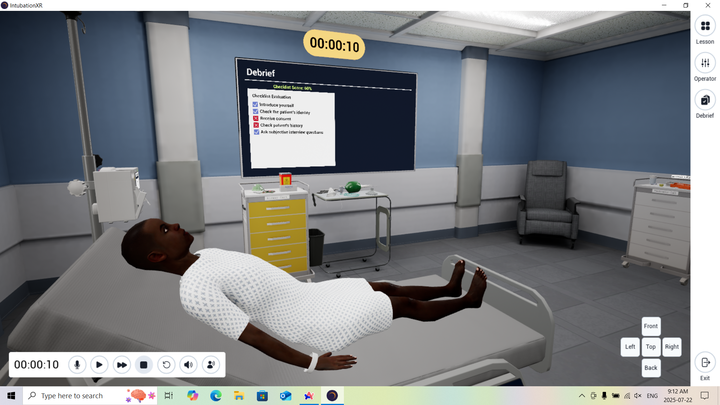
Select End Session. Actions, checklist inputs, and session details save automatically.
Learners see their score and a summary on the Message Board, and get a results email. You get the full session record.
07Debrief with the replay
Debrief tab
- Open the Debrief tab in the desktop app.
- Select a past session.
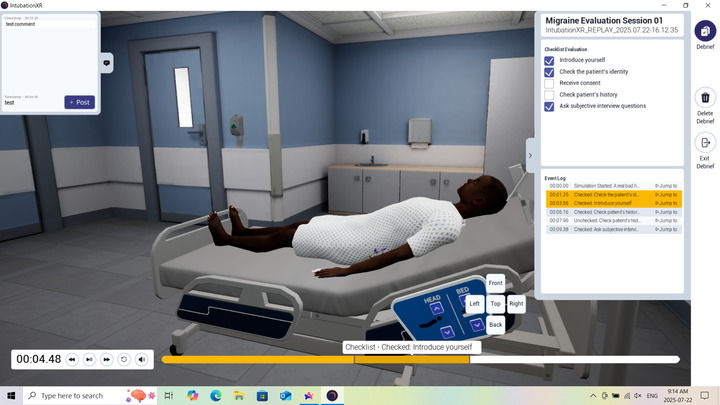
Replay
Watch the full session again in 3D.
Comment
Leave notes at specific moments.
Highlights
See key actions the system detected.
🎓
You ran a live session.
Bring more people into the room.
-1.png?width=150&height=66&name=Lumeto%20Logo%20Reverse%20Transparent%20(1)-1.png)